Timers and rundownEvery plan
A timer for every segment, and a rundown that runs the show
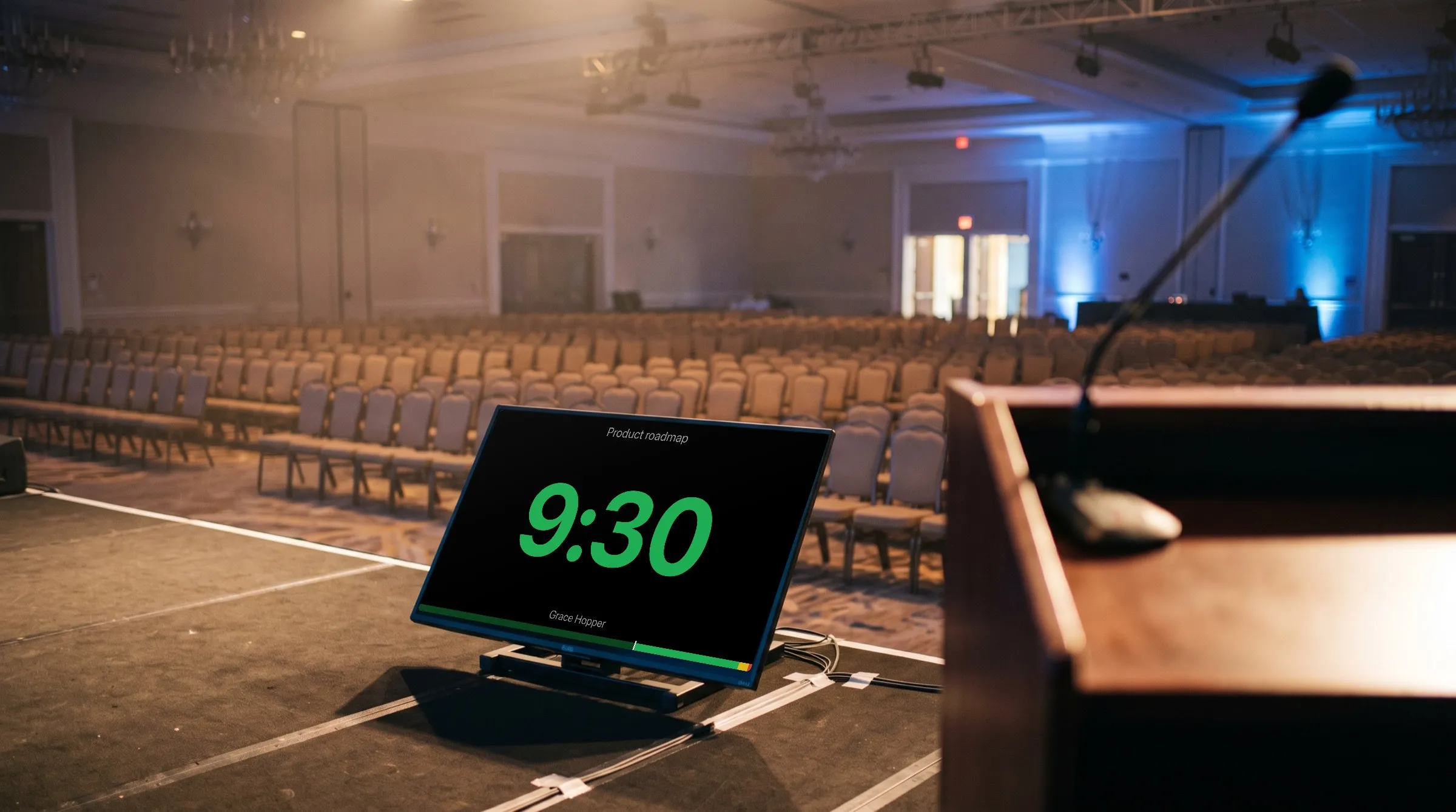
Every segment of the show is a timer in the rundown, with its speaker, how it starts, and what the screens do on the way to zero. Add time, take it away, or change the next segment while the clock runs: you never need to stop the show to change it.
The rundown
Every segment is a timer in the rundown
A room holds the show as a rundown: your timers in order, one per segment, under the day they run. A timer's title and speaker show on the screens. Its notes are for you: they stay on the controller and never reach a screen. Short labels, such as "keynote", tag a timer, and the dialog offers again the ones already used in the room.
The cued timer is marked Ready while it waits at its start, Live while it runs, and Paused when it is stopped part-way; Next marks the one after it. Drag a timer by its handle to reorder it within its day, duplicate it with its settings, or delete it.
The last row adds a timer: type its title and its length, press Enter, and the cursor is ready for the next one. The pencil beside a timer edits its title in place and, where the timer has a length, that length, typed as 10:00, 1:30:00, 15m, or 90s. A target-time timer has no length there: its finish time is in the timer dialog, which More options opens for the rest.

Starts
Start by hand, at the end of the last one, or on the clock
Each timer starts one of three ways. Manual starts when you press Start. It is the default, and the right one for most sessions: it starts when the stage is ready, and a session that runs over shows its overtime instead of being cut off by the next timer.
Linked starts by itself at the instant the timer before it reaches zero, with no gap and no drift. Scheduled starts by itself at a time you choose, in the room's time zone, on a date if you give one; a time with no date means its next occurrence. You can still start either one earlier with the button, and a sentence under the trigger says what will happen.
Linked and scheduled starts happen on CueStride's server, so they need no controller open anywhere. A start that falls due while another timer is running is skipped, and stays skipped when the stage is free: start that session yourself. A paused timer is not running, so a scheduled start that falls due then starts and takes its place.

Counting
Count a length, count to a time, or warp the clock
Duration counts a length you set; a new timer is ten minutes. Target time ends at a clock time you choose, and an optional date, and CueStride works out the length when the timer is cued, and again when it is reset: use it for "the doors open at nine" rather than "forty minutes from when I press Start".
Time warp runs for the timer's real length while the screens show the length the speaker sees. A twenty-minute slot shown as five minutes counts the speaker's clock at a quarter of real speed, and the dialog's speed line says "Sped up × 0.25". The wrap-up colours and times follow the speaker's clock, the one on the screen, and the backstage board (Pro and up) shows the real time left.
The screens show a countdown, a count up, the time of day in the room's time zone, either count with the time of day beneath, or Hidden: the time of day as the large line, with no progress bar. Apply to all sends the appearance to every timer in the room at once.

Wrap-up
Green, then yellow, then red as the end nears
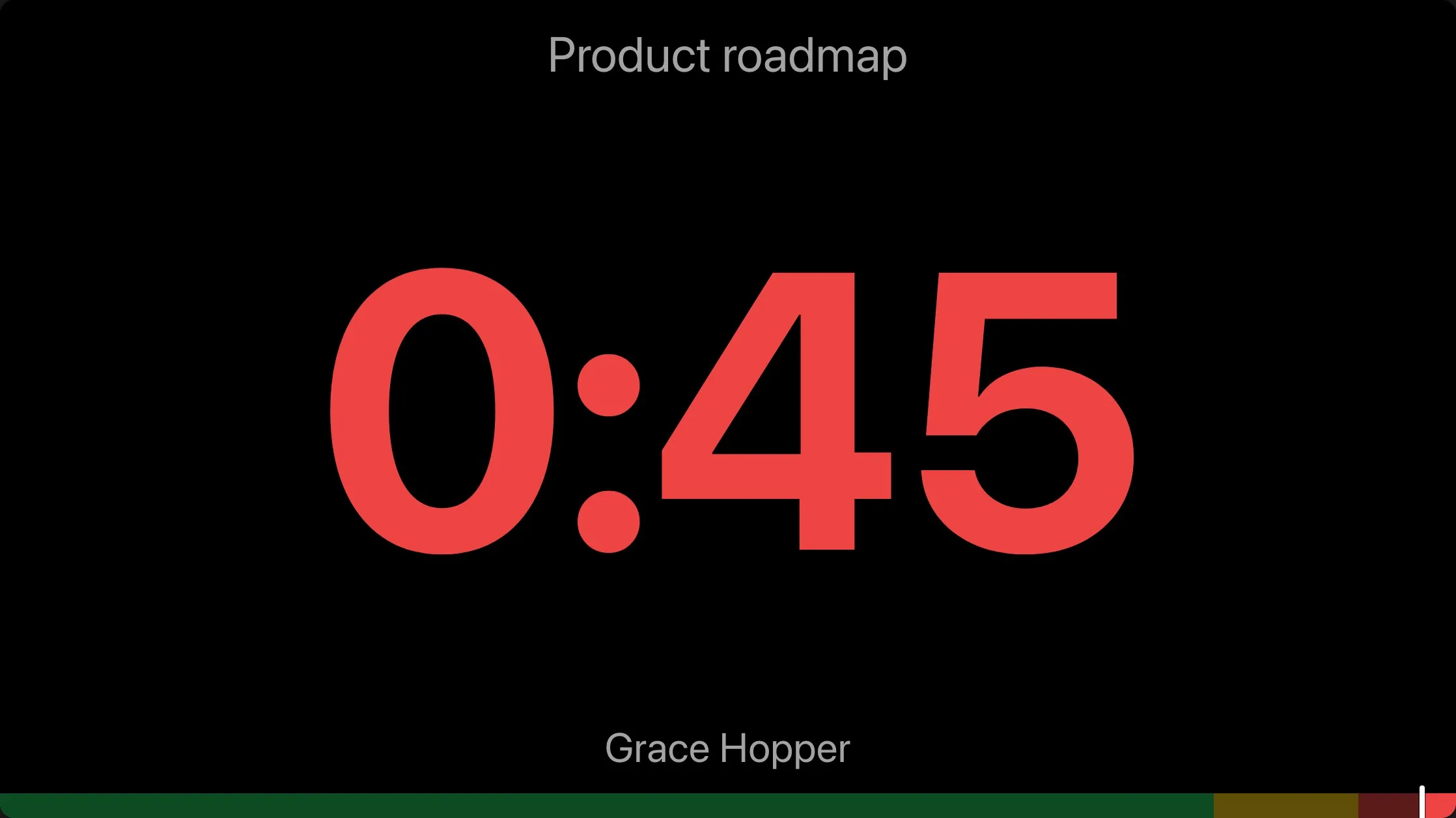
A timer warns the speaker as the time runs out. The digits and the progress bar are green while there is plenty of time, turn yellow at the yellow time, and turn red at the red time. You set both in whole seconds, and yellow's time is at or above red's, so yellow comes first or at the same moment: a lower yellow is refused. A room's Settings holds the ones its new timers start with. A time that is not below the timer's length is ignored for that timer, so a short timer needs shorter times.
The bar along the foot of the screen spans the timer's whole length in those colours; a timer that shows only the time of day, or is hidden, has no bar. Time runs from left to right: the part that has passed is dimmed, and a small white marker stands at the current moment. The time always fits the screen: a long line, such as an hour in overtime, shrinks to the width instead of running off the edge.
Chimes and flashes
A chime and a flash at each moment
Each moment of a timer has its own row: Start, Yellow, Red, and 0:00. For each you choose a chime, None, Soft, Bell, or Alarm, with a button to preview it, and a flash, from ×0 to ×5 blinks of the digits.
Each screen performs the moment once, when it happens, and a screen that connects mid-phase does not replay the moments it missed. Browsers only allow sound after a tap, so a screen that has never been touched shows a small control to enable sound, once, and the device remembers the choice.
The Actions menu sends a timer's wrap-up times, its chimes, or its flashes to every timer in the room at once.

Overtime
Past zero, the clock keeps counting in red
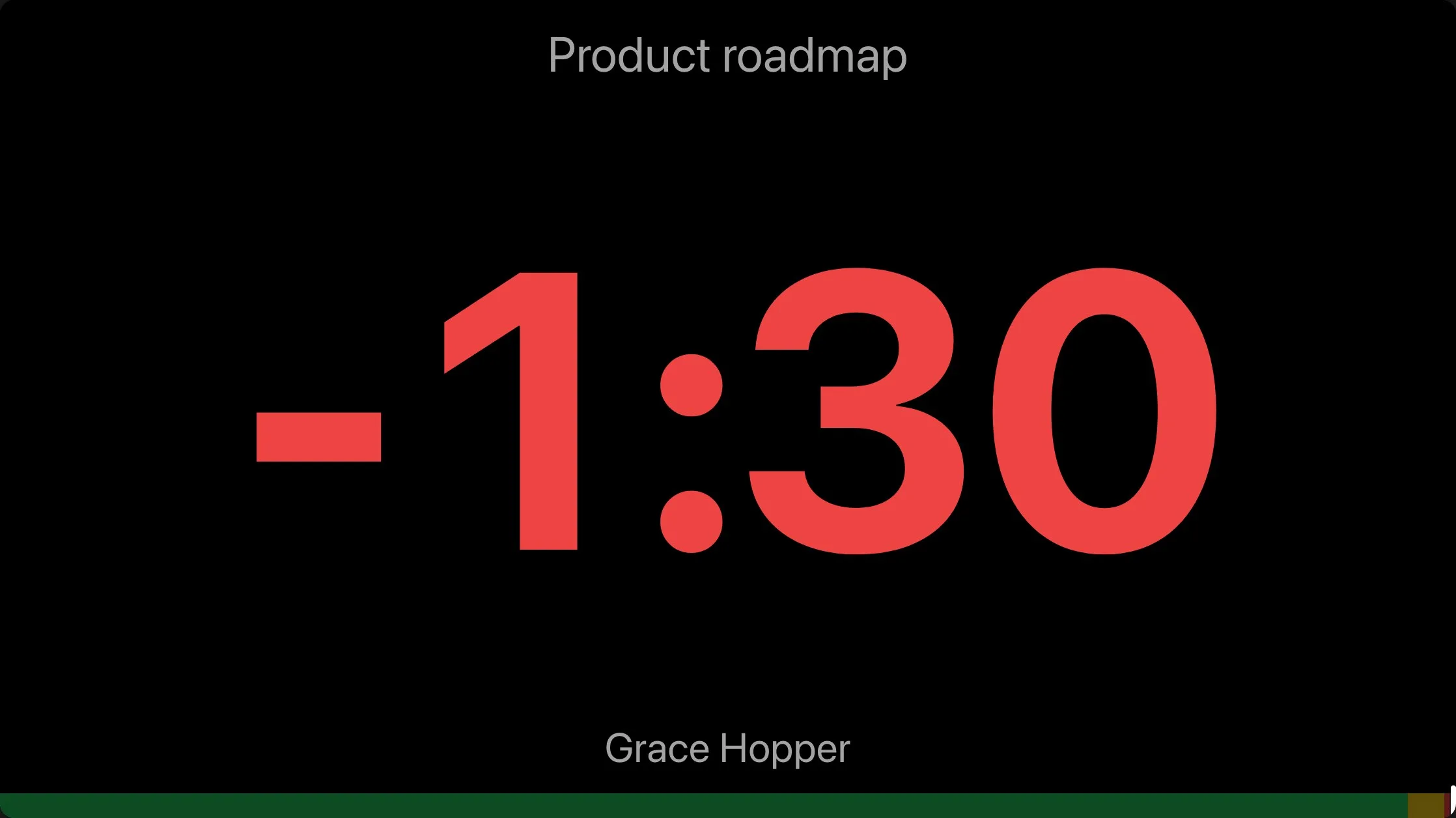
When a speaker runs over, the clock does not stop at zero. It keeps counting, in red, with a minus sign, so an overrun is plain to everyone in the room, and the whole bar is dimmed with its marker at the right end.
With a manual start, the next timer waits for you. Choose Next when the speaker is done: it stops the timer and cues the one after it, ready to start.
Live changes
Change the show while it runs
In Adjust time, −1m and +1m move the finish by a real minute, and a second pair moves it by the amount in the menu beside them: a second, ten seconds, thirty seconds, a minute, five minutes, or ten minutes. To use your own, type it, such as 2:30. On a warped timer the speaker's digits move by that time times the warp, so +1m on twenty minutes shown as five moves the speaker's clock 15 seconds. It works while the timer runs, while it is paused, and while it is idle, and taking away more than remains puts the timer straight into overtime.
Drag the playhead on the timeline under the preview to jump to any moment without changing the timer's length. Reset brings the clock back to the full length, stopped at the start. Change the length, mode, or target of a timer that is idle and its clock follows at once; change them while it runs or is paused and the clock stays as it is until you reset it.
The keys do the same from the keyboard: Space starts and stops, R resets, N cues the next timer, P resets a running timer and, once it is stopped, cues the one before, plus and minus add and take away a minute, B blacks out every screen, and F flashes the digits. They are off while you type in a field.

Plans
Which plan has it
Timers: Every plan
Every timer mode, time warp, chimes, and flashes are on every plan.
How many timers a room holds depends on the plan: 3 on Starter, 50 on Pro, unlimited on Premium, and unlimited on Enterprise.
Set it up
How to set up timers
- 1
Create a room
Open a new room and choose Create room; there is nothing to sign up for. It already has one timer, ten minutes long.
- 2
Add your sessions
In the rundown's last row, type each session's title and length and press Enter.
- 3
Set how each starts and ends
Choose the pencil beside a timer, then More options, for its start, its mode, and its wrap-up times, chimes, and flashes.
- 4
Put it on a screen and start
Choose Links, copy the Timer card's link, open it in the browser of the speaker's screen, and press Start.
FAQ
Questions, answered.
Does a timer need the controller open to start?
A manual timer starts when someone presses Start. Linked and scheduled starts happen on CueStride's server, so they need no controller open anywhere.
Can a scheduled timer cut off one that is running?
No. A timer never starts itself on top of another that is running: a scheduled start that falls due then is skipped, and stays skipped when the stage is free, so start that session yourself. A paused timer is not running, so a scheduled start that falls due then starts and takes its place.
What happens when a speaker runs over?
The clock keeps counting past zero, in red, with a minus sign. A manual timer after it waits for you to choose Next; a linked one starts at the instant the timer before it reaches zero.
Can I add time without stopping the clock?
Yes. Adjust time adds or takes away time while the timer runs, while it is paused, and while it is idle, and the plus and minus keys add and take away a minute.
What is time warp?
A timer that runs for its real length while the screens show a different one, the length the speaker sees: a twenty-minute slot shown as five minutes counts the speaker's clock at a quarter of real speed. Its wrap-up colours follow the speaker's clock.
Will the screens make a sound?
Only if you ask. Each moment, the start, yellow, red, and zero, can play a chime, Soft, Bell, or Alarm, and flash the digits ×0 to ×5 times. A screen that has never been touched shows a small control to enable sound, once, because browsers only allow sound after a tap.
How many timers can a room hold?
It depends on the plan: 3 on Starter, 50 on Pro, unlimited on Premium, and unlimited on Enterprise.
Your next show, on time.
Put a room's link on a screen and run the show; sign up free when you want to keep it.
No account needed