CueStrideTry it free

For conferences

Conference timer for every room, and the whole programme

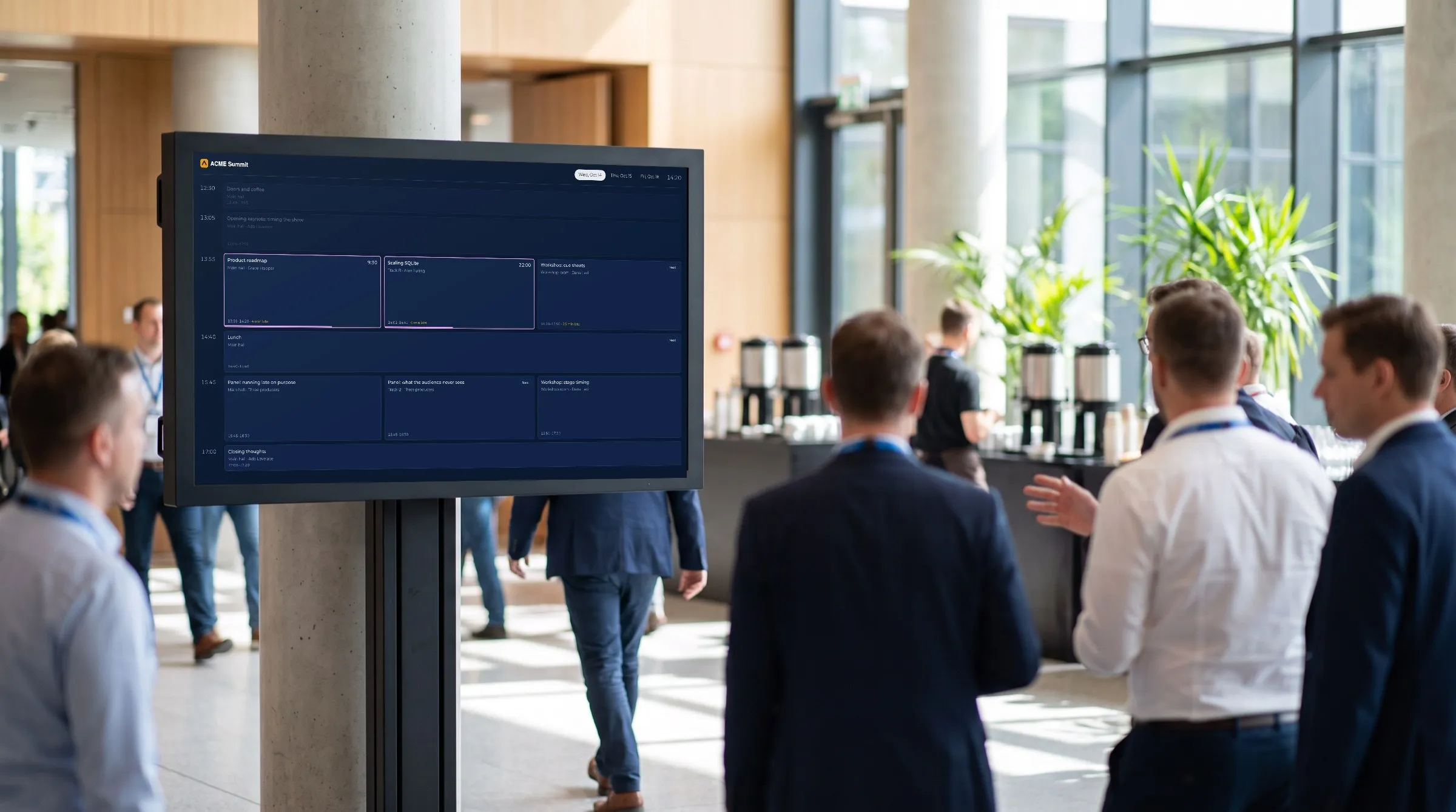
Every stage keeps its own time, and the foyer shows the whole day as it really runs: which sessions are on now, what is next, and how late each room is running.

Illustration of a conference foyer: a display on a stand shows CueStride's real attendee agenda, in a navy screen theme, while attendees walk past.
The room is an illustration; the screen is CueStride itself, captured from the app.

The problem

Why conference days run late

A conference day is a chain of sessions, and every link borrows from the next. The opening keynote runs eight minutes over, the coffee break shrinks to make up for it, and the first breakouts start late in every room at once. By lunch, the printed programme is a record of what was meant to happen.

Most of the delay starts on stage. A speaker cannot read a clock they are not facing, a hand signal from the front row is easy to miss, and the clock on a laptop shows the time of day, not the time left in the slot. The room host who could help sits at the back, with no way to say five minutes except walking to the front.

The rest is information that never arrives. The organiser finds out a room is late when its audience turns up late to the next one, and attendees choose between parallel sessions using times that stopped being true at ten past ten.

A conference timer fixes both halves. Each speaker sees the time left in their slot, each room host can cue their speaker without a word, and the organisers and the attendees see the whole day as it is really running.

The story

A conference day with CueStride

A two-room conference, from the week before to the closing plenary.

  1. The week before

    The programme goes in once

    The organiser downloads the programme from the planning spreadsheet as a CSV and imports it into the event (Premium and up). CueStride shows every room and session it will create, day by day, before it creates anything, and names the line of any row with a mistake. Sessions with a start time become scheduled timers; the rest wait for the room host.

  2. The day before

    Every screen named and checked

    The AV team opens each room's viewer link on its confidence monitors and names every screen in the controller's list of live connections: Hall A lectern, Hall A back wall. Identify puts a screen's number and name on it for five seconds, so nobody guesses which is which. The foyer screens open the attendee agenda, and the screen by each door opens that room's agenda.

  3. 08:45

    Doors open

    The foyer shows the day in time slots, the way a printed programme reads: the opening plenary across the full width, the breakouts side by side beneath it. Attendees open the same agenda on their phones from the link in the welcome email.

  4. 09:00

    The keynote starts on the dot

    The doors countdown reaches zero at nine, and the keynote is linked to it, so the keynote starts at nine on CueStride's server whether or not anyone has a controller open. On the floor monitor, the speaker sees the session's title, their name, and 40:00 counting down in green.

  5. 09:35

    Five minutes, then wrap up

    At five minutes left the digits turn yellow, and at one minute, red. The speaker is still on their second-to-last slide, so the room host sends Please wrap up in red and flashes it. The keynote ends six minutes over, and every agenda already shows Hall A's next sessions six minutes late, before anyone has left their seat.

  6. 10:40

    The board sees every room

    In the production office, the board shows both rooms side by side, live (Premium and up). Hall B is on time. Hall A is still four minutes behind, so its host takes four minutes off the coffee break with the minus key, and the rest of Hall A's day moves back into place on every screen.

  7. 12:45

    Lightning talks, back to back

    The host starts the first five-minute lightning talk by hand. The others are linked, each to the one before, so each starts the instant the last one reaches zero, with no gap and no drift, and the format keeps its own discipline.

  8. 17:30

    The closing plenary

    The last breakouts finish, and the attendee agenda draws the closing plenary across its full width again. Everyone reading it, in the foyer or on a phone, sees when it will really start, not when it was printed to.

What it does

What CueStride does for a conference

A room per stage, a timer per session

Each stage is a room with its own rundown. Every session is a timer with its title, its speaker, and its length, in a section for its day, with notes for the host that never reach a screen. The host runs it from a laptop or a phone, and every screen in the room shows the same second.

Starts that keep the printed times

A scheduled timer starts at its time in the room's time zone, even with no controller open, and a linked one starts the instant the one before it reaches zero. A scheduled start that falls due while a session is still running never cuts the speaker off: the host starts the next session when the stage is free.

Wrap-up signals speakers cannot miss

Each session has its own yellow and red times, with an optional chime and flash at each. Past zero the clock counts on in red with a minus sign. Prepared messages, such as Five minutes or Last question, reach the stage with one click, under the timer or across the whole screen.

The board and the attendee agenda

An event puts the conference's rooms together (Premium and up). The board shows every room side by side for the organisers, and the attendee agenda lays out the day in time slots, a plenary across the width and parallel sessions side by side, with lateness in minutes. Every room also has its own agenda, on every plan, for the screen by its door.

The programme, imported

Upload or paste the programme as a CSV (Premium and up), one row per session: day, room, start, length, title, and speaker. The columns can keep the names your sheet already uses, such as date, stage, track, or talk. Rooms are matched by name or created, and a sheet with a mistake creates nothing.

Your event's look on the agendas

The agenda screens take a theme: a preset such as Navy, Paper, or High contrast, your own colours, and a font (Premium and up), with a warning when text would be hard to read. Every screen can carry your logo (Pro and up), and the fonts come from CueStride, so no screen calls a third party.

An example

An example conference rundown

Hall A from the doors to the first lightning talks, as its host sees it in the controller. Hall B has a rundown of its own, and the attendee agenda puts the two side by side.

TimeSegmentLed byLengthStartsYellow · red
08:30Doors and coffeeCountdown with the time of dayOrganisersUntil 09:00ScheduledNone
09:00Opening keynoteKeynote speaker40 minLinkedYellow at 5:00Red at 1:00
09:40Panel: the year aheadPanel chair45 minManualYellow at 5:00Red at 1:00
10:25Coffee breakCountdown with the time of dayEveryone30 minManualYellow at 2:00Red at 0:30
10:55Talk: a customer's first yearSpeaker25 minManualYellow at 3:00Red at 1:00
11:20Talk: lessons from the launchSpeaker25 minManualYellow at 3:00Red at 1:00
11:45LunchShows the time of dayEveryone60 minManualNone
12:45Lightning talk 1Speaker5 minManualYellow at 1:00Red at 0:15
12:50Lightning talk 2Speaker5 minLinkedYellow at 1:00Red at 0:15
12:55Lightning talk 3Speaker5 minLinkedYellow at 1:00Red at 0:15

The doors timer starts itself at half past eight and counts to nine, and the keynote is linked to it, so the keynote starts at nine exactly. The panel, the talks, and the breaks are manual: each starts when the host sees the stage is ready, so a session that runs over shows its overtime in red instead of being cut off by the next timer. The lightning talks are linked, because their format is strict.

10 timers: more than the free plan's 3 per room, so this rundown needs Pro or above, which holds 50 per room.

Set it up

How to set up a conference timer

  1. 1

    Create the event

    Give it a name, a time zone, and its dates, and attach a room for each stage in the order the board should show them (Premium and up). A one-room conference needs no event: a single room does the job on every plan.

  2. 2

    Import the programme

    Upload or paste the CSV, check the preview day by day, and create it. Or build each room's rundown by hand in its controller, session by session.

  3. 3

    Set the wrap-up times and the messages

    Set each room's default yellow and red times, change them for sessions that need more warning, and prepare the messages the hosts will need, such as Five minutes, Last question, and Please wrap up.

  4. 4

    Open the links on the screens

    Each room's viewer link on its confidence monitors, each room's agenda by its door, and the attendee agenda in the foyer. Name every screen in the list of live connections as it joins.

  5. 5

    Hand each host their room

    Make a controller link for each room host, labelled with their name. It runs that room and no other, and you can revoke it without touching anyone else's.

Start with step one

A room in one click, no account needed.

Tips

Tips for keeping a conference on time

  • Build the buffers into the programme

    Five minutes between sessions absorbs most overruns. Put it in the rundown as a changeover timer, so the agenda shows it honestly instead of pretending one talk starts the second the last one ends.

  • Scale the warning to the session

    A lightning talk needs a minute of warning; a forty-minute keynote needs five. As a rule of thumb, set yellow at about a tenth of the session and red at the last minute.

  • Brief every speaker on the colours

    Before they walk on, tell each speaker what the colours mean: green is fine, yellow means start the conclusion, red means finish the sentence. A signal a speaker expects is one they act on.

  • Give each host a backup controller

    Open the room's controller on the host's phone as well as on the laptop in the booth. Both run the room, so a frozen laptop never stops a session.

  • Put the agenda where people decide

    Attendees choose their next session in the corridor, not in the room. Put the attendee agenda on screens where corridors meet, and its link on the badges and on the holding slides.

  • Rehearse on the venue's network

    Run one session end to end the day before, on the real screens and the venue's Wi-Fi: a start, a message, a minute added, next. A screen that loses its connection shows a small indicator and keeps counting.

Plans

Which plan a conference needs

A one-stage meetup with up to 3 sessions fits the free plan: 3 rooms, each with 3 timers and 3 connections, the host's controller and two screens. Every timer, message, and cue feature is on it, and so is each room's agenda.

A longer programme needs Pro: 50 timers per room and 5 screens per room, and more in packs of 5 up to 50, with unlimited rooms. Your logo on the screens and a password on them are Pro and up. For a single conference, Pro also comes as a one-event pass.

A multi-room conference with the board, the attendee agenda, and the programme import needs Premium: unlimited timers per room and 50 screens per room, and more in packs of 50 up to 300, and the agenda screens take your theme. Enterprise, on request, goes to 500 screens per room.

Compare every plan

FAQ

Questions, answered.

Which plan does a multi-room conference need?

Events, the board, the attendee agenda, and the import are Premium and up. Each room's timer, its messages, and its own agenda work on every plan.

How many screens can each room have?

Premium starts at 50 connected screens per room, and more in packs up to 300. Every open page counts as one, the controller and the agenda screens included, and the board counts once in each room it shows.

What happens to the agenda when a session runs long?

The room's following sessions show projected start times that move with it, on the room's agenda, the board, and the attendee agenda, with how many minutes late each one is. Nobody updates anything by hand.

Do attendees need an app to see the agenda?

No. The attendee agenda is a link. Put it on a foyer screen, or share it so people open it on their phones; it needs no account and installs nothing.

Can a session start by itself at its printed time?

Yes. A session with a scheduled start begins at that time in the room's time zone, even with no controller open. If the session before it is still running, it leaves the speaker alone and the host starts it when the stage is free.

Can each room host run only their own room?

Yes. A controller link runs one room. Give each host the link for their room, labelled with their name, and revoke it from the room's Links dialog if it ever leaks.

What if the venue Wi-Fi drops during a session?

The screens keep counting from what they last knew and show a small indicator. When the connection returns they catch up within seconds, including anything the host changed meanwhile.

Can we import the programme from Excel or Google Sheets?

Yes (Premium and up). Save or download the sheet as a CSV and upload it, or paste it in. One row per session: day, room, start, length, title, and speaker; the start and the speaker can be left empty.

Your next show, on time.

A room in one click, no account needed. Put its link on a screen and run the show; sign up free when you want to keep it.

Try it now, free