CueStrideTry it free

For livestreams and online events

Livestream timer for hosts, crews, and remote guests

Put the host's countdown on a monitor beside the camera, hit your hard outs to the second, and talk to the host without saying a word on air.

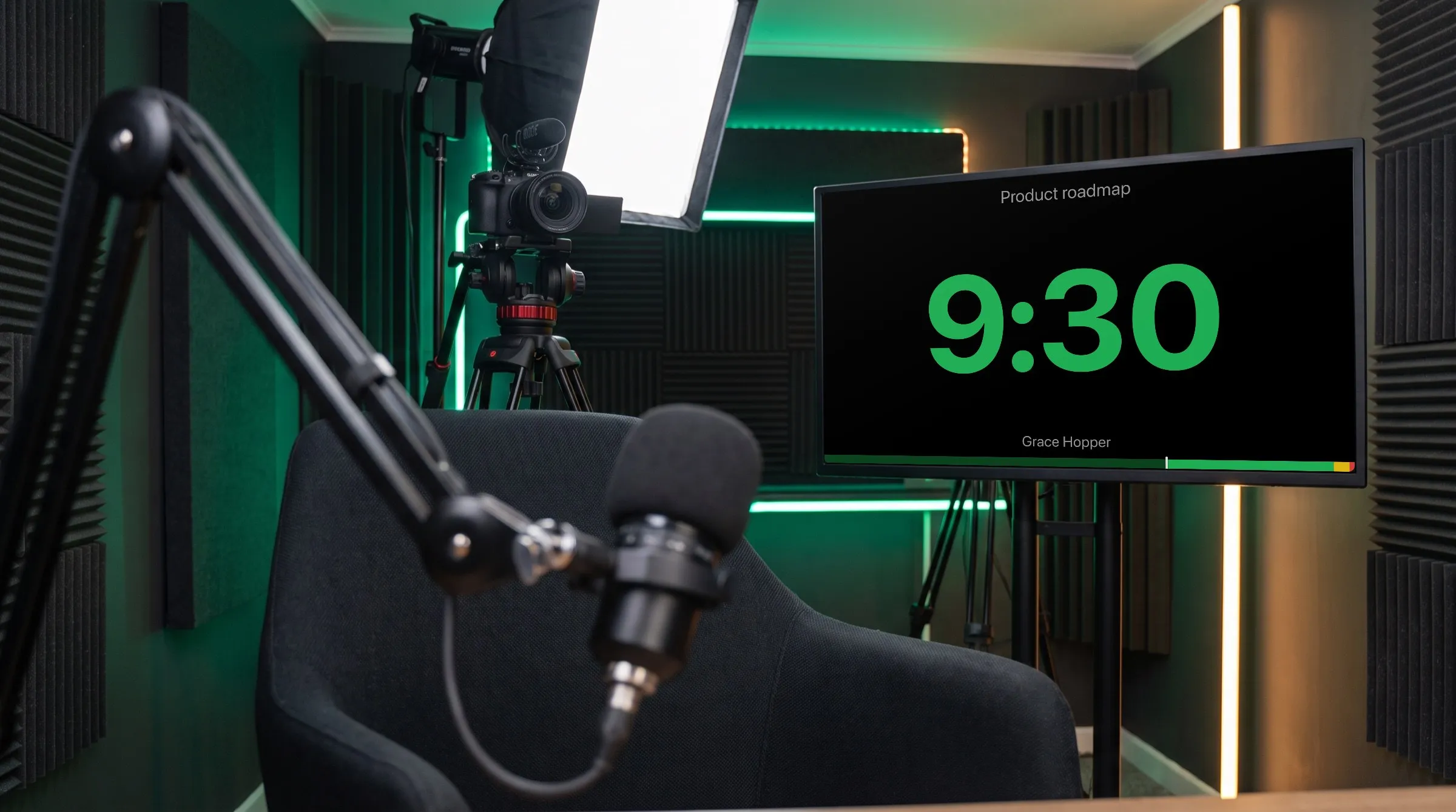
Illustration of a livestream studio: beside the camera, a presenter's monitor shows CueStride's real countdown at 9:30.
The room is an illustration; the screen is CueStride itself, captured from the app.

The problem

Why live shows need a clock of their own

A livestream keeps somebody else's time: the hour the webinar was booked for, the next show in the channel's schedule, a guest's hard stop in another time zone, a sponsor's segment sold by the minute. A stream that runs late does not get longer. It gets cut short, or it loses its audience at the top of the hour.

And the host cannot be interrupted. A producer waving behind the camera pulls the host's eyes off the lens, a chat message can end up on a shared screen, and few small productions have talkback into the host's ear.

A livestream timer puts the time left on a monitor beside the lens, gives the whole crew the same clock wherever they are, and gives the producer a silent way to talk to the host that never reaches the stream.

The story

A half-hour live show, segment by segment

A weekly show with a host in the studio, a guest at home, and a producer in another city.

  1. 18:30

    Everyone on the same clock

    The monitor beside the studio camera opens the viewer link. The guest opens the same link on a second screen at home, and the producer opens the controller on a laptop in another city. All three see the same second.

  2. 18:50

    The pre-show countdown

    The first timer starts itself and counts to 19:00:00, the moment the show goes live, with the time of day beneath it, so the host, the guest, and the producer count down together.

  3. 19:00:00

    Live, on the second

    The cold open is linked to the countdown, so it starts the instant the countdown reaches zero, with no gap and no drift, whether or not anyone touches a key. The headlines and the interview follow it the same way.

  4. 19:16

    The interview runs hot

    At two minutes left in the interview the digits turn yellow on both the host's and the guest's screens, and at thirty seconds red. The producer sends Wrap it up in red and flashes it, and because the guest sees it too, nobody is surprised when the host moves on.

  5. 19:18

    A break that ends on time

    During the two-minute break the host's monitor counts it down, so the host is back in the chair with seconds to spare, and the producer has time to line up the audience's questions.

  6. 19:20

    Questions, counted up

    Audience questions count up, because nobody knows how many will come in, and the time of day beneath the digits shows how close the end of the show is.

  7. 19:26

    The hard out

    The producer moves to the close. It counts to 19:29:30 rather than for a length, so however long the questions took, it runs to the exact moment the show must end, and the host signs off at zero.

What it does

What a livestream timer should do

Hard outs you can see

A timer can count to a finish time instead of for a length, so a segment ends when the schedule says, however late it started. Its length is worked out again whenever it is cued or reset.

One clock for a crew in many places

Every screen shows the time of day in the room's time zone and format, not the device's, so a host in New York and a producer in London read the same clock. And every screen shows the same second, within a tenth of a second on a normal network.

Talk to the host off-camera

Send a prepared message to the host's monitor in white, green, or red, show it full screen, or flash it. Nothing appears on the stream unless the monitor itself is in the shot.

Float it on the host's laptop

When the host is on a laptop, the timer floats in a small always-on-top window over the call or the notes, in Chrome and Edge on the desktop.

A show that runs itself between cues

Schedule the first segment and link the ones that follow, and the show keeps its timings on CueStride's server even if the producer's laptop goes to sleep. Each linked segment starts the instant the one before reaches zero.

A blackout for a monitor in shot

If a monitor drifts into a wide shot, B blacks out every screen of the room at once. Press it again and each screen comes back showing the right second.

An example

An example livestream rundown

A half-hour show with a scheduled countdown, linked segments, and a finish time for the hard out.

TimeSegmentLed byLengthStartsYellow · red
18:50Pre-showCountdown with the time of dayCrewUntil 19:00ScheduledYellow at 1:00Red at 0:15
19:00Cold openHost1 minLinkedYellow at 0:15Red at 0:05
19:01HeadlinesHost5 minLinkedYellow at 1:00Red at 0:15
19:06InterviewHost and guest12 minLinkedYellow at 2:00Red at 0:30
19:18BreakCrew2 minManualYellow at 0:30Red at 0:10
19:20Audience questionsCounts up, with the time of dayHost6 minManualNone
19:26CloseHostUntil 19:29:30ManualYellow at 1:00Red at 0:15

The countdown starts itself at ten to seven, and the next three segments are linked, each to the one before, so the show goes live and runs its opening on the server's clock. The break, the questions, and the close are manual; the close counts to 19:29:30 from whenever it starts, so the show ends on time however long the questions ran.

7 timers: more than the free plan's 3 per room, so this rundown needs Pro or above, which holds 50 per room.

Set it up

How to set up a livestream timer

  1. 1

    Create a room for the show

    Set its time zone to the show's and choose a 12 or 24 hour clock, so the time of day reads the same for everyone.

  2. 2

    Build the rundown

    One timer per segment: a length, a finish time, or a count-up. Schedule the first, and link the segments that must run back to back.

  3. 3

    Put the viewer beside the lens

    On a monitor under or beside the camera, a tablet on the desk, or floating on the host's laptop.

  4. 4

    Send the viewer link to guests

    It opens in any current browser with no account. For a show that is not public yet, put a password on the room's screens (Pro and up).

  5. 5

    Produce from anywhere

    The controller needs an internet connection, not the studio's network, so the producer can run the show from the gallery, from home, or from a phone.

Start with step one

A room in one click, no account needed.

Tips

Tips for running a live show on time

  • Put the monitor right by the lens

    The closer the timer sits to the camera, the less a glance at it reads as looking away. Just under the lens is best.

  • End on a finish time

    Make the last segment count to the hard out, not for a length. It absorbs whatever ran long before it, and the show ends on the second.

  • Agree the cue words before the show

    Five or six messages the host already knows: Stretch, Wrap it up, Thirty seconds, Go to break, Guest is ready. Green for keep going, red for stop.

  • Nothing that chimes near a live microphone

    A chime from the host's monitor goes out on the stream. Timers only chime when you ask them to, so leave the moments silent on set.

  • Test the guest's connection first

    Every screen shows a small indicator when it loses its connection, and keeps counting while it does. Ask the guest to open the link ten minutes early, and watch for it.

  • Guests get the viewer link, never the controller

    Guests and crew get the viewer link. Producers get controller links, each with its own label, so one can be revoked without the others.

Plans

Which plan a livestream needs

A short show fits the free plan: 3 timers, one per segment, and 3 connections, the producer's controller and two screens, such as the host's monitor and a guest's.

A full rundown or more screens needs Pro: 50 timers per room and 5 screens per room, and more in packs of 5 up to 50. A password on the screens and your logo on them are Pro and up. Pro also comes as a one-event pass for a single broadcast.

Compare every plan

FAQ

Questions, answered.

Can a segment end at an exact time?

Yes. Give the timer a finish time instead of a length, and it counts down to that moment from whenever it starts.

Can remote guests see the timer?

Yes. Send them the viewer link; it opens in any current browser, anywhere, with no account, and shows the same second as the studio's monitor.

Does anything from CueStride appear on the stream?

Only what you put there. The timer and the messages appear on the screens that open the viewer link, and nowhere else.

Can the timer float over my video call?

Yes, in Chrome and Edge on a desktop or laptop: the screen's toolbar floats the timer in a small always-on-top window that keeps counting, in its colours, over any app. Other browsers do not show the button.

Can a crew in different time zones read the same time of day?

Yes. The time of day on every screen is the room's, in its time zone and its 12 or 24 hour format, wherever the screen is.

Can the show start by itself at the scheduled time?

Yes. A scheduled timer starts at its time on CueStride's server, with no controller open, and the linked segments after it follow on their own.

What if the producer's laptop dies mid-show?

The show keeps going. Timers run on CueStride's server, not on the controller, so the screens keep counting and linked segments keep starting. Open the controller on another device and carry on.

Your next show, on time.

A room in one click, no account needed. Put its link on a screen and run the show; sign up free when you want to keep it.

Try it now, free