CueStrideTry it free

Remote control

Remote-controlled countdown timer

Show a fullscreen countdown on any screen, and run it from the phone in your hand, from anywhere in the room or outside it.

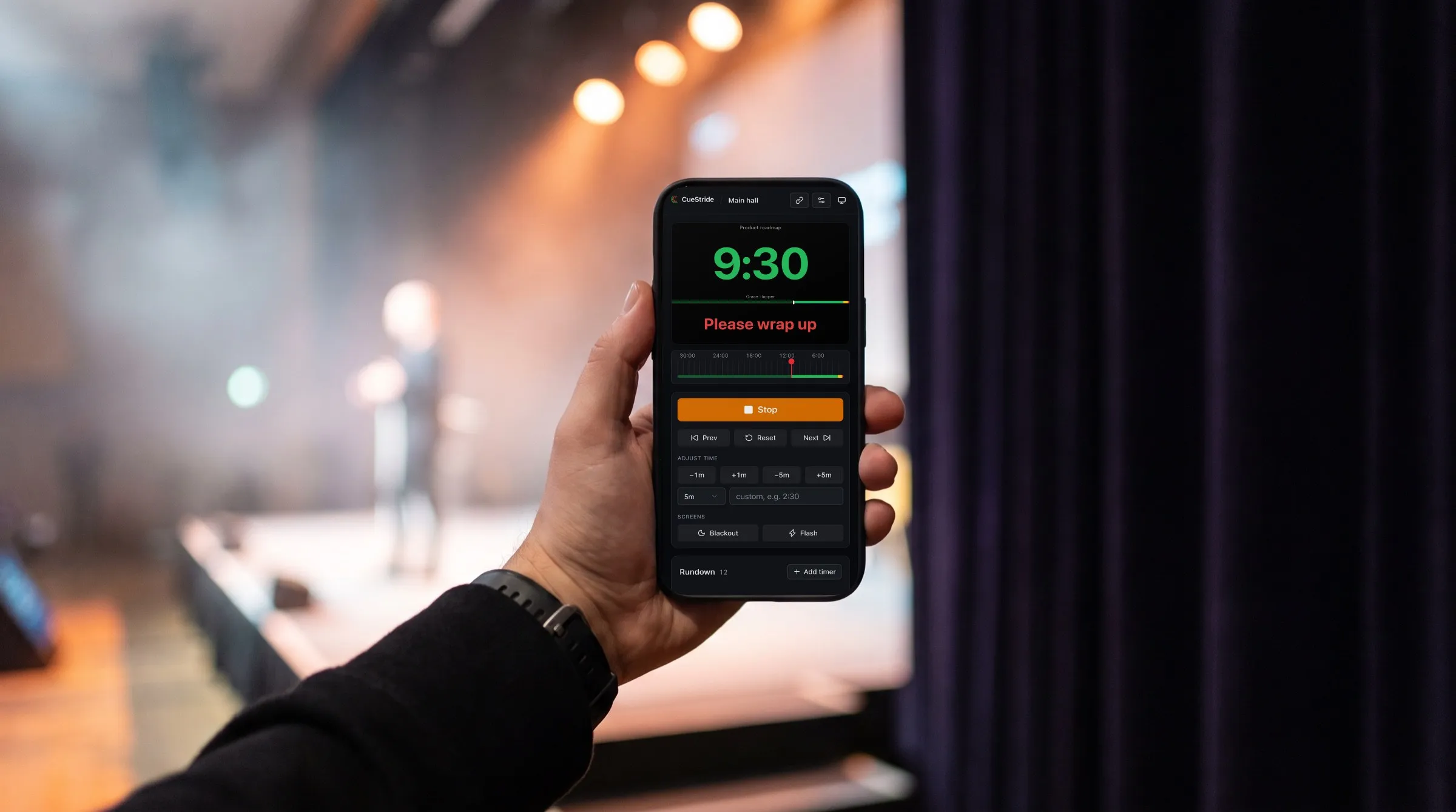
Illustration of a producer's hand holding a phone beside a stage: the phone shows CueStride's real controller at 9:30 with Please wrap up on the stage preview.
The room is an illustration; the screen is CueStride itself, captured from the app.

The problem

Why a countdown needs a remote

A countdown on a screen is only half a timer. The other half is the person who changes it: adds two minutes because the speaker started late, skips to the next item, tells the stage to wrap up. If that person has to walk to the screen, or to the laptop plugged into it, they are always in the wrong place when it matters.

A timer app on a laptop is controlled from that laptop, so someone has to sit at it. A timer app on a phone shows its countdown on the phone. Neither helps when the screens are around a stage, down a corridor, or in another building, and the person running the show needs to move.

A remote-controlled timer splits the two jobs: the screens show the time, and the controller goes wherever you go, on the phone already in your pocket.

The story

One evening, one phone

An awards night run from the floor, with a stage, two screens, and a producer who never sits down.

  1. 18:00

    Two screens, one link

    The screen at the front of the stage and the one on the back wall for the host both open the room's viewer link. The producer opens the controller on their phone and names the screens Stage and Back wall in the list of live connections.

  2. 19:30

    Out front, and still in control

    The producer is in the foyer greeting guests. The welcome is scheduled for 19:45, so it starts on time while they walk back to the hall.

  3. 19:47

    A late start, fixed in two taps

    The host reaches the lectern two minutes late. From the side of the stage the producer taps +1m twice, and both screens give the welcome its full time again without restarting the clock.

  4. 19:58

    Ninety seconds each

    Each winner's speech is a timer of its own: ninety seconds, yellow at thirty, red at ten. The producer starts each speech as the winner reaches the microphone, and moves on to the next award when they leave the stage.

  5. 20:10

    A phone call, and nothing breaks

    In the interval the producer's phone rings and the controller drops off. The screens keep counting the interval down without it, and when the producer opens the controller again it shows the room exactly as it is.

  6. 20:29

    A message from the back of the hall

    The lifetime award's winner is still making their way from a table at the back. The producer sends Stretch in green, and the host fills with a story until the winner reaches the stage.

  7. 20:40

    Lights down

    At the end of the night, one tap on Blackout clears both screens at once, and the room stays in the producer's account for next year.

What it does

What makes a good remote-controlled timer

The controller in your hand

The controller works on a phone as it does on a laptop: start, pause, next, add a minute, a message to the stage, blackout. Each is one tap, with no confirmation dialog in the way.

Any distance, any network

The phone and the screens meet through CueStride online, so each needs an internet connection, not the same Wi-Fi. Run a screen in the next room, the next building, or another country.

Every screen follows at once

A tap reaches the screens in the time it takes to cross the network, plus at most a tenth of a second on our server, and every screen shows the same second. A screen opened mid-show shows the right time on its first frame.

It keeps running without your phone

The timer runs on CueStride's server, not on your phone. Lock the phone, lose the signal, or close the page, and the screens keep counting; scheduled and linked timers still start on time.

Every screen, from where you stand

The list of live connections shows every screen of the room. Rename one, make it show its name, reload it, flip it, disconnect it, or ask it to go fullscreen, without walking over.

A controller link for each person

Each controller link carries its own token. Make one for each person running the show, labelled with their name, and revoke any of them at once without disturbing the others.

An example

An example rundown: an awards night

Presentations and speeches alternate, and the producer's thumb decides when each one starts.

TimeSegmentLed byLengthStartsYellow · red
19:45WelcomeHost10 minScheduledYellow at 1:00Red at 0:15
19:55Newcomer of the year: presentationPresenter3 minManualYellow at 0:30Red at 0:10
19:58Newcomer of the year: speechWinner1:30ManualYellow at 0:30Red at 0:10
19:59:30Project of the year: presentationPresenter3 minManualYellow at 0:30Red at 0:10
20:02:30Project of the year: speechWinner1:30ManualYellow at 0:30Red at 0:10
20:04IntervalCountdown with the time of dayEveryone20 minManualYellow at 2:00Red at 0:30
20:24Lifetime award: presentationPresenter5 minManualYellow at 1:00Red at 0:15
20:29Lifetime award: speechWinner3 minManualYellow at 1:00Red at 0:15
20:32Closing wordsHost5 minManualYellow at 1:00Red at 0:15

Only the welcome starts itself. Everything else is manual on purpose: the producer, on the floor with the phone, starts each speech when the winner reaches the microphone, so nobody's ninety seconds start while they are still on the stairs.

9 timers: more than the free plan's 3 per room, so this rundown needs Pro or above, which holds 50 per room.

Set it up

How to set up a remote-controlled timer

  1. 1

    Create a room in one click

    No account needed. Create it on your phone, or open its controller link there, and keep that link: it is the way back to the room.

  2. 2

    Open the viewer link on each screen

    Then go fullscreen from the screen's toolbar, or send it a fullscreen prompt from your phone and tap the screen once.

  3. 3

    Name the screens

    In the list of live connections, so Stage and Back wall are easy to tell apart from across the room.

  4. 4

    Prepare the messages before doors

    Typing is the one thing a phone is slow at mid-show. Write the messages in advance; during the show, each is one tap.

  5. 5

    Keep a second controller in the booth

    Make a second controller link, labelled for the booth laptop, in case your phone's battery runs out.

Start with step one

A room in one click, no account needed.

Tips

Tips for running a timer from your phone

  • Put the controller on your home screen

    Add the controller page to your phone's home screen, and it opens straight into the room, like an app.

  • Stop the phone from locking

    Set the phone's auto-lock to longer, or off, for the show. The screens do not need your phone to keep counting, but you need it awake to change anything.

  • Keep the controller link to yourself

    It grants full control of the room. Share the viewer link freely, and give co-producers controller links of their own instead of yours.

  • Know which screen is which

    When two screens look alike, identify puts each one's number and name on it for five seconds.

  • Walk your route with the controller open

    Before doors, walk everywhere you will stand during the show. The controller works over Wi-Fi or mobile data, and a dead spot behind the stage is better found early.

Plans

Which plan a remote-controlled timer needs

Try it with no account at all: a room made in one click is on the free plan, with 3 timers and 3 connections, your phone and two screens. Sign up free to keep it; a room without an account is deleted after 90 days unused.

A longer programme, more screens, or a backup controller beside your phone needs Pro: 50 timers per room and 5 screens per room, and more in packs of 5 up to 50.

Compare every plan

FAQ

Questions, answered.

Do the phone and the screen need to be on the same Wi-Fi?

No. They meet through CueStride online, so each only needs an internet connection, on any network, Wi-Fi or mobile data.

Can more than one person control the timer?

Yes. Each person can have their own controller link, and all of them run the room at once. A moderator, who signs in, gets a page that only sends messages.

What happens if my phone loses its connection?

The screens keep counting without it. When your phone reconnects, the controller shows the current state and carries on.

How quickly does a screen react to a tap?

In the time your tap takes to reach CueStride and the change takes to reach the screen, plus at most a tenth of a second on our server. On a normal network that is well under a second.

Do I need to install an app?

No. The controller and the screens are web pages. Add the controller to your home screen if you want it one tap away.

Can I use a keyboard instead?

Yes. On a laptop, Space starts and stops, N and P step through the rundown, plus and minus add and take away a minute, B blacks out, and F flashes.

Can I take the room away from someone?

Yes. Revoke their controller link in the room's Links dialog, and every page opened with it loses access at once.

Can the free timers on this site be run remotely?

Each runs on one screen. Its Run it on other screens link makes a room of the same length, with a controller for your phone and a link for every screen.

Your next show, on time.

A room in one click, no account needed. Put its link on a screen and run the show; sign up free when you want to keep it.

Try it now, free