CueStrideTry it free

For churches

Church service timer for the pastor and the worship team

Give the pastor and the worship team a calm, clear countdown on the platform's monitor, and send a quiet word from the booth when it is time.

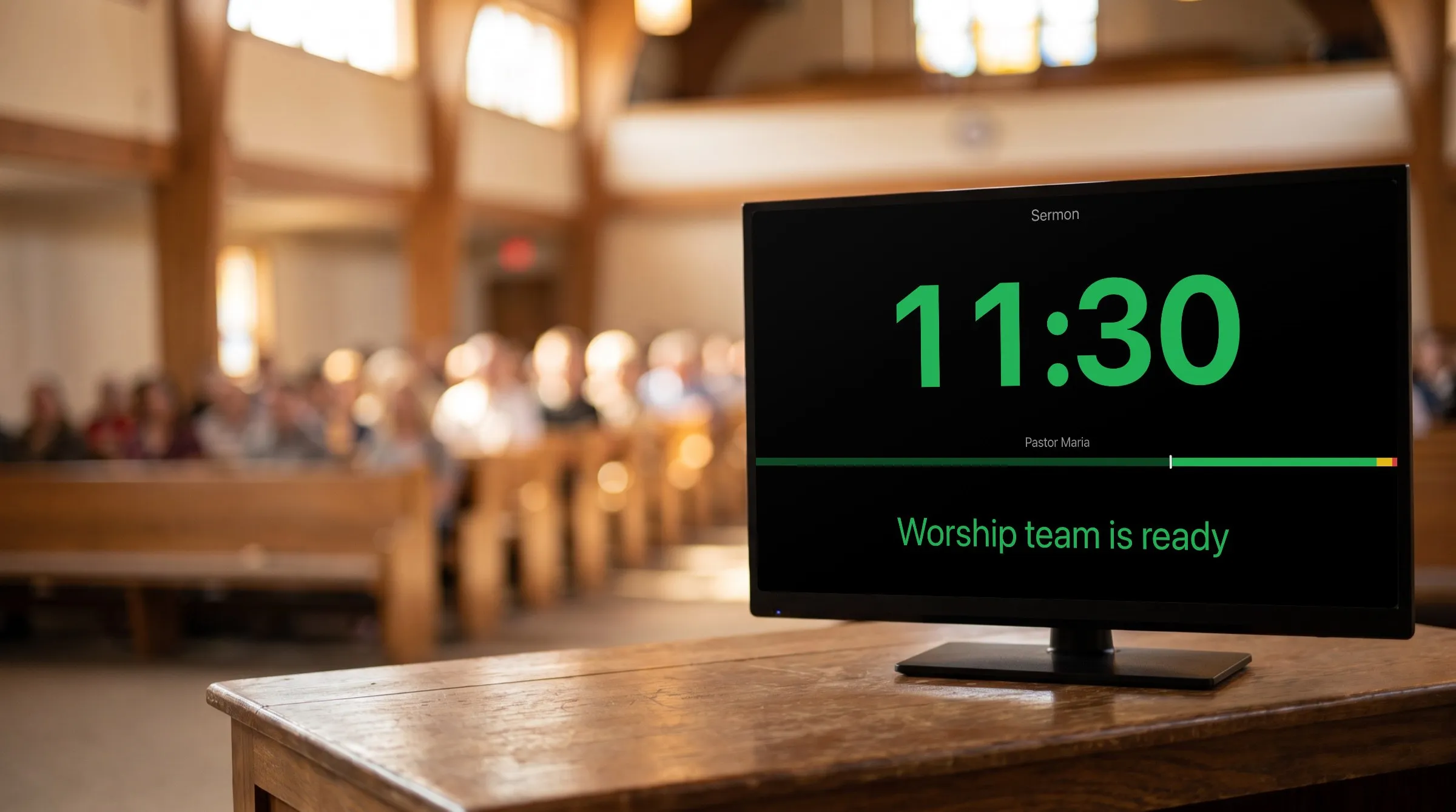
Illustration of a church platform: a monitor shows CueStride's real screen for the sermon, 11:30 left, and Worship team is ready in green.
The room is an illustration; the screen is CueStride itself, captured from the app.

The problem

Why a service needs a clock the platform can see

A Sunday service has hard edges. The children's ministry hands children back at a set time, the next service needs the room, the livestream has its slot, and the car park has to empty before it fills again. Every part of the service between those edges borrows time from the parts after it.

The people who keep it on time are rarely in one place. The pastor is on the platform, the worship leader is behind a keyboard, and the production team is in the booth at the back. A clock on the back wall shows the time of day, not the time left in the sermon, and a note carried up the aisle is seen by everyone.

Most church production teams are volunteers who serve once or twice a month, so whatever keeps the service on time has to make sense to someone who last used it weeks ago.

A church service timer gives the platform a calm countdown for each part of the service, gives the booth a quiet way to talk to the platform, and runs on a screen you already own.

The story

A Sunday, from the booth

One service, from Saturday's check to the benediction, run by a volunteer at the back of the sanctuary.

  1. Saturday

    The order of service, updated

    The production lead opens last week's room, renames the sermon for this week's title and speaker, and checks the messages the team uses every week. Nothing else needs doing: the rundown and the messages are saved with the room.

  2. 9:30

    Screens on

    The monitor at the front of the platform and the one at the back of the sanctuary open the room's viewer link, as they did last week. Each asks the browser to keep its screen awake.

  3. 9:50

    Counting down to ten

    The first timer starts itself at ten to ten and counts to the start of the service, with the time of day beneath it. The worship team sees exactly how long they have before they walk on.

  4. 10:00

    The welcome starts on the dot

    The welcome is linked to the countdown, so it starts the instant the countdown reaches zero. When the band is in place, the volunteer moves to worship and starts it, and at three minutes left in the set the digits turn yellow: time to land the last song.

  5. 10:30

    Announcements run long

    The volunteer opens the offering's settings and shortens it from seven minutes to five, so the time is made up before the sermon. Nobody on the platform has to be told.

  6. 10:37

    The sermon

    The pastor stands, and the volunteer starts the sermon by hand, because a sermon starts when the pastor is ready, not on the dot. The monitor at the back shows the sermon's title, the pastor's name, and 35:00 in green.

  7. 11:07

    A quiet word from the booth

    At five minutes left the digits turn yellow. When the worship team is back in place for the response, the booth sends Worship team is ready in green, and the pastor brings the sermon to a close without looking for a signal.

  8. 11:23

    Out on time

    The closing song ends as the children's ministry opens its doors to parents. Next Sunday, the same room, the same screens, and the same messages will be waiting.

What it does

What a church service timer should do

The whole service in one rundown

Welcome, worship, announcements, offering, sermon, response: each part is a timer with its length and who leads it. A part starts when the booth says so, straight after the part before, or at a set time, such as a countdown at ten to ten.

Calm cues for the pastor

The digits turn yellow and then red at the times you choose for each part, five minutes before the end of the sermon or three before the end of the set. There is no sound unless you add one, so the platform monitor never chimes into a microphone.

A quiet word from the booth

Send a prepared message to the platform in white, green, or red, such as Worship team is ready or Please wrap up. Show it beside the timer or across the whole screen; it stays until you hide it.

A page for the worship leader

Invite a team member as a moderator, and their page sends and flashes messages but cannot start, stop, or change a timer. A worship leader or a stage manager can cue the platform without any risk to the service's timing.

On the screens you already have

The platform monitor opens a link in its browser and goes fullscreen: a TV with a current browser, a laptop over HDMI, or a tablet on the pulpit. Nothing to install, nothing to sign in to, and a password can keep the screens private (Pro and up).

Ready again next Sunday

The rundown and the messages stay with the room from week to week. Change the sermon's title and speaker, and next Sunday's service is ready to run.

An example

An example order of service

A Sunday morning service as the booth builds it, with the times it keeps when every part runs to length.

TimeSegmentLed byLengthStartsYellow · red
9:50 amCountdown to the serviceCountdown with the time of dayProductionUntil 10:00 amScheduledYellow at 1:00Red at 0:15
10:00 amWelcomeHost5 minLinkedYellow at 1:00Red at 0:15
10:05 amWorshipWorship leader20 minManualYellow at 3:00Red at 1:00
10:25 amAnnouncementsHost5 minManualYellow at 1:00Red at 0:15
10:30 amOfferingHost7 minManualYellow at 1:00Red at 0:15
10:37 amSermonPastor35 minManualYellow at 5:00Red at 1:00
11:12 amResponseWorship leader6 minManualYellow at 1:00Red at 0:15
11:18 amClosing song and benedictionPastor5 minLinkedYellow at 1:00Red at 0:15

The countdown starts itself at ten to ten, and the welcome is linked to it, so the service begins at ten exactly. The parts after the welcome are manual, because a service moves at the pace of the people leading it, except the closing, which is linked to the response so the last part runs itself.

8 timers: more than the free plan's 3 per room, so this rundown needs Pro or above, which holds 50 per room.

Set it up

How to set up a timer for a church service

  1. 1

    Create a room for the sanctuary

    One click, and no account needed to try it. Sign up free to keep the room from one Sunday to the next.

  2. 2

    Add the parts of the service

    Each with its length, who leads it, and how it starts: manual, linked to the part before, or scheduled. Give the sermon and the worship set their own yellow and red times.

  3. 3

    Open the viewer link on the platform monitor

    In the TV's browser, or on a laptop plugged into it, then go fullscreen. Name the screen Platform in the list of live connections.

  4. 4

    Prepare the messages

    Worship team is ready, Five minutes, Please wrap up, Band to the platform. Write them once, and they are there every week.

  5. 5

    Run it from the booth

    The volunteer starts each part and sends the messages from the controller, with the keyboard, the mouse, or a phone.

Start with step one

A room in one click, no account needed.

Tips

Tips for Sunday mornings

  • Agree the colours with the pastor

    Yellow means begin to land the sermon; red means close. Talk it through once, and the colours do the talking every Sunday after.

  • Put a monitor at the back of the sanctuary

    Above the last row, the pastor sees the time while looking at the congregation, not down at the floor. If the monitor has to sit on the platform, angle it up at the pulpit.

  • Keep the platform silent

    Every microphone on a platform can hear a chime. Leave the timers silent, which is how they start, and let the colours and a flash do the work.

  • Check the TV's own power saving

    The viewer asks the browser to keep the screen awake, but many TVs turn themselves off after a few hours without a press of the remote. Turn that setting off on the platform monitor.

  • One volunteer, one job

    The volunteer in the booth runs the controller; the worship leader, if they want one, has a moderator page. Nobody on the platform can start or stop a timer by accident.

  • Rehearse with the screens midweek

    Run the countdown, a message, and the start of the sermon at the midweek rehearsal, on the real screens. Anything surprising turns up then instead of on Sunday morning.

Plans

Which plan a church needs

The free plan has 3 rooms with 3 timers each, enough to time the three parts that matter most, such as worship, the sermon, and the response. Each room takes 3 connections, the booth's controller and two screens, such as the platform monitor and one at the back of the sanctuary. It costs nothing, with no card and no time limit.

A whole order of service needs Pro: 50 timers per room and 5 screens per room, and more in packs of 5 up to 50. Your church's logo on the screens and a password on them are Pro and up. A room for each campus costs nothing more on Pro, whose rooms are unlimited, and each keeps its own time zone.

Compare every plan

FAQ

Questions, answered.

Does it work on the TV we already have?

If the TV, or a laptop plugged into it, has a current web browser, yes: open the viewer link and go fullscreen. CueStride supports the last two versions of Chrome, Safari, Firefox, and Edge.

Can a volunteer send messages without being able to change the timer?

Yes. Invite them to your account as a moderator of the sanctuary's room: their page sends, shows, and flashes messages, and cannot start, stop, or change a timer.

Can the service start by itself at a set time?

Yes. Give the first timer a scheduled start and it starts at that time with nobody at the controller. Link the next part to it, and that part starts the instant the first reaches zero.

Can we count down to the start of the service?

Yes. Set a timer to count to a finish time, such as 10:00, instead of for a length, and schedule it to start itself ten minutes before. Show the time of day beneath it if the band wants both.

Will the timer make a sound during the service?

Only if you add one. Timers are silent until you give a moment a chime, and a screen plays sound only after someone has tapped it once.

Does it work alongside our presentation software?

Yes. CueStride runs in a browser on its own screen, next to whatever shows your lyrics and slides. The two are separate, so the booth runs each on its own.

Can the livestream team see the same timer?

Yes. Open the viewer link on a screen in the livestream booth as well; it shows the same second as the platform. Each open screen counts as one of the room's connections.

Is CueStride free for churches?

The free plan costs nothing, for churches as for anyone, and has every timer and message feature. A full order of service needs more than its 3 timers per room; Pro holds 50.

Your next show, on time.

A room in one click, no account needed. Put its link on a screen and run the show; sign up free when you want to keep it.

Try it now, free