CueStrideCreate a free room

Features

Everything a show caller reaches for, one click each.

No confirmation dialogs and no hunting through menus. CueStride is built for the moment the speaker runs long.

Timers and rundown

Plan the whole programme, then run it one key at a time.

Every segment of the show is a timer in the rundown, with its speaker, its start, and what the screens do on the way to zero. Change anything while the clock runs; it never restarts.

  • Start by hand, straight after the previous segment, or at a scheduled time
  • Count down, count up, show the time of day, or count to a finish time
  • Time warp: the speaker's clock runs faster or slower than the real one
  • Green, yellow, and red wrap-up times, with a chime and a flash at each
  • Add or take away time live; the progress bar rescales
  • Several days in one rundown, reordered by dragging
The timer settings: a manual start, a time warp of 20 minutes shown to the speaker as 5, and wrap-up times at 60 and 15 seconds, each with its own chime and flash.

Messages and cues

Tell the stage what it needs to know, without a word.

Prepare messages before the show and send one with a click. The text sizes itself to the screen, so it reads from the back of the stage.

  • White, green, or red; bold or upper case
  • Under the timer, full screen, or flashing to catch an eye
  • Black out every screen at once, or flash the digits
  • A moderator page that only sends messages and flashes: hand it to a producer
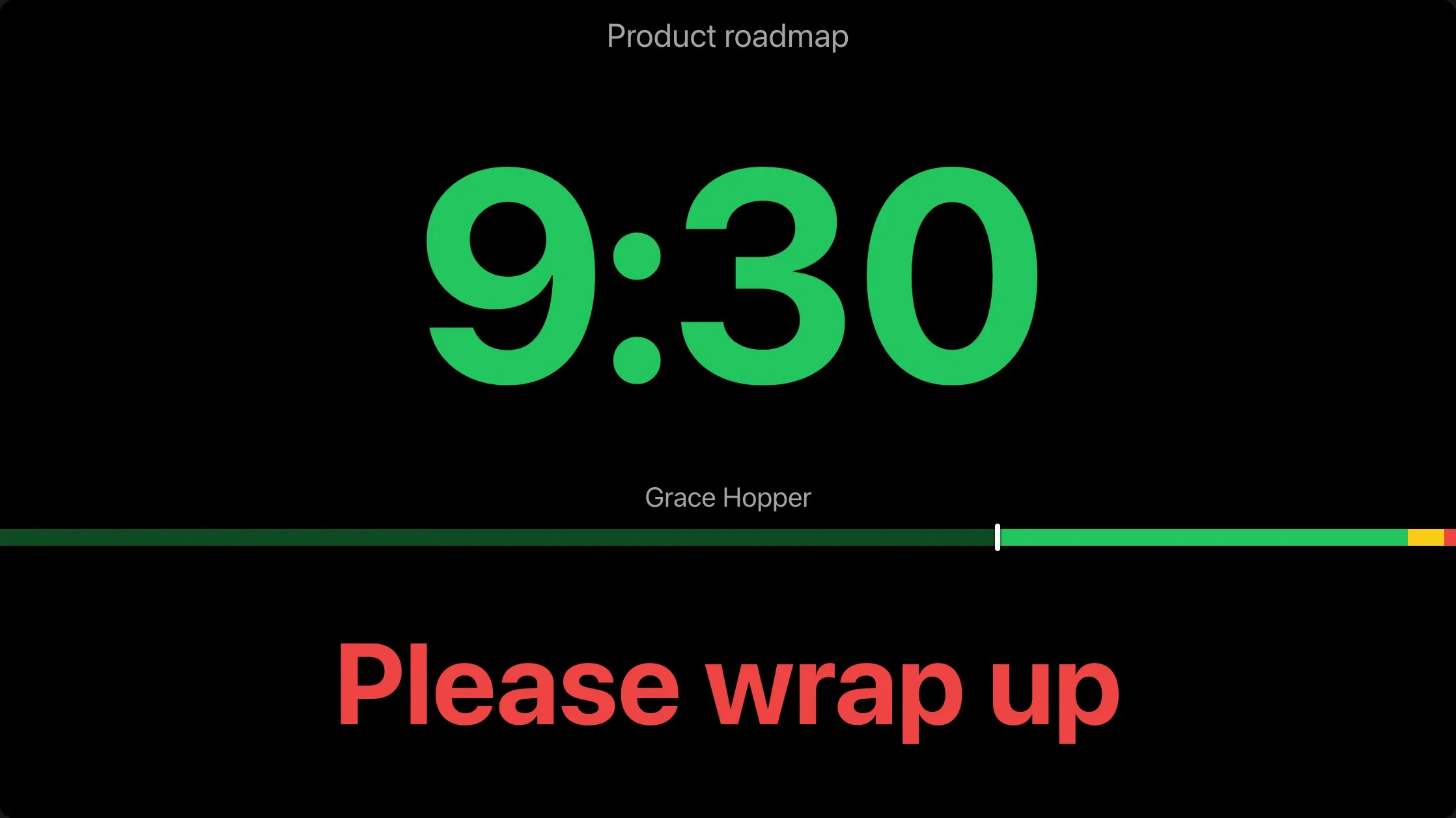
A speaker's screen: the countdown in green, the speaker's name, and the message Please wrap up in large red letters.

Screens

See every screen in the room, and fix one without walking to it.

The controller lists every screen that is connected right now. Name them, and when one misbehaves, deal with it from your seat.

  • Make a screen show its number and name, reload it, or disconnect it
  • Mirror or flip a screen for a teleprompter, from the screen or from your seat
  • Float the timer in an always-on-top window, in browsers that support it
  • A password on a room's screensPro and up
The Live Connections dialog: the operator's controller, and three viewer screens named Stage left, Viewer 2, and Confidence monitor, each with flip, mirror, and fullscreen buttons.

Paired screens

Switch what every TV shows, without walking to it.

Pair a venue's TV once, with a code it shows. From then on you choose what it shows from the Screens tab, and its address never changes, so a TV that restarts comes back to what it showed.

  • Switch a TV between a room's timer, agenda, and backstage board, in a second or twoPro and up
  • Put an event's board or its attendee agenda on a TVPremium and up
  • Put a sponsor screen on a TVPremium and up
  • Identify a screen, reload it, rename it, or unpair it from your seatPro and up
  • Pair a TV that already shows a link, without going to itPro and up
How paired screens work
The Screens tab of DevConf 2026: the main hall lectern showing the main hall's timer, the foyer wall showing the event board, and the Track B door showing Track B's agenda, with a spare TV below that shows nothing yet.

Agendas and events

One programme for the crew, the speakers, and the audience.

The rundown you run is also the agenda people read, with projected times that move when the show runs late.

  • A live agenda for each room: what is on, what is next, and when
  • A backstage board for the green room: who is on, who is next, and whenPro and up
  • An event across many rooms, with a board of every room side by sidePremium and up
  • The attendee's agenda: the day in time slots, parallel sessions togetherPremium and up
  • Import the whole programme from a spreadsheetPremium and up
The attendee agenda for DevConf 2026: the day in time slots, with three sessions running in parallel and how late each room is running.

Sponsor screens

Give sponsors the screen time they paid for.

Play an event's sponsors in a loop on the screens you give them, such as a lobby TV or a screen at a room's door. You name the tiers as your prospectus does, and every screen of a group shows the same slide at the same moment.

  • Tiers you name, each with its own slide or a shared slide and its seconds on screen, or kept off the screensPremium and up
  • Choose which rooms show which sponsorsPremium and up
  • A change you save reaches the screens within about two minutesPremium and up
How sponsor screens work
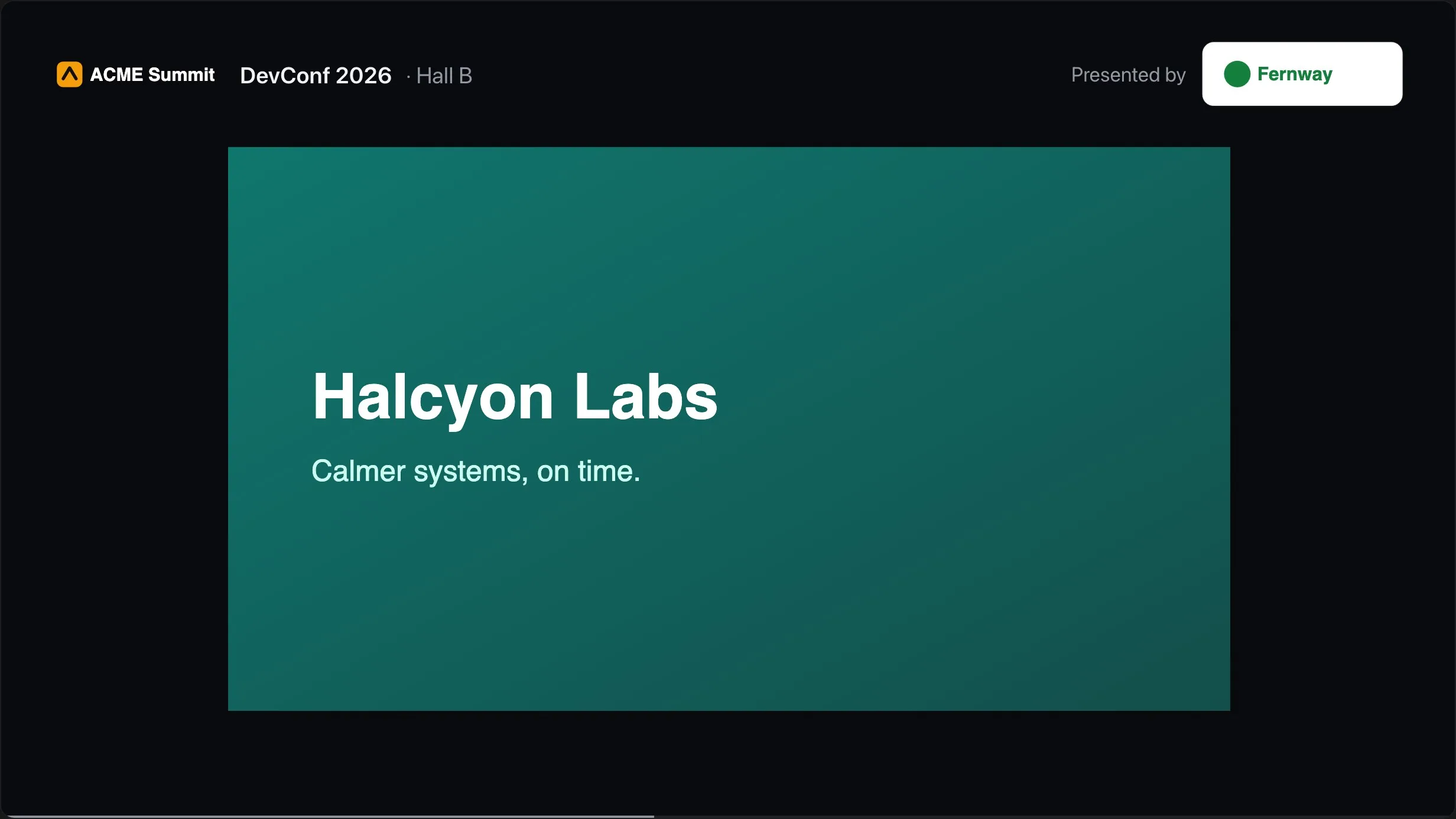
A sponsor screen for Hall B of DevConf 2026: the organiser's logo and the event's name at the top, Presented by Fernway in the corner, and Halcyon Labs' slide filling the screen.

Your brand

Your logo on the stage, your colours on the agendas.

Screens carry your event, not ours. Themes are checked for contrast before you save, and their fonts come from CueStride, so no screen calls a third party.

  • Your logo on every screen, with or without the CueStride wordmarkPro and up
  • 6 themes, your own colours, and 13 fonts for the agenda screensPremium and up
The screen theme editor: six presets, colour pickers for background, cards, borders, text, secondary text, and the current session, a font menu, and a live preview.
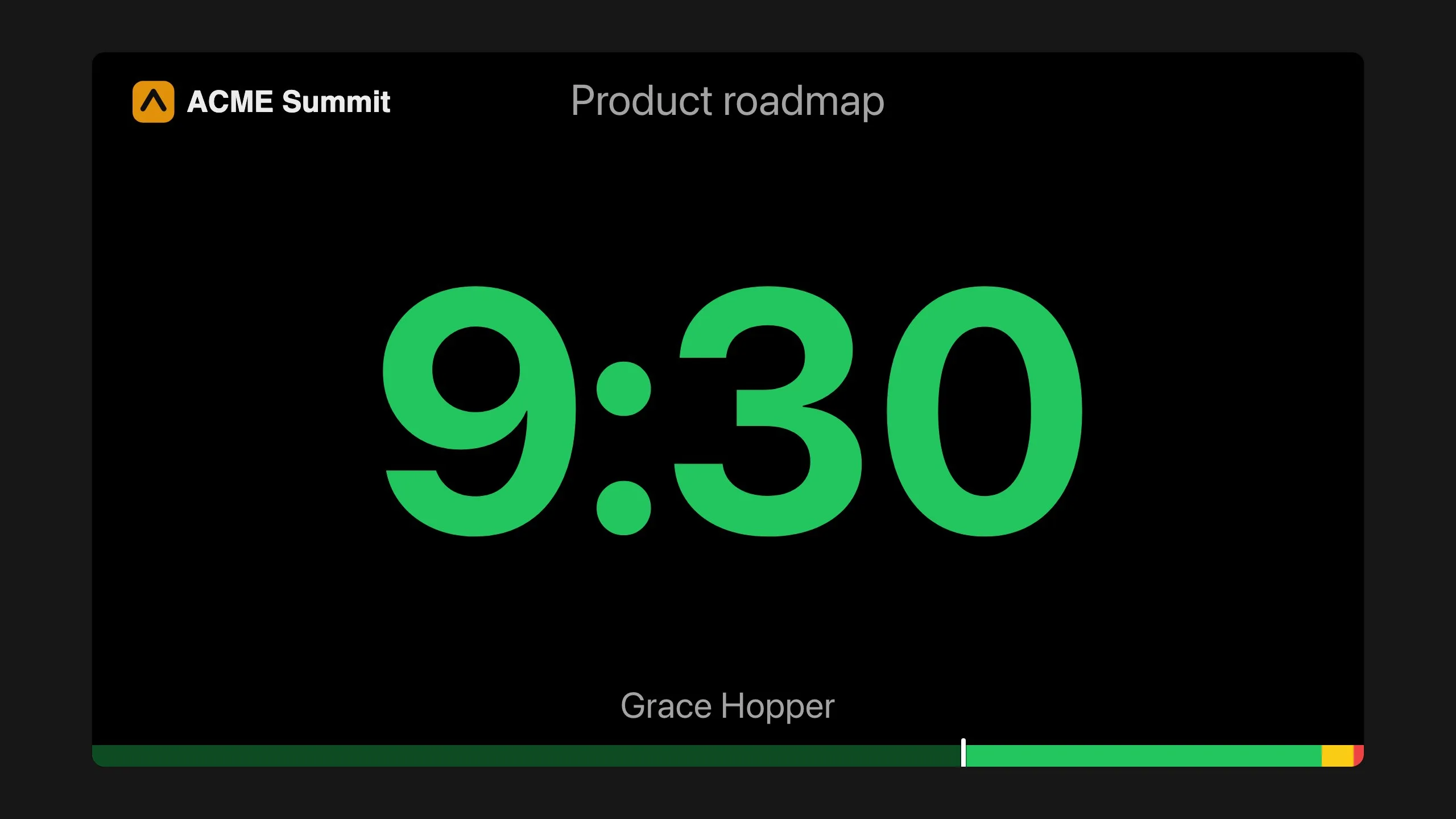
A speaker's screen with the ACME Summit logo in the corner above the countdown.

And the details that matter at 9 a.m.

  • The keyboard does it all

    Space starts and stops, N and P step, plus and minus add a minute, B blacks out, F flashes.

  • A timeline you can drag

    Jump the playhead to any moment without changing the length of the segment.

  • Overtime you can see

    Past zero the clock keeps counting, in red, with a minus sign.

  • Right after a sleep

    Correct again at once after a background tab, a sleeping device, or a wrong system clock. Screens ask to stay awake.

  • Late joiners are on time

    A screen opened mid-show shows the right second on its first frame, not the full length.

  • Time zones and formats

    Each room keeps its own time zone and a 12 or 24 hour clock for time of day.

  • Notes only you see

    Cue notes on a segment stay on the controller and never reach a screen.

  • Links, not logins

    Screens need no account. The controller link carries a token you can revoke.

Your next show, on time.

Put a room's link on a screen and run the show; sign up free when you want to keep it.

Create a free room

No account needed