Your brandPro and up
Screens that carry your event, not ours
Put your logo on every screen of your rooms and events, and, on Premium and up, give the screens people read your colours and your font. Both are set once, for the account, in Account settings under Branding, and a change reaches open screens at once, with no reload.
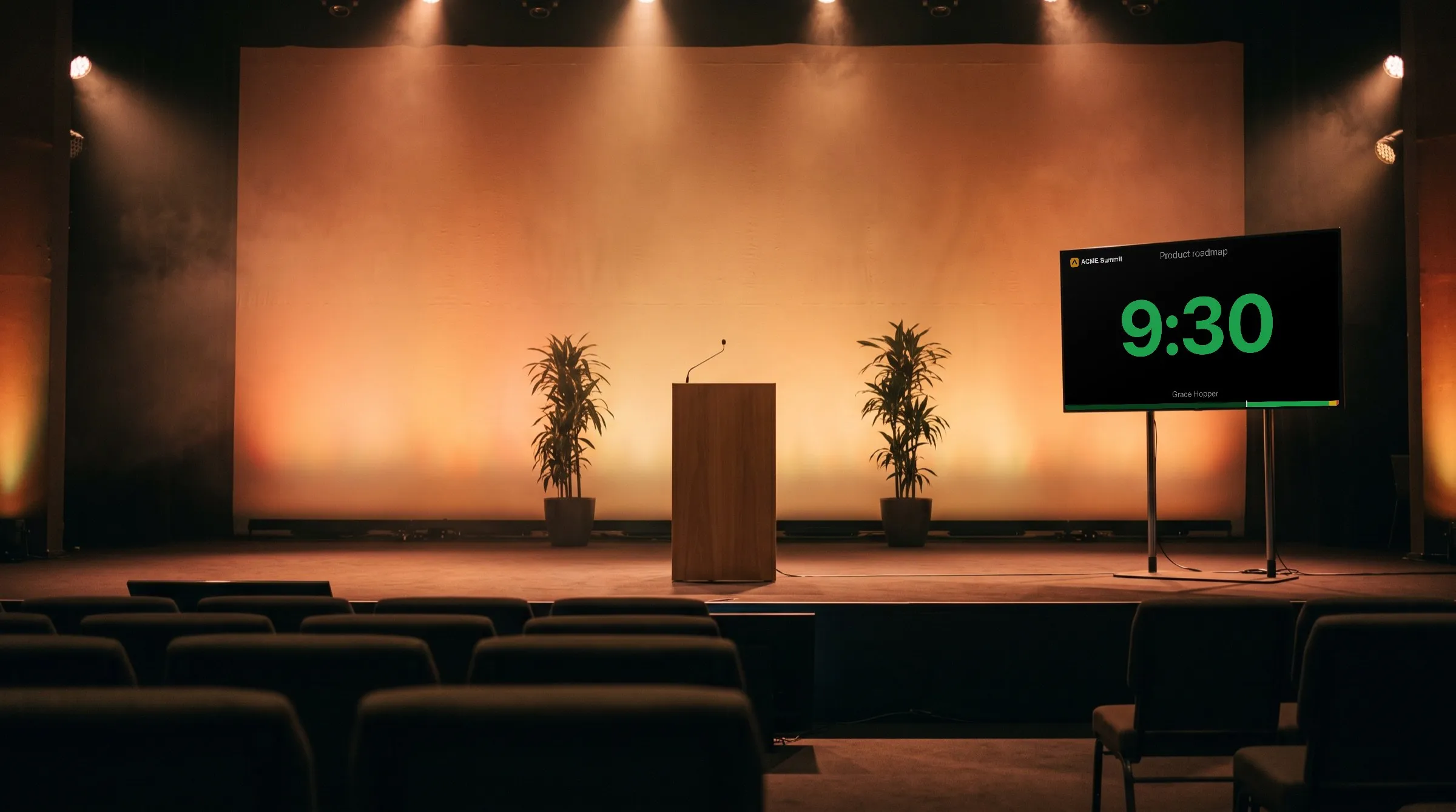
Your logo
Your logo in place of ours
On Pro and up, an admin chooses a logo under Branding in Account settings: a PNG, JPEG, WebP, GIF, or SVG image, no larger than the field says. A larger or different file is refused, and Remove logo takes the logo away again.
A logo replaces the CueStride wordmark: the two never appear together. Show the CueStride wordmark on screens, on by default, draws the wordmark only where there is no logo; untick it, and a screen with no logo shows neither. The attendee page is the exception: it ends with Made with CueStride, which the same box removes.
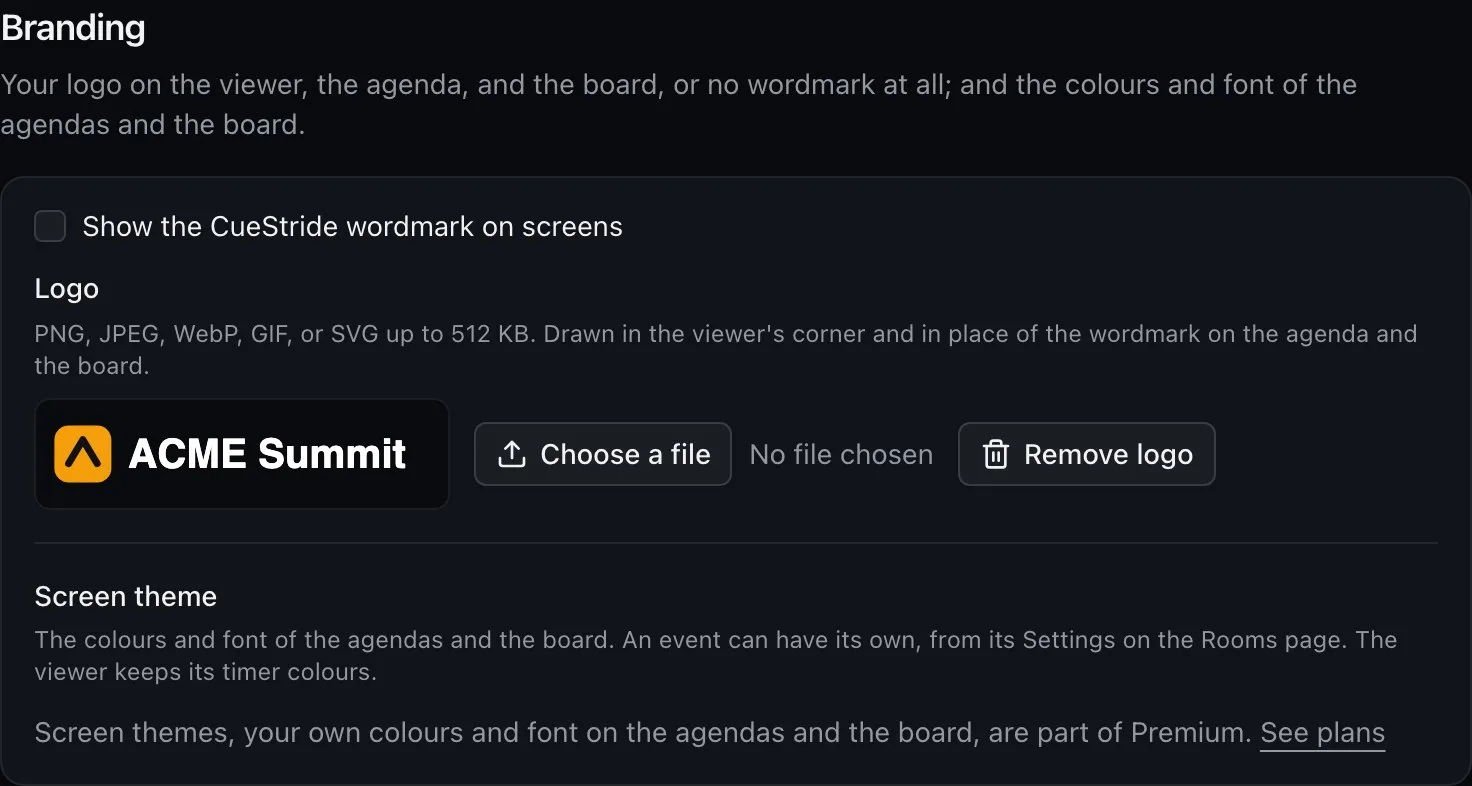
On the stage
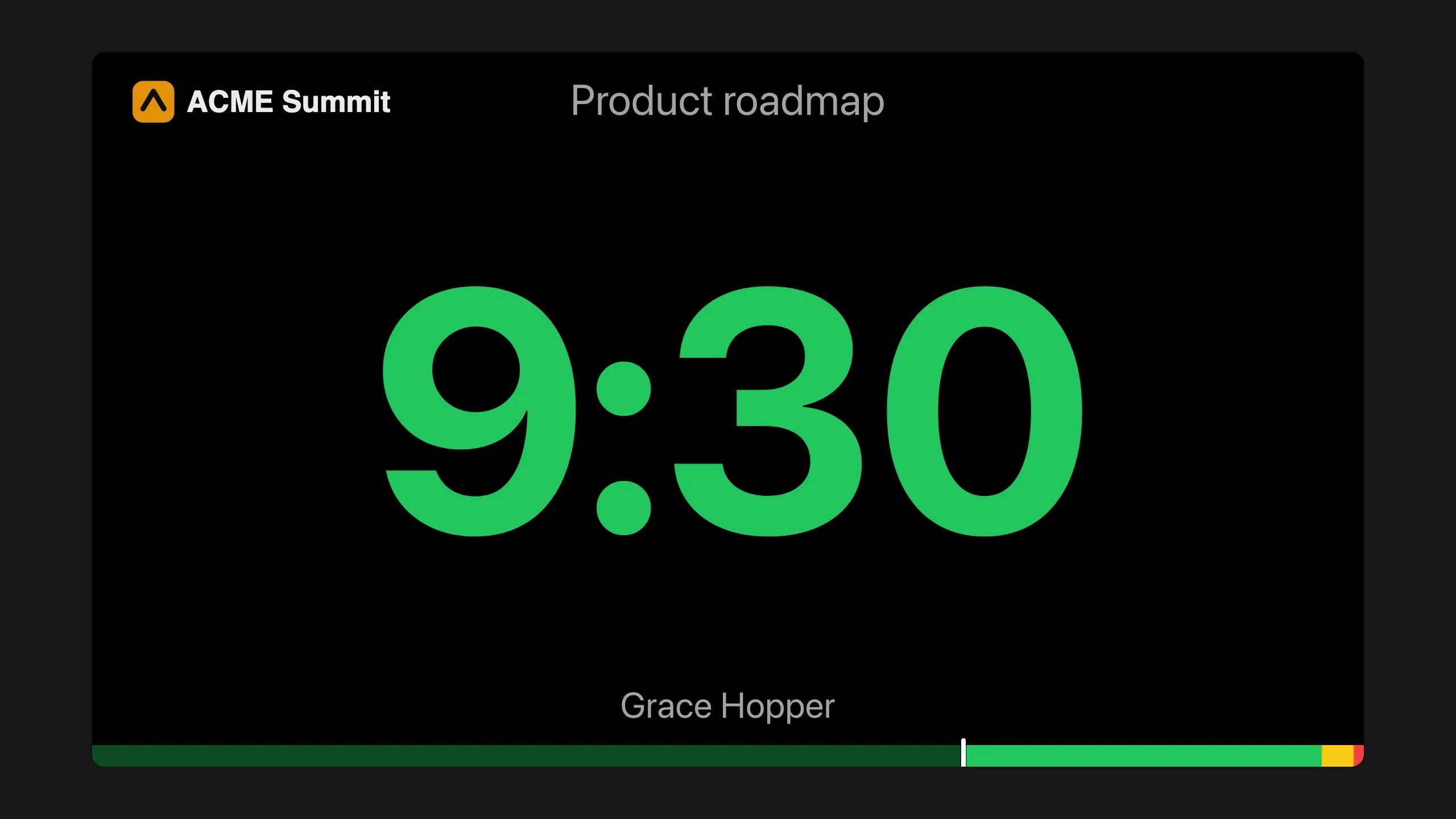
The speaker's screen carries it in the corner
The speaker's timer draws your logo at its top left, and never the wordmark, so that corner stays empty when there is no logo. Blackout hides it with the rest of the stage.
The speaker's screen takes no theme: its colours carry the timer's state, and a theme would hide them.
Every screen
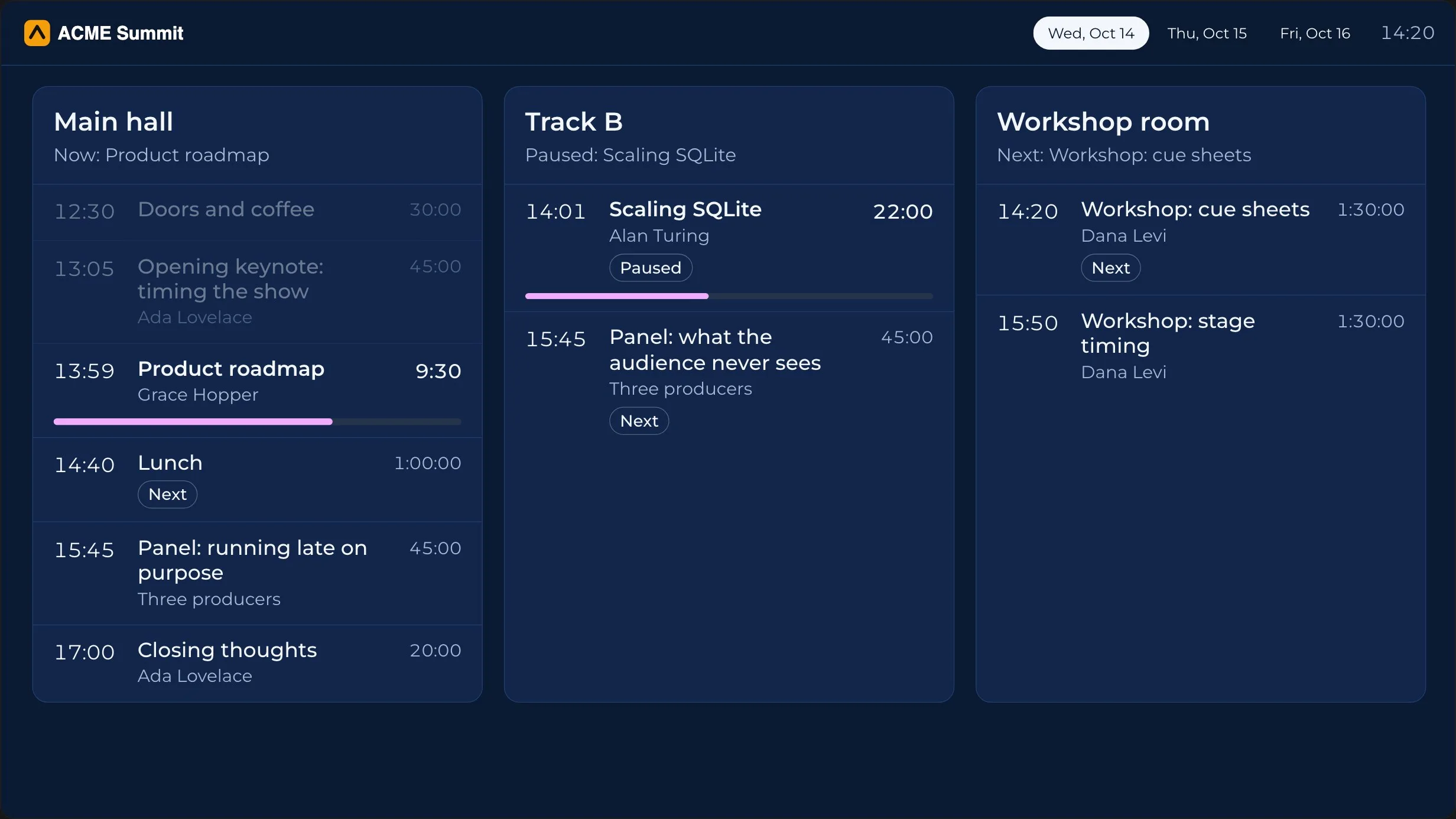
On the agendas, the boards, and the notices
The headers of the room agenda, the board and the event agenda (Premium and up), and the backstage board (Pro and up) show your logo, or the wordmark when there is no logo and the box is ticked, and stay empty with neither. So do the full-room notice and the password form, which show it in the centre.
A sponsor screen follows the same rule (Premium and up): your logo sits above the event's name while nothing plays, and beside it while a slide is on. The pages you and your team use to run the show keep the CueStride name.

Themes
A preset to start from, for the screens people read
On Premium and up, a theme styles the screens people read: the room agenda, the board, the event agenda, and sponsor screens, and the event's attendee page takes the event's theme too. Start from a preset: Automatic, Night, Day, Navy, Paper, and High contrast. Automatic follows each screen's own light or dark setting, and choosing a preset clears your colour changes and the font before you save.
The backstage board takes no theme: it is always dark, like the stage, so it reads in a dim room.

Colours and font
Your colours and your font, seen before you save
Each colour has a picker and a reset to the preset: Background, Cards and columns, Borders, Text, Secondary text for speakers, rooms, and times, and Current session, the progress bar on the room agenda and the board, and the outline and the bar on the event agenda.
The font is Inter, Roboto, Open Sans, Montserrat, DM Sans, Nunito, Source Sans 3, Space Grotesk, Lato, Poppins, Lora, Playfair Display, or Merriweather, or the preset's own. The fonts come from CueStride, so a screen makes no request to anyone else's server.
A live preview of a small agenda shows each change before you save it. Save theme keeps it, and Discard changes goes back.

Contrast
A warning when text would be hard to read
The editor checks text on the background, text on the cards, and secondary text on both. When one would be hard to read, it names the pair and its contrast ratio: it warns when ordinary text is below 4.5 to 1, or secondary text below 3 to 1. Automatic is checked in light and in dark, and the warning says which.
It warns and still saves, so the choice stays yours. Read the pair it names on a screen from across the room before the doors open.

One event
A theme of its own for one event
An event can have a theme of its own, which its board, its agenda, its attendee page, and its sponsor screens use instead of the account's, and the room agendas of its rooms use while the room belongs to the event.
In the event's Settings on the Rooms page, Give it its own theme opens the same editor, and reads Edit theme once one is set. Use the account's theme clears it.
Plans
Which plan has it
Branding: Pro and up
Your logo on the screens, and leaving out the wordmark, are on Pro and up. Screen themes, the account's and an event's, are on Premium and up. Only an account's admins change them.
On a plan without logos, the Branding section says which plans have them, and every screen shows the CueStride wordmark and no logo. On a plan with logos but without themes, it says themes are on a higher plan, and the screens show the default look. Your settings are kept, and return when the plan allows them.
Set it up
How to set up branding
- 1
Open Branding
Signed in as an admin, open Account settings and find Branding.
- 2
Add your logo
Under Logo, choose the file. It takes the wordmark's place on every screen at once.
- 3
Pick a theme
Under Screen theme, choose a preset, change any colour or the font, watch the preview, and choose Save theme (Premium and up).
- 4
Give an event its own
On the Rooms page, open the event's Settings and choose Give it its own theme.
FAQ
Questions, answered.
Can I take the CueStride name off the screens?
Yes (Pro and up). A logo replaces the wordmark on every screen, and the two never appear together; with no logo, untick Show the CueStride wordmark on screens, and the screens show neither; the box also removes Made with CueStride from the attendee page. The pages you use to run the show keep the CueStride name.
Does the speaker's timer take my colours?
No. The speaker's screen takes no theme, since its colours carry the timer's state. It shows your logo at its top left.
Which screens does a theme style?
The screens people read: the room agenda, the board, the event agenda, and sponsor screens, and the attendee page takes the event's theme. The speaker's screen and the backstage board keep their own look.
Do the theme's fonts come from a third party?
No. The fonts come from CueStride, so a themed screen makes no request to anyone else's server.
What if my colours are hard to read?
The editor names the pair and its contrast ratio when ordinary text is below 4.5 to 1, or secondary text below 3 to 1. It warns and still saves.
Can each event have its own colours?
Yes (Premium and up). An event's own theme is used by its board, its agenda, its attendee page, its sponsor screens, and the room agendas of its rooms instead of the account's.
Do the screens need a reload after a change?
No. A change to the logo, the wordmark, or the theme reaches open screens at once, with no reload.
What happens to my branding if I change plans?
Your settings are kept. On a plan without logos every screen shows the CueStride wordmark and no logo, and on a plan without themes the screens show the default look; both come back when the plan allows them.
Your next show, on time.
Put a room's link on a screen and run the show; sign up free when you want to keep it.
No account needed