Messages and cuesEvery plan
Messages to the stage, sent with one click
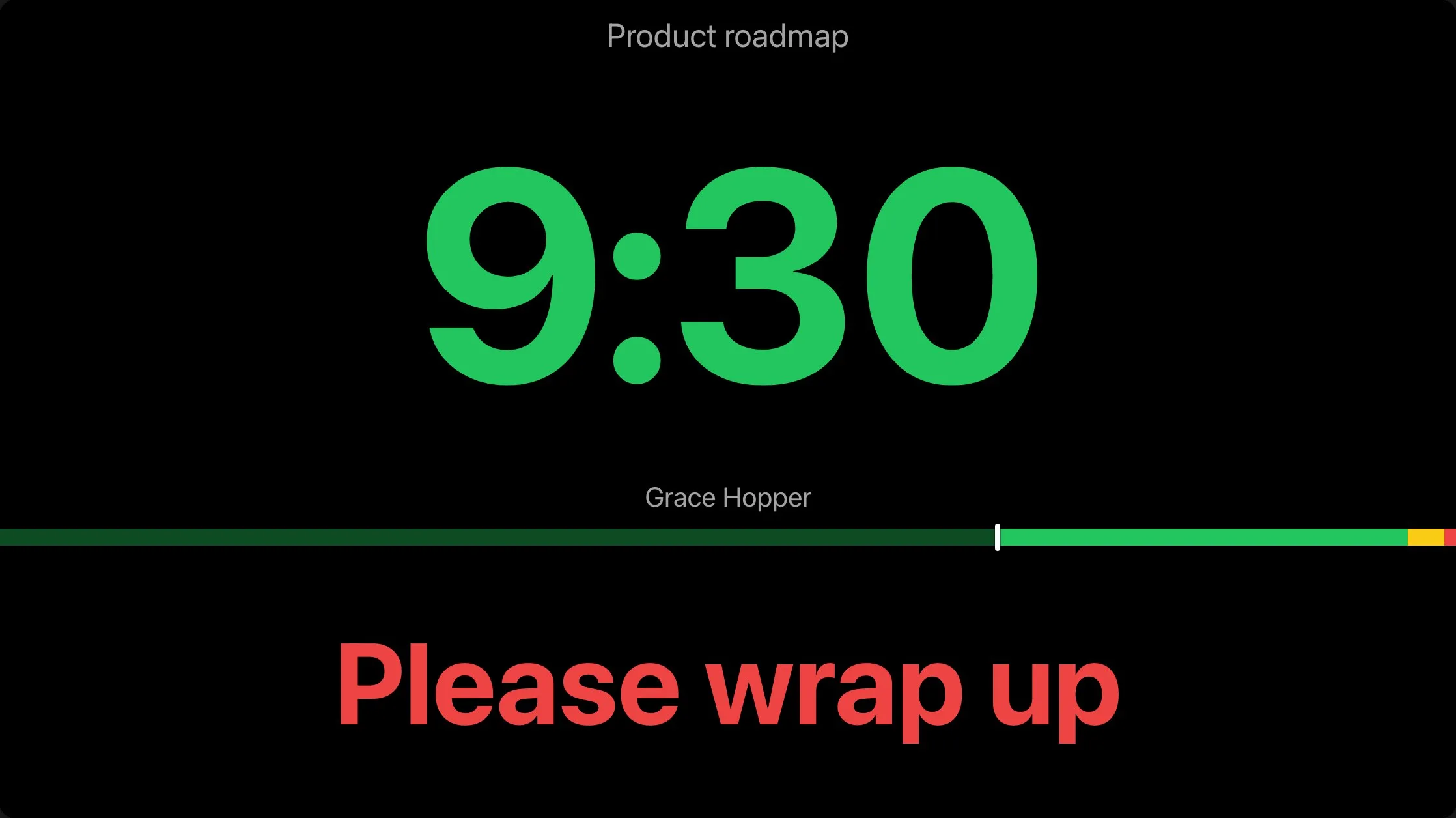
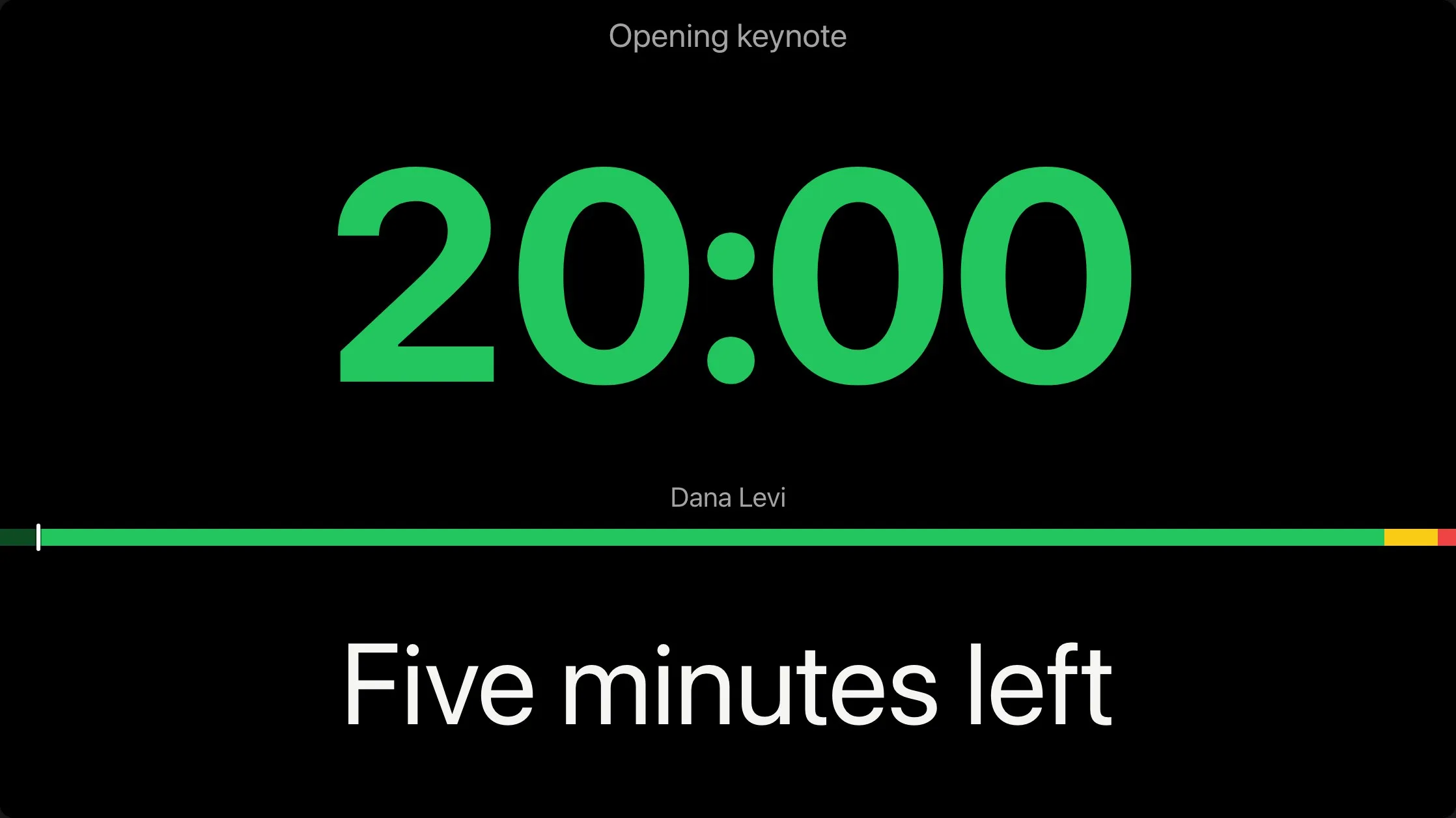
Prepare messages before the show and show one with a click. It appears on every screen with the timer and stays until you hide it. Give a producer the moderator page, and they can talk to the stage without being able to touch the timer.

Prepare
Write the messages before the show
Under Messages on the controller, type in Message for the stage, pick white, green, or red, choose Bold or Uppercase if you want them, and choose Add. The message waits in the list; nothing shows on the screens yet.
Messages stay with the room, prepared before the show and used again at the next. Each can be edited, deleted, or dragged into another order.

Show
One click puts it on every screen
Choose Show beside a message. It appears on every screen with the timer, under the time, and it stays until you choose Hide; it never times out. Only one message shows at a time: showing another hides the first.
The text sizes itself to fill its area and long messages wrap, while the message takes about a third of the screen's height.
Messages reach the timer screens. The room agenda, the board, the event agenda, the backstage board, and sponsor screens never show them.
Focus
Fill the screen when the timer can wait
Focus fills the screen with the showing message and hides the timer, until you turn Focus off, hide the message, or show another one.
The controller's preview shows what the screens show right now, drawn by the same code, so you see there what the speaker sees.

Flash and blackout
Catch the speaker's eye, or clear every screen
Flash message makes the showing message blink three times. Flash, under Screens, makes the countdown's digits blink three times on every screen, to catch the speaker's eye without a word; F does the same from the keyboard.
Blackout hides everything on every screen until you turn it off, and B does the same. The screens keep the time while they are dark, so turning it off shows the right second at once, and a screen that reconnects stays dark.

Moderators
Hand the messages to a producer
A moderator is a member of your account who can talk to the stage and nothing else. They open a room you gave them and get the moderator page: the room's live preview, its status, Flash screen, and the room's messages.
They can write new messages, edit, delete, and reorder them, show or hide one, flash a message, and flash the screens. They cannot start, stop, or change a timer, and they cannot change the room's settings or links, so a producer can say "Five minutes" without being able to cut a speaker off.
The status under the preview says which timer the room holds and whether it is Ready, Live, or Paused, how late the room runs, and what is next, with its start. On a phone, the status and the messages come first.

Their rooms
Give each moderator only the rooms they run
An admin invites a moderator from Members in Account settings, with the role moderator, then ticks their name in the Moderators row of each room they should run, on the Rooms page. A moderator sees only the rooms ticked for them.
Untick a name to take the room away: their open page closes, saying access was removed. Remove the member, and their open pages lose access at once.

From a button
Show a message from a Stream Deck or your own tools
The API shows a message too, and does everything else an operator does from the controller: start, stop, and cue timers, add or take away time, black out the screens, and change the rundown. It is on every plan.
The messages are the ones the room's controller has in its list, and a command shows one by its place in the list, the first being 1. The message stays on every screen until a hide takes it away.
An admin makes the key in the app, and each key says which rooms it reaches and what it may do. A Stream Deck's Website action can only open a link, so a key made with Allow in links may go in a control command's address, and the command runs from that link.
Plans
Which plan has it
Messages: Every plan
Messages, blackout, and flash are on every plan.
The moderator page is on every plan. Each moderator takes a moderator seat: 1 on Starter, 3 on Pro, 10 on Premium, and unlimited on Enterprise. When they are all used, remove a moderator, or move to a plan with more.
An account's API keys: 1 on Starter, 10 on Pro, 25 on Premium, and unlimited on Enterprise.
Set it up
How to set up messages
- 1
Write the messages
Under Messages on the controller, type each one in Message for the stage, pick its colour, Bold, or Uppercase, and choose Add.
- 2
Put the timer on a screen
Choose Links, copy the Timer card's link, and open it in the browser of the speaker's screen.
- 3
Show one when it is needed
Choose Show beside a message, Focus to fill the screen with it, and Hide to take it off.
- 4
Give a producer the messages
Invite them as a moderator from Members in Account settings, then tick their name in the room's Moderators row on the Rooms page.
FAQ
Questions, answered.
How many messages can show at once?
One. Showing another message hides the one that was showing.
Does a message go away by itself?
No. A showing message stays until you hide it or show another one; it never times out.
Which screens show a message?
The timer screens. The room agenda, the board, the event agenda, the backstage board, and sponsor screens never show one.
Can someone send messages without running the timer?
Yes: a moderator. They show, hide, and flash messages, and flash the screens, in the rooms you give them, and cannot start, stop, or change a timer. To let someone send messages without an account, share a room's controller link instead, knowing it runs the whole room, and revoke it when the show is over.
Does the speaker's screen need an app or a sign-in?
No. The timer screen is a link opened in the screen's browser. It needs no account and no sign-in, and a message reaches it the moment it is shown.
Can I make a message blink?
Yes. Flash message makes the showing message blink three times, and Flash, or F, makes the countdown's digits blink three times on every screen.
Your next show, on time.
Put a room's link on a screen and run the show; sign up free when you want to keep it.
No account needed