Pair screens and switch what they show
Pair a venue's TVs to your account once, then switch each between a room's Timer, Agenda, and Backstage, an event's board, and sponsor screens from one tab.
Last checked against CueStride on 19 October 2026.
A paired screen is a TV or display that belongs to your account. You pair it once, with a code it shows, and from then on you choose what it shows from the Screens tab: a room’s Timer, Agenda, or Backstage, an event’s board or agenda, or a sponsor screen. It switches within a second or two, without anyone going to it, and its address never changes, so a TV that restarts comes back to what it showed.
Pro and up
Paired screens are part of Pro and up: 10 on Pro, 50 on Premium, and unlimited on Enterprise. Only an account’s admins pair and switch them. On Starter, the Screens tab says what paired screens do and links to the plans.
The links you share from a room’s controller keep working as they do. A paired screen is for a display you want to manage from one place; a link is still the quickest way to put a room on a screen once.
Pair a screen
-
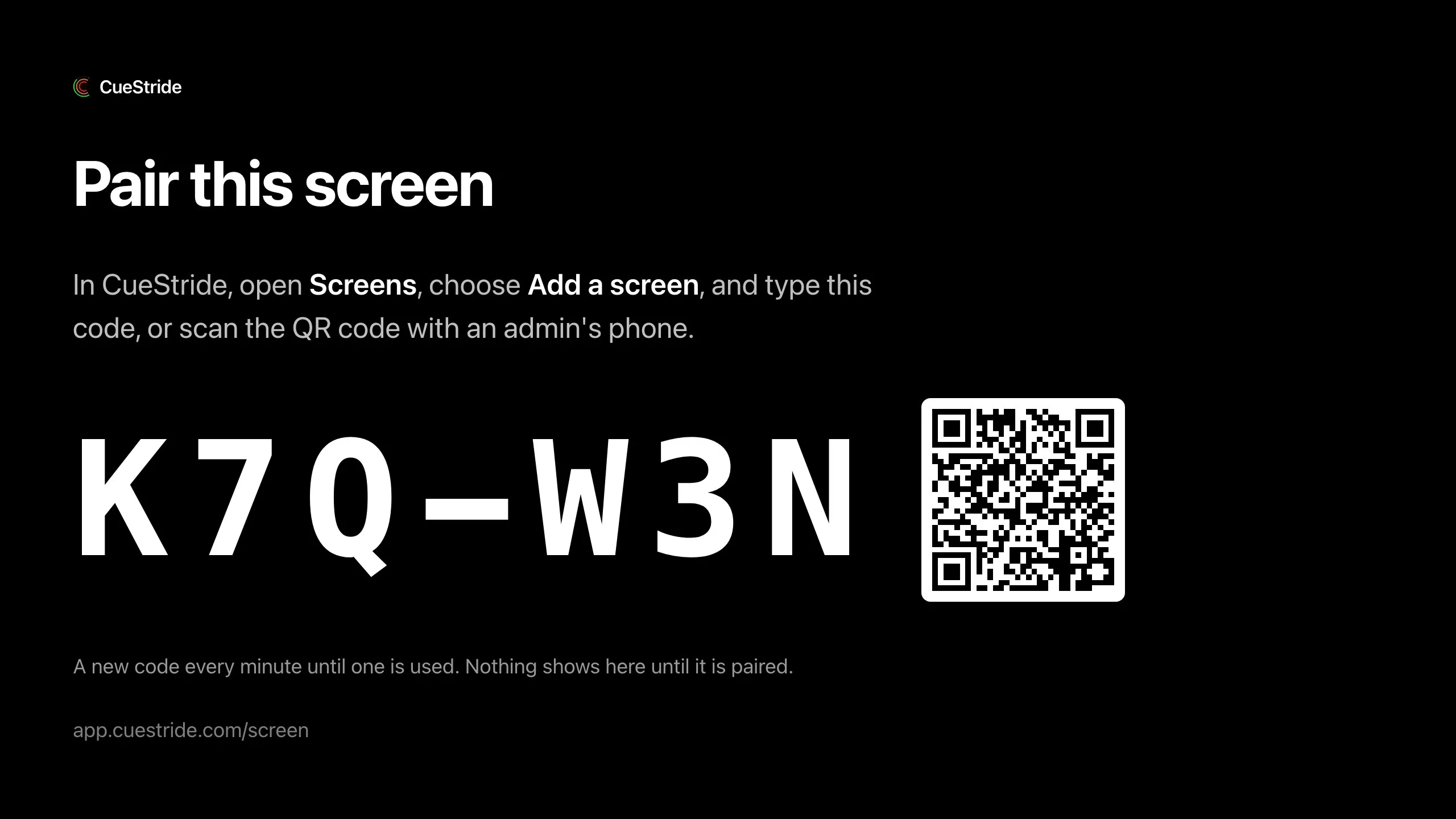
On the TV, open its browser and go to app.cuestride.com/screen. It shows Pair this screen and a code of six letters and digits, such as K7Q-W3N.
-
On your computer or phone, sign in as an admin of the account and choose Screens in the header, after Rooms.
Or scan the TV’s QR code with your phone: once you sign in as an admin, Add a screen opens with the code filled in, and you go on at step 5.
-
Choose Add a screen.
-
Under Code on the TV, type the code. Capitals, the dash, and spaces don’t matter, and an O is read as a zero.
-
Under Name, give the screen a name you will know it by, such as “Hall B door”.
-
Under Shows, choose what it shows first, or leave Nothing yet.
-
Choose Pair the screen.
The TV says which account paired it, then shows what you chose. Fill the screen with the browser’s own full screen: F11 in Chrome, Edge, or Firefox on Windows, or Control-Command-F on a Mac. The page keeps the display awake where the browser allows.
The TV shows a new code every minute until one is used, and a code still pairs for a minute after it is replaced, so a code you read just before it changed works. A wrong or old code is refused, and the dialog says so.
Pair a screen that already shows a link
A TV that already shows a room’s Timer, Agenda, or Backstage, or an event’s board or agenda, from its link, can be paired without going to it. While its page is open, it waits in the Screens tab under Waiting to pair, after your paired screens. Each card is named by what it shows, with its connection’s name, such as Viewer c1ab, and how long it has been open. The screens in fullscreen, almost always TVs, come first, and the rest are folded under N more, not in fullscreen until you open them. When none is in fullscreen, they are all listed.
- Choose Identify on a card. The screen shows its number in large letters for five seconds, so you know which one it is.
- Choose Pair…, give it a name, and choose Pair the screen.
Within a few seconds the screen becomes a paired screen, still showing what it showed, and its card joins the paired screens, under its event. It stays in fullscreen. For its first minute it says which account paired it, with Not our screen? Unpair, so a screen paired by mistake can free itself.
Nothing joins your account until an admin chooses Pair. A phone never waits under Waiting to pair, so a guest’s phone with the Timer open stays off the list; to pair a phone, open app.cuestride.com/screen on it and type its code under Add a screen. A laptop or a tablet with the page open does wait, so identify a screen before you pair it. To take one off the list, choose Deny: its page keeps working, and that browser is not offered again. To pair it later, open app.cuestride.com/screen on it and type its code under Add a screen.
A sponsor screen does not wait to be paired yet: pair it with a code. Attendee pages never wait, since they are people’s own.
Choose what a screen shows
Each screen’s card in the Screens tab says whether it is online, or when it was last seen, which room it is in, and what it shows. The tab checks again every 15 seconds while it is open.
- To change what a screen shows, choose Show…, pick the view, and choose Switch now. The views are listed under their event, then the rooms in no event: each room’s Timer, Agenda, and Backstage, a room’s own sponsor screen, the event’s board and agenda, and the event’s sponsor groups, as far as your plan has them.
- To move a screen to another room, choose the room under Room. It shows the same kind of view in the new room: an Agenda stays an Agenda. A screen on the event’s board or agenda, or on a sponsor group, goes to the room’s Timer. Room offers the rooms of the screen’s event, or, for a room in no event, the other rooms in no event.
- If a screen is mounted upside down or seen in a mirror, choose Show…, then under Flip, Mirrored, Upside down, or both, for its Timer. A flip from the room’s Live connections is kept the same way, and both survive a reload.
- To find a screen in the venue, choose Identify: it shows its name in large letters for five seconds.
- To reload a screen’s page, for instance after the venue’s network came back, choose Reload.
- To rename it, choose its pencil.
A paired screen needs no room password, and changing a room’s password does not sign it out. Deleting a room, an event, or a sponsor group leaves the screens that showed it paired, with nothing assigned, until you choose something else.
Switch several screens at once
Tick the box on each screen’s card, then choose Show on all… in the bar that appears, pick the view, and choose Switch now. They switch together. If a room has no place for all of them, none switches and the dialog names the room. A Timer that already shows that room keeps its flips.
Paired screens in a room’s Live connections
A paired screen is listed in its room’s Live connections on the controller under its name, marked Paired. A screen on the event’s board or agenda is listed in every room of the event. A board or agenda opened from its link, and not paired, is listed there too, as Event board or Event agenda with the event’s name, and has no actions, since it belongs to the event.
- Show identify overlay and Force reload reach the screen, whatever it shows.
- Rename renames the screen in Screens too, and in every room’s list.
- Clear what it shows leaves the screen paired, showing its name and “Nothing assigned”, until an admin chooses what it shows in Screens. A screen on the event’s board or agenda is changed from Screens only, since it shows the whole event.
- Kick all leaves paired screens alone.
Screens and the rooms’ limits
A paired screen showing a room’s Timer, Agenda, or Backstage takes one of that room’s screens, as any open view does. On the event’s board or agenda, it takes one in every room of the event. A sponsor screen takes none.
A switch to a room that is full is refused before it happens: Show… and Room mark a full room’s views, and the screen keeps what it shows. While a screen is online, the rooms it holds a place in never count as full for it, so it can always switch between their views.
Unpair a screen
From the account: on the screen’s card, choose Unpair, then Unpair the screen. The TV goes back to showing a pairing code, and pairing it again starts over.
At the TV: for a minute after it is paired, the screen shows which account paired it and Not our screen? Unpair, in case someone typed its code by mistake. After that, press any key or click on the screen, and the same bar shows Unpair for five seconds. A line under the button runs down until the bar hides. Either asks first, then unpairs the screen, which shows a code again.
A paired screen stays paired through restarts and power cuts. Deleting the account unpairs all of its screens.