Sponsor screens
Show an event's sponsors on screens in the lobby and the rooms: name your tiers, give each the screen time it paid for, and choose which rooms show whom.
Last checked against CueStride on 12 October 2026.
A sponsor screen plays an event’s sponsors in a loop, on a TV in the lobby or a screen at a room’s door. You name the sponsorship tiers as your prospectus does, decide what each tier gets on screen, and choose which rooms show which sponsors. Every screen of a group shows the same slide at the same moment, and a change you save reaches them all within about two minutes.
Premium and up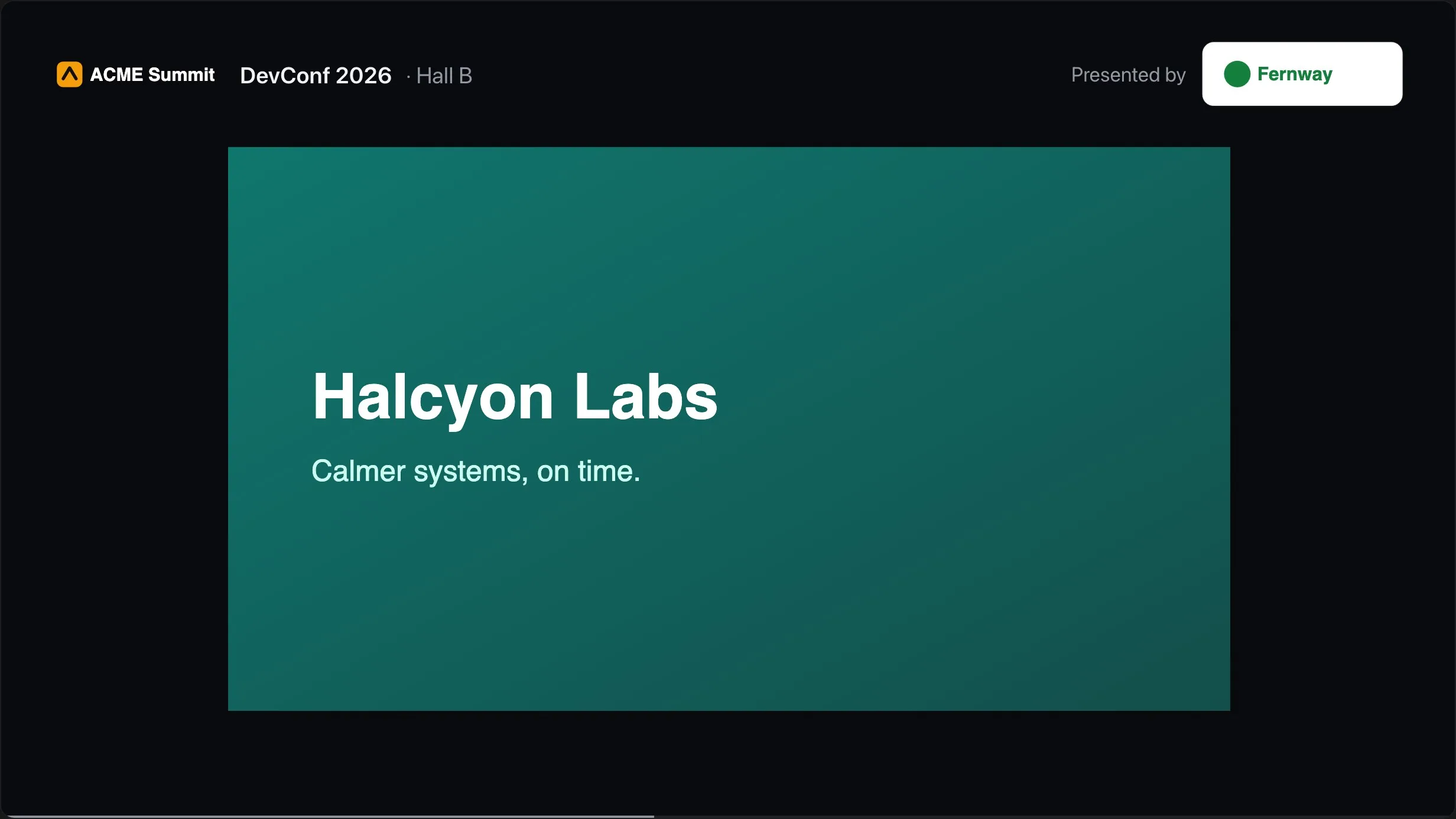
Sponsors belong to an event, so you need an event with its rooms first: create one in the Events section of your Rooms page, then choose Settings on the event, above its rooms, and tick the rooms it holds. Sponsor screens are part of Premium and Enterprise, and only an account’s admins manage them. On other plans, the Sponsors tab says what sponsor screens do and links to the plans, and a room’s Share a screen shows a Sponsors card with a sample of how one looks.
Open the Sponsors tab
- Sign in as an admin of the account, then choose Sponsors in the header, between Rooms and Account settings.
- The tab opens on the event that is on now, else the next one to start, else the one that ended last. To work on another event, choose it under Event.
An event with no sponsors yet, in an account whose other events have some, offers Start from another event: choose the event, then Copy its sponsors. It copies that event’s tiers and sponsors, with their logos and slides, in place of this event’s tiers. The images are shared, so the account’s image use does not grow. Groups and the heading are not copied, and a group that had attached or taken out one of this event’s tiers loses that choice with the tier.
Name your tiers
A tier is a level of sponsorship in this event, such as Platinum or Gold, named as your prospectus names it. It is not a CueStride plan. A new event starts with four:
| Tier | On screens | Seconds | Per loop |
|---|---|---|---|
| Platinum | Own slide | 10 | 2 |
| Gold | Own slide | 8 | 1 |
| Silver | Shared slide, 3 logos | 8 | 1 |
| Bronze | Shared slide, 6 logos | 8 | 1 |
In the Tiers table, each tier has:
- Name, of 40 characters or fewer.
- On screens: Own slide gives each of its sponsors a slide to itself; Shared slide puts several of its sponsors’ logos on one slide; Not on screens keeps the tier and its sponsors off every screen.
- Logos a slide, for a shared slide, from 2 to 12. A tier’s sponsors split into slides of even size: seven logos with six a slide make slides of four and three, never six and one.
- Seconds each of its slides shows, from 3 to 60.
- Per loop: how many times each of its slides plays in one turn of the loop, from 1 to 5. The turns are spaced evenly, so a sponsor shown twice comes back about halfway round.
- Name on slide, for a shared slide: the tier’s name over its logos, such as “Bronze”. Turn it off to leave the slide unlabeled. A slide of a sponsor’s own never shows a tier’s name.
- Each sponsor in Main: what one sponsor of the tier gets on Main’s screens, in a prospectus’s words, such as “20 s in every 1 min 20 s, 25 %”.
The order of the tiers sets the order of the slides, and nothing else. To change it, drag a tier by its handle, or focus the handle and press the up and down arrow keys. Add a tier adds one at the end, as a shared slide; an event has 1 to 10 tiers.
To remove a tier, choose its trash icon. A tier with sponsors asks what happens to them:
- Move them to another tier: they keep their logos and slides, take that tier’s slide type and seconds, and stay on exactly the screens that showed them before, unless that tier is not on screens, when they leave the screens.
- Remove its sponsors too: they leave every screen within about two minutes. This can’t be undone.
The Attendee page column sets how each tier’s sponsors show on the event’s attendee page: large, medium, or small logos, names only, or not shown. A sponsor’s Website is where its logo there links to.
Add your sponsors
- In Sponsors, choose Add a sponsor.
- Type the sponsor’s Name, of 80 characters or fewer, and choose its Tier.
- Under Logo, choose Choose a file. A PNG, JPEG, WebP, or GIF is resized in your browser and saved again under 512 KB, a GIF as its first frame. A file too large or too detailed for that is refused, and the message says what to try instead. An SVG goes as it is, when it is 512 KB or less. The preview shows the logo on a dark and a light ground.
- Leave Draw it on a light tile, so it reads on dark screens ticked, unless the logo is made for dark backgrounds.
- Optionally, under Slides, add a 16:9 slide, and a 9:16 one for portrait screens. A sponsor whose tier gives it a slide of its own shows its 16:9 slide; without one, its logo fills the slide. An upright screen shows its 9:16 slide, else its logo, and its 16:9 slide only when it has no logo.
- Choose Add sponsor.
To take a sponsor off every screen without losing its images, for instance while its logo waits for approval, open it with its pencil and untick Shown.
Each sponsor in the list says where it shows, such as “Main, Hall B, Lobby; presents Hall B”, or why it is on no screen. Drag a sponsor by its handle to order it within its tier. The list counts the event’s sponsors against 60, and the account’s sponsor images against 256 MB.
Choose which rooms show whom
Every event has Main. Main holds every room of the event that is in no other group, and shows every sponsor on screens. In Where they show:
- To keep a tier or a sponsor off Main’s screens, choose Edit on Main and take it out. Every group that shows Main’s sponsors follows Main, so it leaves those groups too; to keep it on one of them, attach its tier or name the sponsor in that group.
- To show different sponsors in some rooms, choose Add a group, name it, and tick its rooms. A room you choose moves there from its group, and the room’s own sponsor screen goes with it. A new group shows Main’s sponsors until you edit what it shows.
- In a group’s Edit, Shows is either Main’s sponsors, and its own or Only its own. Attach whole tiers under Tiers, and name single sponsors in, or take them out, under Sponsors by name.
- Presented by puts one sponsor’s logo in the corner of every slide on that group’s screens, in place of the heading. It works on Main too, where it credits the whole event.
- A group with no rooms is for screens outside them, such as the lobby. Besides Main, an event has at most 5 groups without rooms.
Check what each sponsor gets
The last section, The loop in with a tab for each group, shows a group’s loop: its length, its slides in order, and for each sponsor its seconds on screen in every loop, its turns, and its longest gap. A sponsor on a shared slide gets the slide’s whole seconds. With two Platinum, three Gold, three Silver, and six Bronze sponsors on the tiers a new event starts with, Main’s loop is 1 min 20 s, and a Platinum sponsor gets “20 s in every 1 min 20 s, 25 %”, with its longest gap 44 s.
The tab warns you, without refusing, when a sponsor waits more than five minutes between turns, when a group would show nothing, and when something you chose for a group is not on screens. A save that would make any group’s loop longer than 15 minutes is refused, and says which group.
Put a sponsor screen up

- Choose the link for the screen:
- For a screen at one room’s door, use the room’s own link: on the room’s controller, choose Links, then Copy link on the Sponsors card. It plays whichever group the room is in, so the screen follows the room when you move it to another group.
- For a screen of a group, such as the lobby’s, use the group’s link: in Where they show, each group’s card has a live picture of its sponsor screen and its link. Choose Copy link, or the open icon next to it. A group’s link always plays that group.
- Open the link in the browser of the screen: a TV’s own browser, a stick, or a laptop. The screen needs no account, no sign-in, and no room password.
- Fill the screen with the browser’s own full screen: F11 in Chrome, Edge, or Firefox on Windows, or Control-Command-F on a Mac. The sponsor screen has no buttons of its own.
The page keeps the display awake where the browser allows. A sponsor screen holds none of a room’s screens, so it never counts against them. Stood upright, a screen draws each sponsor’s 9:16 slide or its logo, shared logos in two columns, and the event’s name over the heading.
On the room’s controller, Links opens Share a screen, whose Sponsors card plays the room’s group and copies the room’s own link. That link never changes: moved to another group, the room’s screens play that group within about 30 seconds. An admin also gets Edit sponsors there. A group with no rooms has its link in the Sponsors tab only.

What the screens show
- At the top, your account’s logo, else the CueStride wordmark unless you turned it off, beside the event’s name. The logo and the wordmark are set in Account settings, under Branding; the event’s name in its event, on your Rooms page.
- Across from it, the heading, “Thank you to our sponsors”, until you change it under Sponsor screens (60 characters or fewer) or untick Show the heading. On a group presented by a sponsor, Presented by and the sponsor’s logo take its place, and, but on Main, the group’s name follows the event’s.
- A slide of a sponsor’s own shows the sponsor’s 16:9 slide, else its logo large on its tile with its name under it; upright, its 9:16 slide, else its logo, else its 16:9 slide letterboxed. A shared slide shows its logos in an even grid, under the tier’s name when the tier shows it.
- When the loop has more than one slide, a thin bar along the bottom fills as each slide runs. A loop of one slide holds it, with no bar.
- The colours and font are the event’s screen theme, else the account’s. The automatic theme follows the screen’s own light or dark setting.
A sponsor screen never shows a message, a timer, or a countdown.
When a change shows
A change you save reaches every sponsor screen within about two minutes. All the screens of a group switch together, at the end of a slide at least a minute after the save, so a slide already running is never cut short; a screen with nothing on it yet fills in about a minute after the save. The pictures in the Sponsors tab show a change as soon as you save it.
Before the sponsors are in, and other cases
- A group with nothing to show yet shows your account’s logo, else the CueStride wordmark unless you turned it off, and the event’s name, large, with its dates and, but on Main, the group’s name. It fills in by itself about a minute after the save that gives the group a sponsor to show.
- If the account moves to a plan without sponsor screens, the screens show the same: the event’s name and dates under the logo and look that plan allows, and no sponsors. The sponsors are kept, and the screens play again by themselves after an upgrade.
- Deleting a group returns its rooms to Main: the group’s own screens say the sponsor screen was removed, and a room’s own screen plays Main. A room’s own screen says it was removed when the room is deleted or taken out of its event, and plays again by itself when the room is put in an event. Deleting an event deletes its sponsors, and the images no other event uses; the confirmation says how many.
- If a screen loses the network, it keeps playing what it has, and catches up when the network is back.