Paired screensPro and up
Pair a venue's TVs once, then switch what each shows from your seat
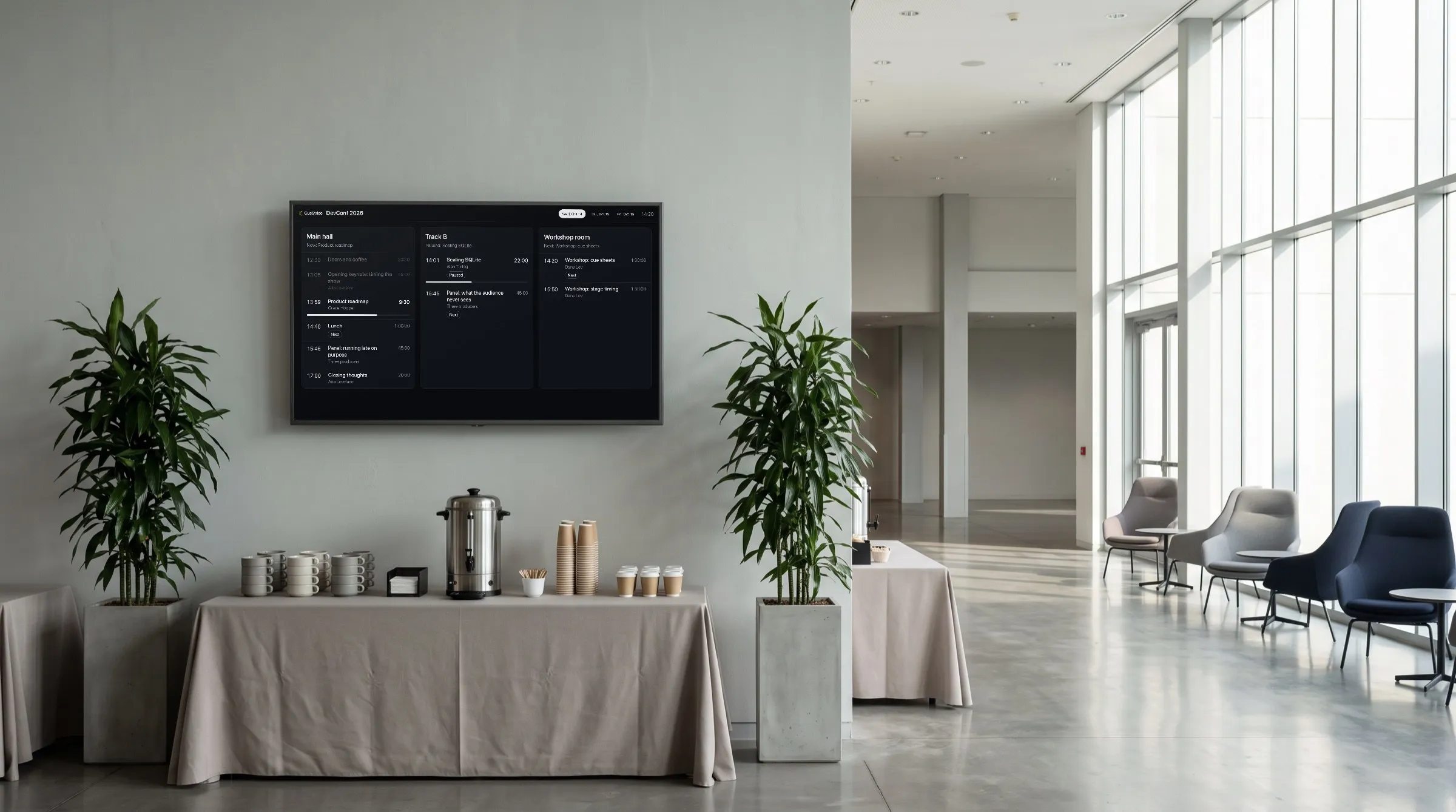
A paired screen is a TV or display that belongs to your account. You pair it once, with a code it shows, and from then on you choose what it shows from the Screens tab. It switches within a second or two, without anyone going to it, and its address never changes, so a TV that restarts comes back to what it showed.
For any browser opened from a room's link, listed and fixed from the room's controller, see Screen control.
Pair
The TV shows a code; you type it once
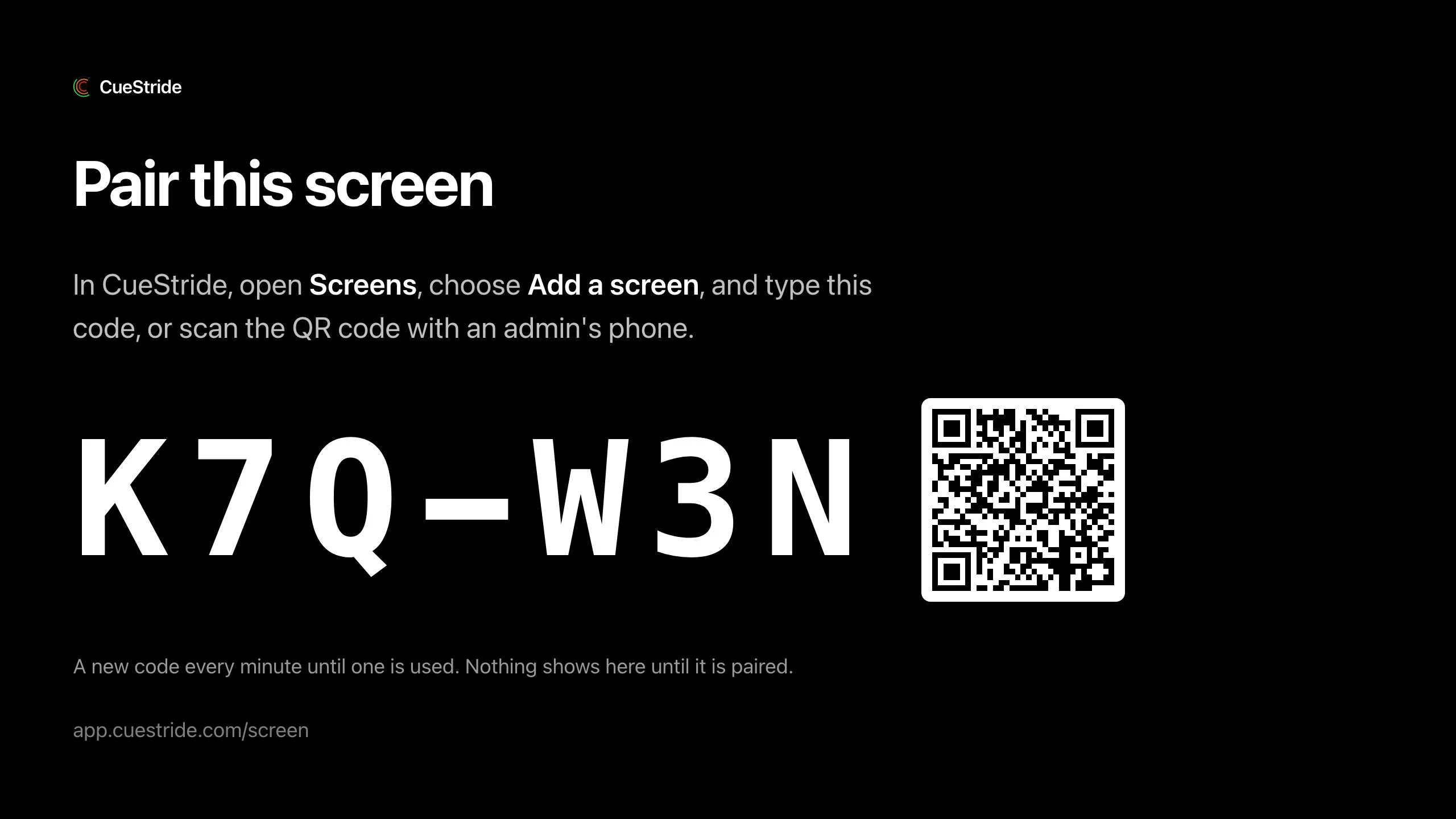
On the TV, open its browser and go to app.cuestride.com/screen. It shows Pair this screen and a code of six letters and digits, such as K7Q-W3N, with a QR code beside it.
The TV shows a new code every minute until one is used, and a code still pairs for a minute after it is replaced, so a code you read just before it changed works. A wrong or old code is refused, and the dialog says so.
Add a screen
Name it, choose what it shows, and pair
Signed in as an admin of the account, choose Screens in the header, after Rooms, then Add a screen. Type the code under Code on the TV: capitals, the dash, and spaces don't matter, and an O is read as a zero. Give the screen a name you will know it by, and under Shows choose what it shows first, or leave Nothing yet.
Or scan the TV's QR code with your phone: once you sign in as an admin, Add a screen opens with the code filled in. The TV says which account paired it, then shows what you chose.

The Screens tab
Every TV of the account in one tab
Each screen's card says whether it is online, or when it was last seen, which room it is in, and what it shows, with Show…, Identify, Reload, Rename, and Unpair. The tab says how many screens are paired against the plan's cap, and checks again every 15 seconds while it is open.
Identify shows the screen's name in large letters for five seconds, so you find it in the venue. Reload reloads its page, for instance after the venue's network came back.
Only an account's admins pair and switch screens; a moderator does not see the tab.

Switch
Switch what a TV shows in a second or two
Choose Show…, pick the view, and choose Switch now. The views are listed under their event, then the rooms in no event: each room's Timer, Agenda, and Backstage, a room's own sponsor screen, the event's board and agenda, and the event's sponsor groups, as far as your plan has them.
A room's Backstage is on Pro and up, the event's board and agenda on Premium and up, and sponsor screens on Premium and up.
To move a screen to another room, choose the room under Room: it shows the same kind of view in the new room, so an Agenda stays an Agenda, and a screen on the event's board or agenda, or on a sponsor group, goes to the room's Timer. Room offers the rooms of the screen's event, or, for a room in no event, the other rooms in no event; Show… reaches the rest. For a Timer, Show… also sets its flips, Mirrored, Upside down, or both, for a screen mounted upside down or seen in a mirror.

Several at once
Switch several screens together, never past a room's limit
Tick the box on each screen's card, then choose Show on all… in the bar that appears, pick the view, and choose Switch now. They switch together. If a room has no place for all of them, none switches and the dialog names the room. A Timer that already shows that room keeps its flips.
A paired screen showing a room's Timer, Agenda, or Backstage takes one of that room's screens, as any open view does; on the event's board or agenda, it takes one in every room of the event; a sponsor screen takes none. A switch to a room that is full is refused before it happens, and the screen keeps what it shows. While a screen is online, the rooms it holds a place in never count as full for it, so it can always switch between their views.

On the TV
A TV that comes back to what it showed
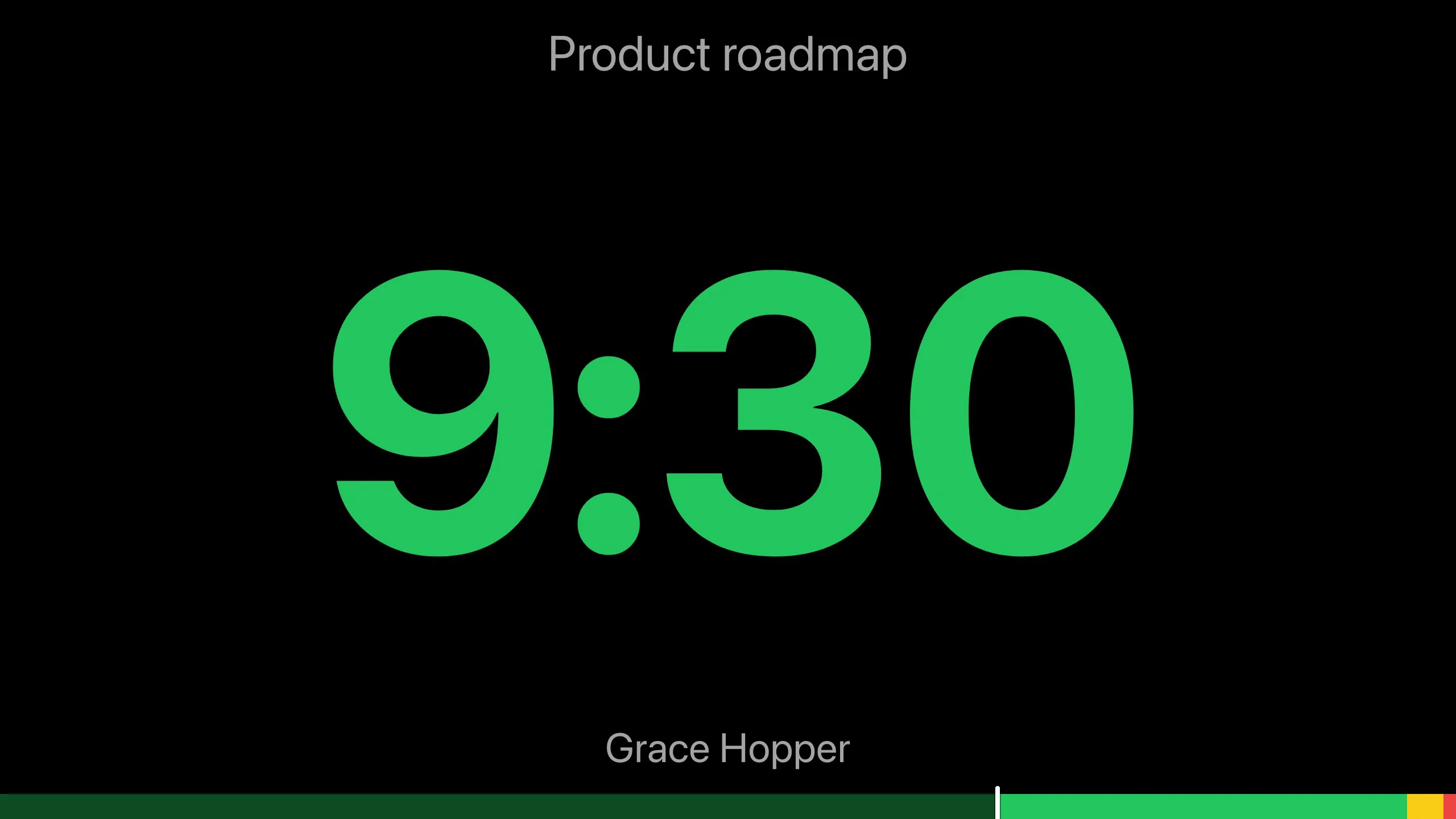
A paired screen draws its view in place: a room's Timer with its flips and no toolbar, its Agenda or Backstage, the event's board or agenda, a sponsor screen, or Nothing assigned with its name. Its address never changes, so a reload comes back to it, and it stays paired through restarts and power cuts.
It remembers its last view on the device, so after a power cut it shows it at once while it reconnects, and offline it keeps showing its view. An offline screen holds no place in its room: if the room fills up meanwhile, the screen is told the room is full when it comes back.
A paired screen needs no room password, and changing a room's password does not sign it out. In the room's Live connections it is listed under its name, marked Paired.
Already open
Pair a TV that already shows a link
A TV that already shows a room's Timer, Agenda, or Backstage, or an event's board or agenda, from its link, can be paired without going to it. While its page is open, it waits in the Screens tab under Waiting to pair, named by what it shows, with its connection's name and how long it has been open. The screens in fullscreen, almost always TVs, come first, and the rest are folded under N more, not in fullscreen.
Choose Identify, and the screen shows its number in large letters for five seconds. Then choose Pair…, give it a name, and choose Pair the screen: within a few seconds it becomes a paired screen, still showing what it showed, and it stays in fullscreen. Deny takes a screen off the list: its page keeps working, and that browser is not offered again.
Nothing joins your account until an admin chooses Pair. A phone never waits there, so a guest's phone with the Timer open stays off the list; a laptop or a tablet does, so identify a screen before you pair it.

Unpair
Unpair from the tab, or at the TV
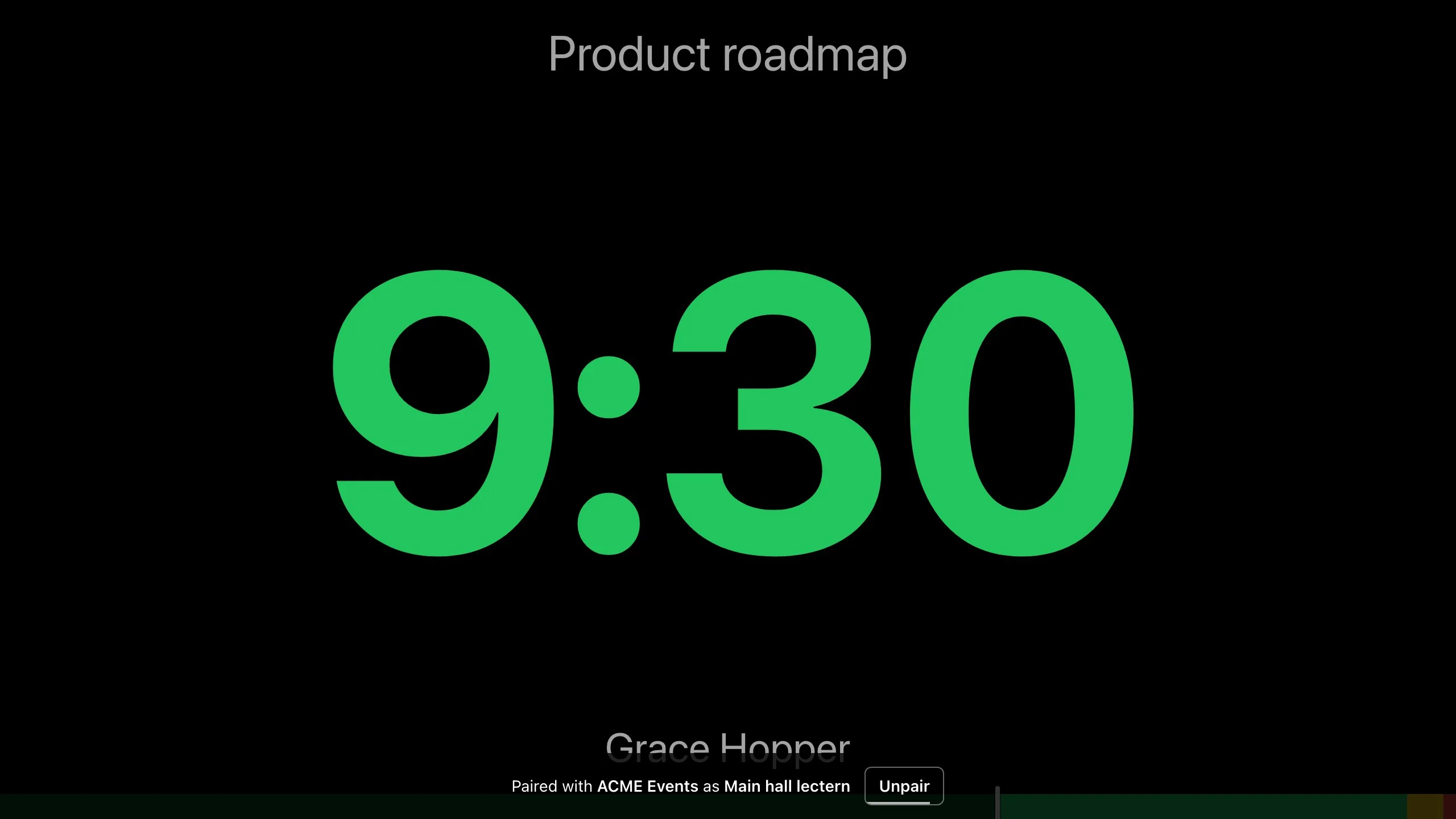
From the account, choose Unpair on the screen's card, then Unpair the screen: the TV goes back to showing a pairing code. At the TV, for a minute after it is paired, the screen shows which account paired it and Not our screen? Unpair, in case someone typed its code by mistake.
After that, press any key or click on the screen, and the same bar shows Unpair for five seconds. Either asks first. Deleting the account unpairs all of its screens.
Plans
Which plan has it
Paired screens: Pro and up
Paired screens per account: none on Starter, 10 on Pro, 300 on Premium, and unlimited on Enterprise.
What a TV can show follows the plan too: a room's Backstage on Pro and up, the event's board and agenda on Premium and up, and sponsor screens on Premium and up.
On Starter, the Screens tab says what paired screens do and links to the plans.
A plan that lapses keeps every screen paired, and refuses new pairings beyond its cap.
Set it up
How to set up paired screens
- 1
Open the pairing page on the TV
In the TV's browser, go to app.cuestride.com/screen. It shows a code.
- 2
Add the screen
Signed in as an admin, choose Screens, then Add a screen, and type the code, or scan the TV's QR code with your phone.
- 3
Name it and choose what it shows
Give it a name, choose what it shows first under Shows, and choose Pair the screen.
- 4
Switch it from your seat
Choose Show… on its card, pick the view, and choose Switch now.
FAQ
Questions, answered.
Does the TV need an app?
No. It uses the TV's own browser: open app.cuestride.com/screen there, and type the code it shows under Add a screen.
What happens when the TV restarts or loses power?
It stays paired, and its address never changes, so it comes back to what it showed. It remembers its last view on the device, so it shows it at once while it reconnects. If its room filled up while it was off, it is told the room is full instead.
Can I pair a TV that already shows a timer link?
Yes. While its page is open, it waits in the Screens tab under Waiting to pair. Identify it, then choose Pair…: it keeps showing what it showed. A phone never waits there.
Does a paired screen need the room's password?
No. A paired screen needs no room password, and changing a room's password does not sign it out.
Does a paired screen take one of a room's screens?
Yes, as any open view does: one in the room whose Timer, Agenda, or Backstage it shows, one in every room of the event for the event's board or agenda, and none for a sponsor screen.
Can I switch several TVs at once?
Yes. Tick them, choose Show on all…, and pick the view. They switch together, or none does when a room has no place for all of them.
Who can pair and switch screens?
Only an account's admins. A moderator does not see the Screens tab.
How many TVs can an account pair?
It depends on the plan: none on Starter, 10 on Pro, 300 on Premium, and unlimited on Enterprise.
Your next show, on time.
Put a room's link on a screen and run the show; sign up free when you want to keep it.
No account needed