ScreensEvery plan
See every screen in the room, and fix one without walking to it
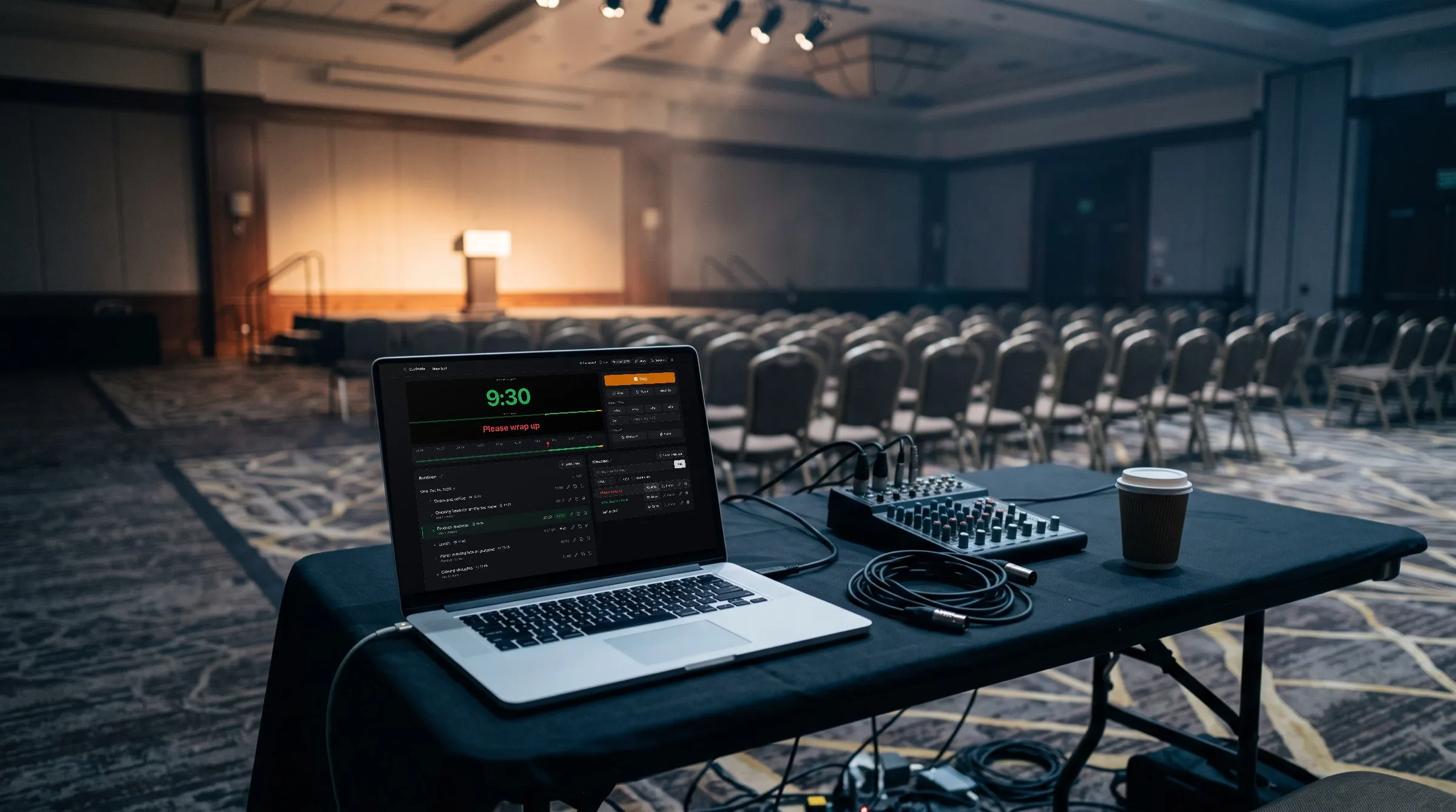
Any browser that opens a room's link is one of its screens: a laptop, a tablet, a phone, or a TV's own browser. The controller lists every one connected right now, and lets you name it, find it, reload it, flip it, or drop it from your seat.
For a venue's TVs paired to your account once and switched between rooms and events from one tab, see Paired screens.
Any browser
Any browser with the link is a screen
Choose Links on the controller, and Share a screen opens with a card for each screen and a live picture of how that screen looks right now: the Timer for the speaker, the Agenda for the audience, such as a screen at the door, Backstage for the green room (Pro and up), Sponsors for an event's sponsors (Premium and up), and the Controller for the people running the show.
Copy a card's link and open it in the screen's browser: a spare laptop, a tablet, another phone, or a TV's own browser. The screen needs no account and no sign-in. On a phone or a tablet, choose the card instead: its page has a QR code of the link for the device's camera.

Live connections
Every screen open on the room, listed live
The controller's header counts the room's screens open now, out of what the plan allows. Choose the count to open Live connections: every connected screen and controller, grouped by role, each with its number, a green dot, its name, and how long it has been connected. A crown marks the account's admins, and your own connection is marked You.
Every page on the room counts: its Timer, Agenda, and Backstage, your own controller, a moderator's page, and each open board or agenda of the room's event, which counts in every room of the event. Sponsor screens and attendee pages are not counted.
Screens and moderators see nothing of the list.

Find and fix
Find a screen, reload it, or drop it
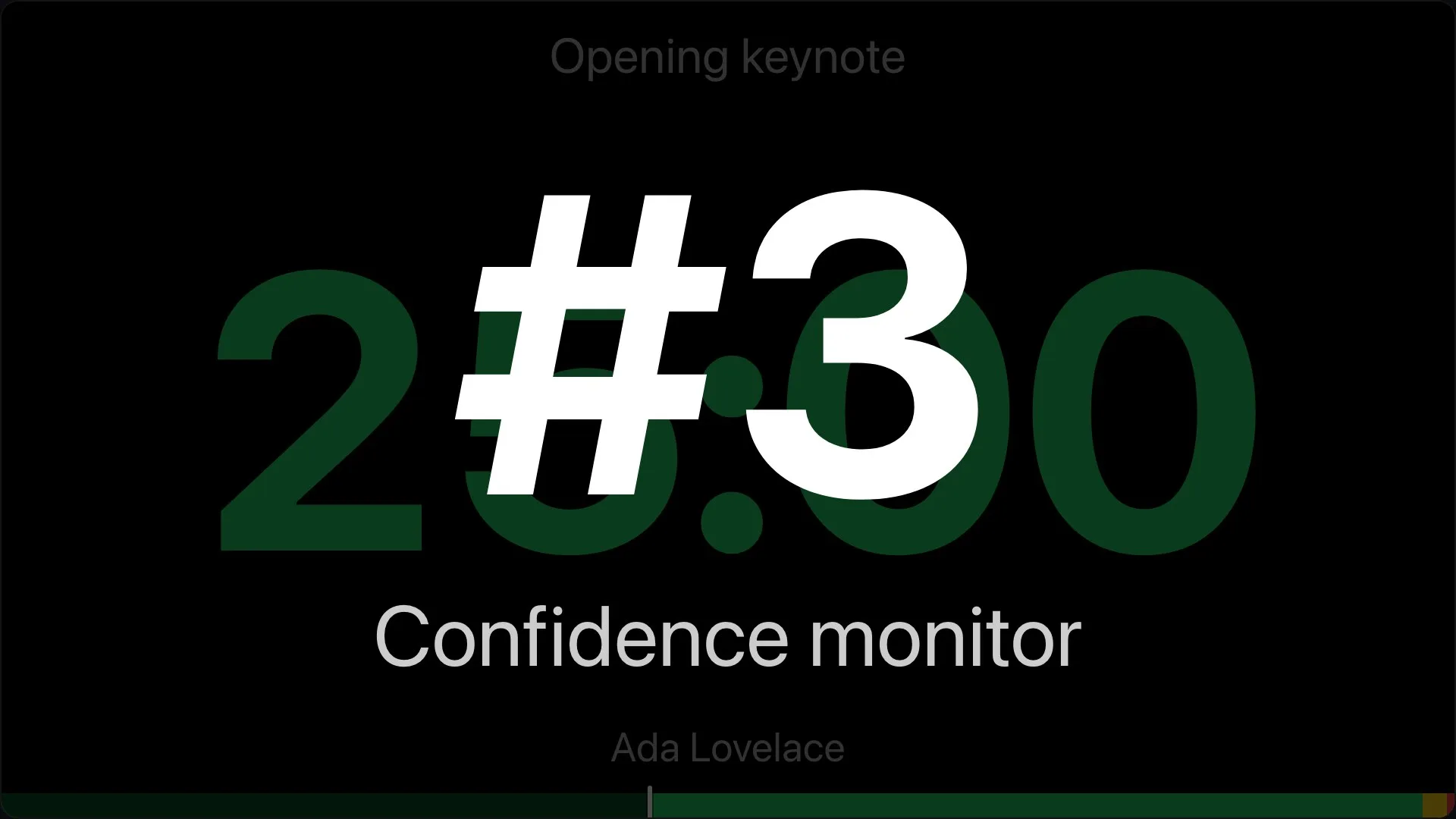
Each connection's menu has Rename, Show identify overlay, Force reload, and Kick. A paired screen's has Clear what it shows instead of Kick: the TV stays paired, showing its name and Nothing assigned, until an admin chooses what it shows in Screens, and one on the event's board or agenda is changed from Screens only. A board or agenda opened from its link has no menu, since it belongs to the event. Identify shows the screen's number and name over its stage for five seconds, so you know which display in the venue it is. A name you give a screen stays with the device, through reloads and reconnects; a screen with none reads Viewer and a short id, such as Viewer c1ab.
Force reload reloads the screen's page. Kick closes its connection: the page says the operator disconnected it and offers to reconnect, and it stays off until someone asks. Kick all and Force reload all, at the foot of the list, act on every connection but your own, and Kick all leaves paired screens alone.
Mirror and flip
Mirror a screen for a prompter's glass
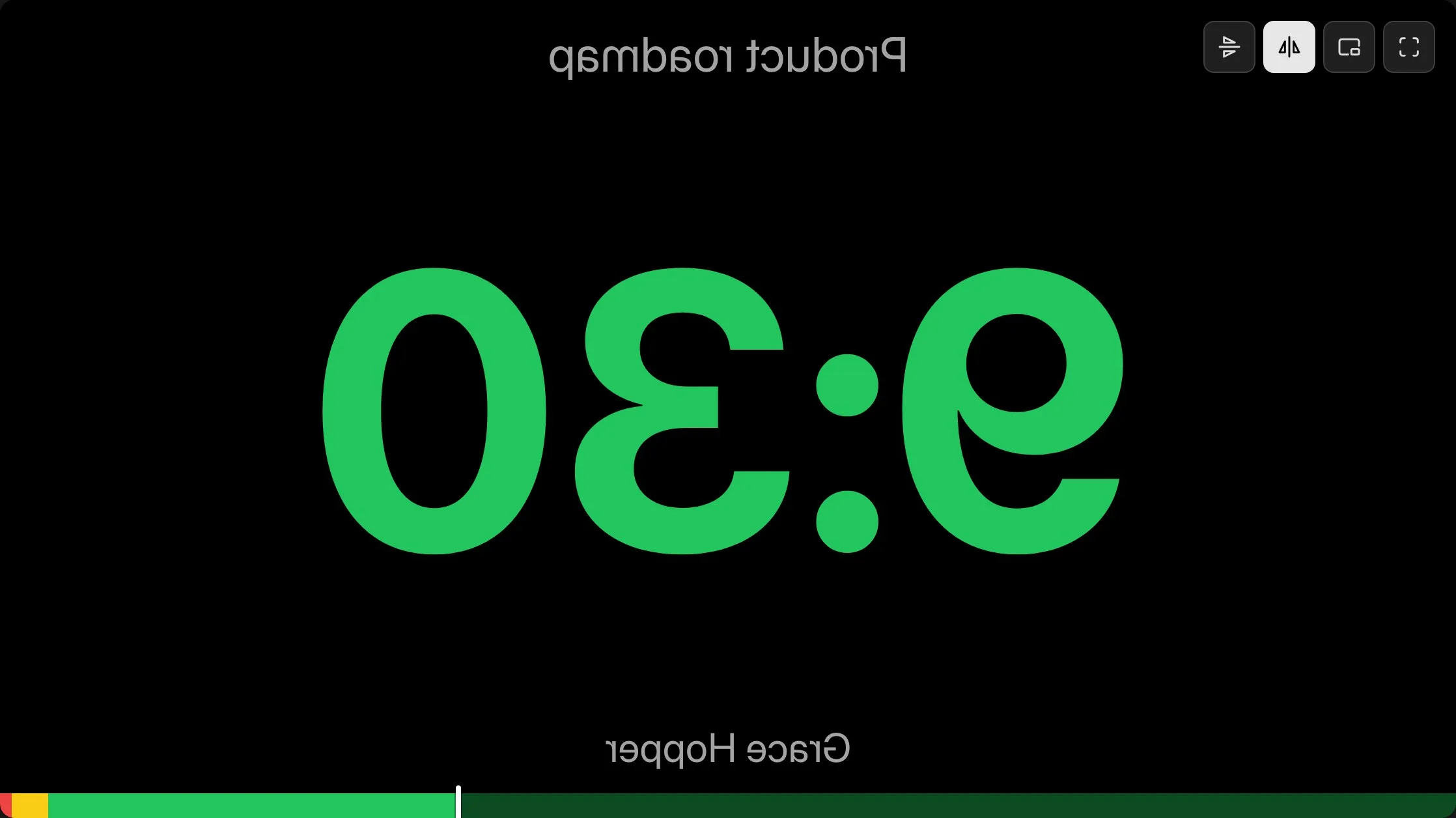
A prompter's glass or a reflective screen needs the stage mirrored. A Timer screen's row in Live connections has toggles to flip it vertically and mirror it horizontally, and shows the flips it has now, including those set on the screen itself. The screen applies them at once and keeps them across a reload. Agenda and Backstage screens, boards, and controllers have neither.
Or put them in the link: on the Timer's page in Share a screen, tick mirror horizontally, flip vertically, or hide the screen's controls, and its picture and its link follow. A screen opened with that link starts flipped.
The same row and the same page also clear a Timer's background, for a source in OBS or vMix (Pro and up): see Stream overlays.

On the screen
The screen's own toolbar: flip, float, fullscreen
Move the pointer over a screen, or tap it, and a toolbar appears in its corner: flip vertically, mirror, picture-in-picture, and fullscreen where the browser offers it. It hides three seconds after the pointer stops, and never flips with the stage. A link made with the screen's controls hidden shows no toolbar.
Picture-in-picture floats the live timer in a small window that stays on top of other windows and keeps running while the page is in the background. It is offered where the browser supports it, Chrome and Edge on a desktop, and nowhere else.
Browsers enter fullscreen only from a tap or a click on the screen itself. So a Timer screen's fullscreen button in Live connections makes the screen show a large Tap for fullscreen button for 60 seconds: one tap from someone at the screen fills it, and the list shows which screens are in fullscreen.
Password
A password on a room's screens
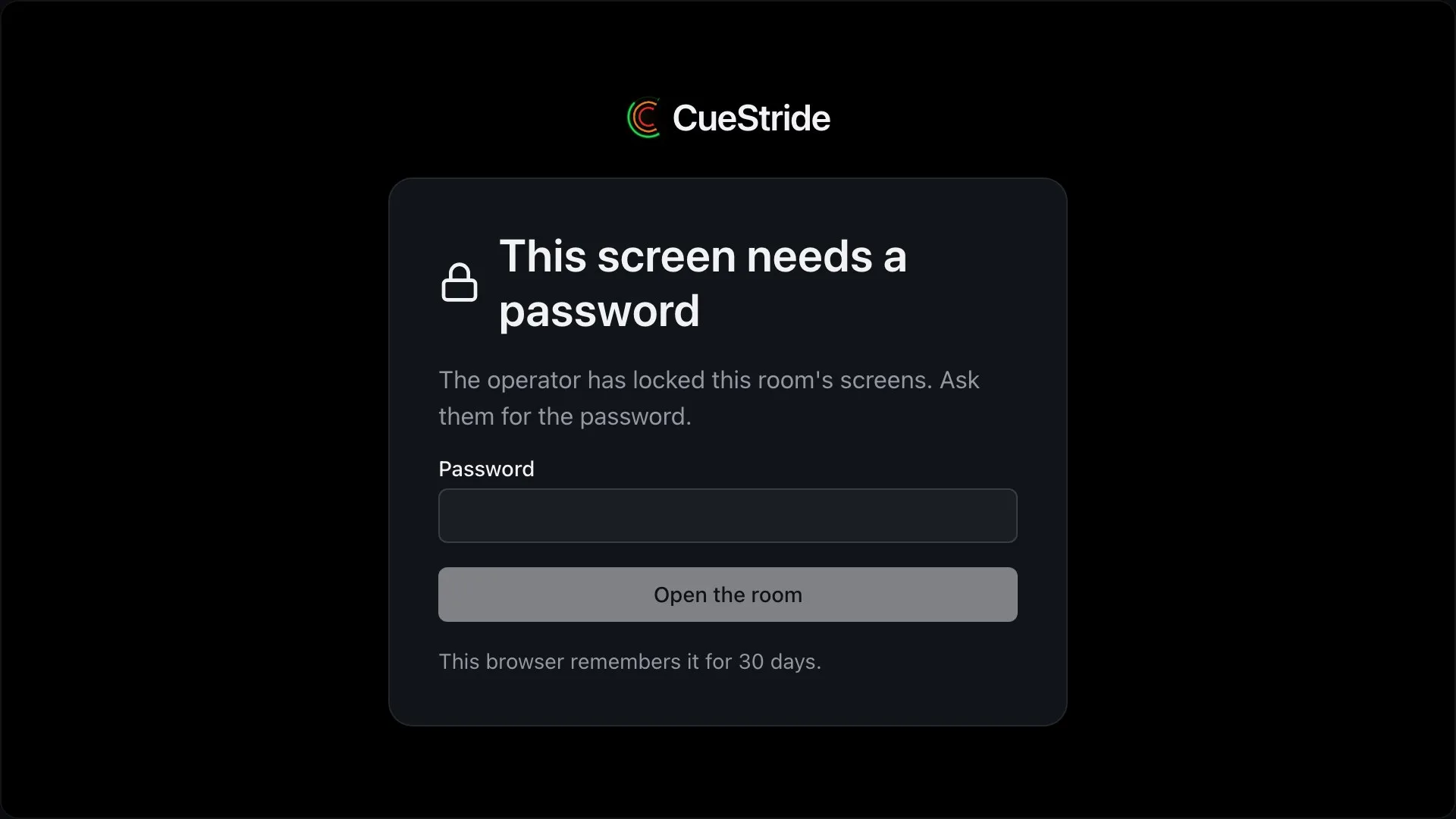
On Pro and up, a room's Settings can set, change, or remove a password for its screens. The room's Timer, Agenda, and Backstage then show a form instead of the room until it is entered: a wrong one is refused, repeated tries are slowed, and a screen that entered the right one keeps working through reloads.
Changing the password signs out every open screen of the room at once, and each asks for the new one; removing it lets them in. Controllers and moderators are never asked, nor an event's board and agenda, nor a TV paired to your account.
A password set on a plan that has them is still asked for after a move to a plan without them, and can always be removed.
Screens per room
How many screens a room holds
How many screens can be open on a room at once depends on the plan: 3 on Starter, 5 on Pro, or up to 50 with more screens, 50 on Premium, or up to 300 with more screens, and 500 on Enterprise. Your own controller is one of them.
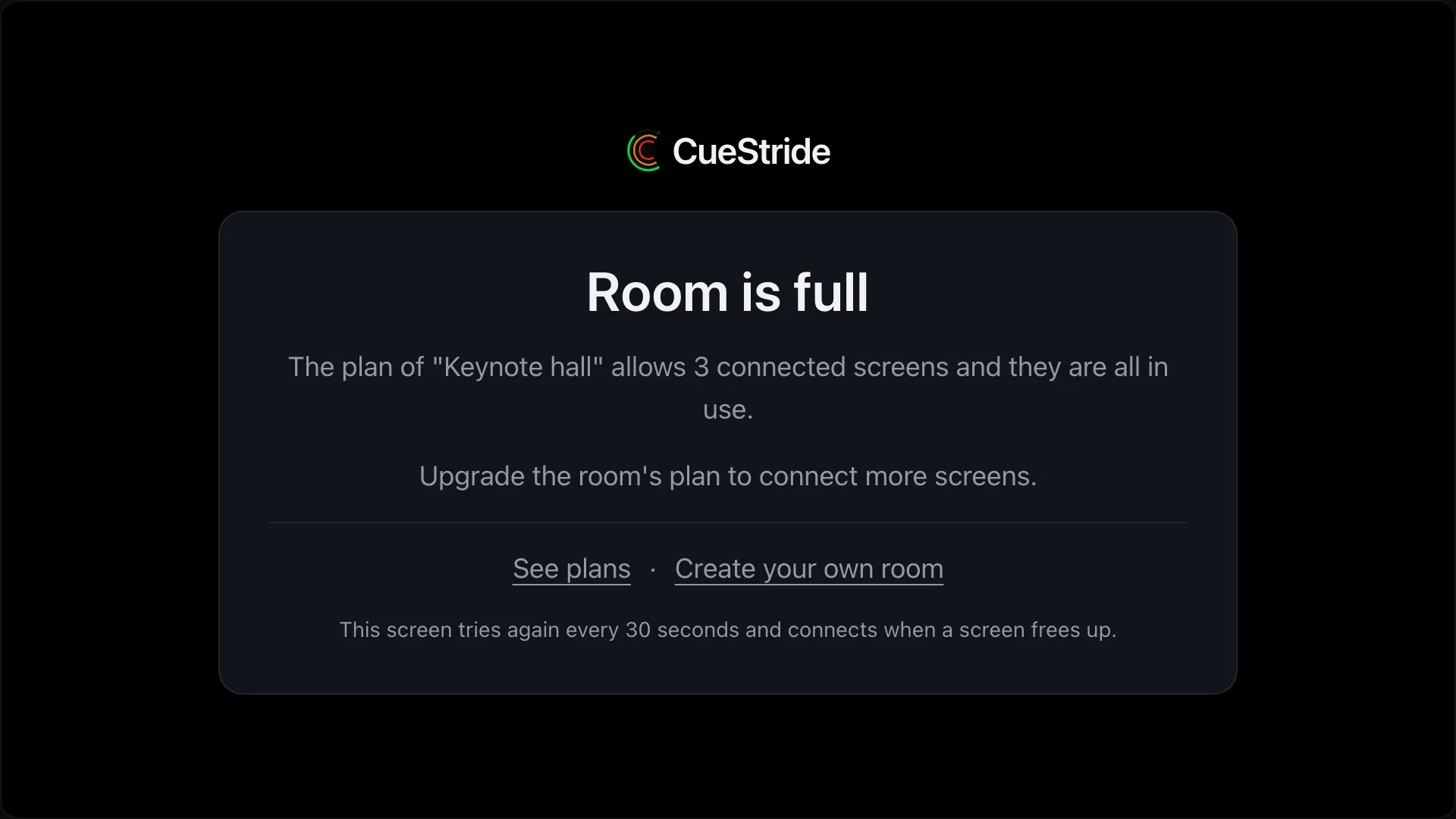
A screen that finds its room full says so and tries again every 30 seconds. A room's controller is never refused while no other controller of the room is connected, so you can always get back in to run the show.
Plans
Which plan has it
Screen control: Every plan
Live connections, with names, identify, reload, and flips, is on every plan.
A password on a room's screens is on Pro and up.
Screens per room: 3 on Starter, 5 on Pro, or up to 50 with more screens, 50 on Premium, or up to 300 with more screens, and 500 on Enterprise.
Set it up
How to set up screen control
- 1
Put the room on a screen
On the controller, choose Links, copy a card's link, and open it in the screen's browser.
- 2
Name each screen
Choose the screens count in the controller's header to open Live connections, and rename each screen from its menu.
- 3
Fill the screen
Move the pointer over the screen and choose the toolbar's fullscreen button, or choose the screen's fullscreen button in Live connections and tap the screen once.
- 4
Lock it if you need to
In the room's Settings, set a password for its screens (Pro and up).
FAQ
Questions, answered.
Does a screen need an account or an app?
No. A screen is a link opened in a browser: a laptop, a tablet, a phone, or a TV's own browser. It needs no account and no sign-in.
How do I tell which screen is which?
Choose Show identify overlay in the screen's menu in Live connections: it shows its number and name over its stage for five seconds. Then rename it, and the name stays with that device.
Can I mirror the timer for a teleprompter?
Yes. Mirror it from the screen's toolbar, from its row in Live connections, or in its link from the Timer's page in Share a screen. The screen keeps its flips across a reload.
Can I put a screen in fullscreen from the controller?
Nearly. Browsers enter fullscreen only from a tap on the screen itself, so a Timer screen's fullscreen button in Live connections shows a large Tap for fullscreen button on it for 60 seconds, and one tap there fills it.
Can the timer float above my other windows?
In Chrome and Edge on a desktop, the screen's picture-in-picture button opens the live timer in a small window that stays on top of other windows. Other browsers don't offer it.
What does a room's password cover?
The room's Timer, Agenda, and Backstage screens. Controllers, moderators, the event's board and agenda, and TVs paired to your account are not asked for it.
How many screens can a room have?
It depends on the plan: 3 on Starter, 5 on Pro, or up to 50 with more screens, 50 on Premium, or up to 300 with more screens, and 500 on Enterprise. Your own controller is one of them.
How is this different from paired screens?
A screen here is any browser that opened a room's link, and it shows that room. A paired screen is a TV paired to your account once, whose view you switch between rooms and events from the Screens tab (Pro and up).
Your next show, on time.
Put a room's link on a screen and run the show; sign up free when you want to keep it.
No account needed