Your first requests
Send your first CueStride API requests: find your room, read it, start a timer, add time, show a message, and press a Stream Deck button.
Last checked against CueStride on 27 October 2026.
Six requests, five from a terminal and one from a Stream Deck button, with a key from Make an API key. Each shows what the API answers and, for a command, what the room’s screen shows after it. The examples follow a room called Keynote hall, whose opening keynote of 20 minutes is paused 30 seconds in.
These examples use curl in a macOS or Linux terminal, in bash or zsh. Any tool that sends a web
request works the same way, and Windows has the same curl in PowerShell, as below.
Keep the key in a variable
Put the secret in a variable once, so the commands below can use it and it stays out of your shell’s history of commands. In bash or zsh:
read -s CUESTRIDE_KEY && export CUESTRIDE_KEY
Paste the secret and press Enter. Every request sends the key in the Authorization header, as
Bearer and the secret.
In PowerShell 7, ask for the secret the same way, and then call curl.exe, not curl, which
PowerShell reads as its own command. Write each example on one line, with $env:CUESTRIDE_KEY
for $CUESTRIDE_KEY, and $env:ROOM for $ROOM once you have set it as below:
$env:CUESTRIDE_KEY = Read-Host -MaskInput "Key"
curl.exe https://app.cuestride.com/api/v1/rooms -H "Authorization: Bearer $env:CUESTRIDE_KEY"
1. Find your room
Ask for the rooms the key reaches:
curl https://app.cuestride.com/api/v1/rooms \
  -H "Authorization: Bearer $CUESTRIDE_KEY"
The answer lists each room with its id:
{
  "ok": true,
  "rooms": [
    {
      "id": "K7QW3ND2XA",
      "name": "Keynote hall",
      "disabled": false,
      "apiOff": false
    },
    {
      "id": "M3PZ8RT4VB",
      "name": "Hall B",
      "disabled": false,
      "apiOff": false
    }
  ]
}
A room’s id is also the end of its controller’s address. Keep the one you want:
ROOM=K7QW3ND2XA
2. Read what the room shows
curl https://app.cuestride.com/api/v1/rooms/$ROOM/status \
  -H "Authorization: Bearer $CUESTRIDE_KEY"
The status holds the loaded timer, the one Next would cue, whether it runs, the time left and gone in milliseconds, the phase the screens show, and the message showing, if any:
{
  "ok": true,
  "revision": 42,
  "serverTime": 1791987600000,
  "room": {
    "id": "K7QW3ND2XA",
    "name": "Keynote hall",
    "blackout": false
  },
  "timer": {
    "id": "3f1c6a52-8d3e-4f0b-9a57-2c4e1b7d9a10",
    "index": 2,
    "name": "Opening keynote",
    "speaker": "Dana Levi"
  },
  "next": {
    "id": "8b2d4e61-1a7c-4c39-b0f2-6d5e3a9c8b21",
    "index": 3,
    "name": "Panel: live events in 2027",
    "speaker": "",
    "disabled": false
  },
  "running": false,
  "phase": "green",
  "remainingMs": 1170000,
  "elapsedMs": 30000,
  "totalMs": 1200000,
  "message": null
}
That is what the presenter sees on the room’s screen: the keynote, paused with 19:30 left.
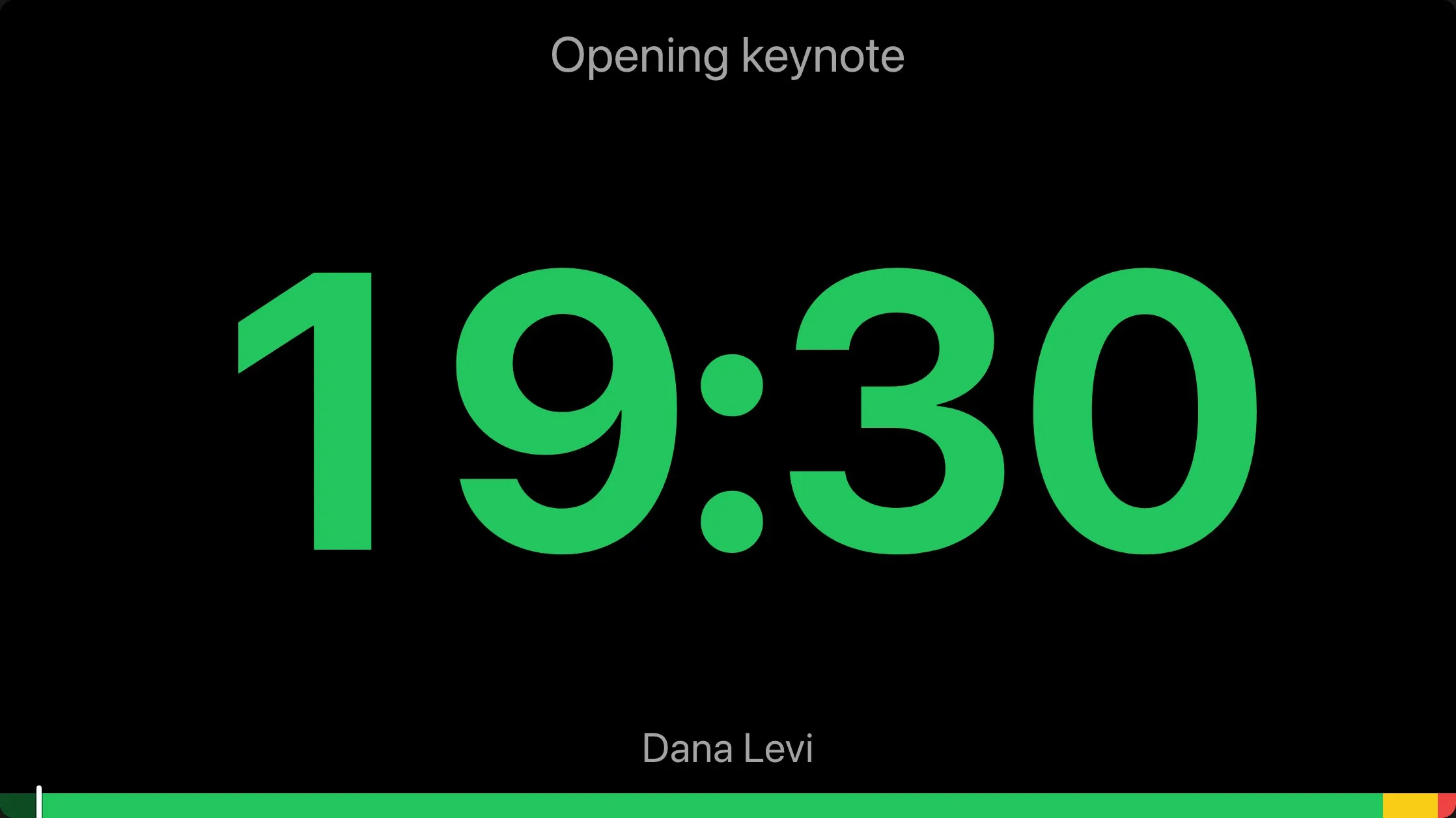
The status is the cheapest read, for a tool that asks every few seconds. To be told of every change instead, open the stream.
3. Start the timer
A key that may run the show sends commands with POST. Start the loaded timer:
curl -X POST https://app.cuestride.com/api/v1/rooms/$ROOM/playback/start \
  -H "Authorization: Bearer $CUESTRIDE_KEY"
The answer says whether anything changed, the room’s new revision, and the playback, its times in
milliseconds since 1970. A start sent to a timer that already runs answers changed: false, and the
revision stays.
{
  "ok": true,
  "changed": true,
  "revision": 43,
  "playback": {
    "timerId": "3f1c6a52-8d3e-4f0b-9a57-2c4e1b7d9a10",
    "running": true,
    "startAt": 1791987570000,
    "finishAt": 1791988770000,
    "pauseAt": null
  }
}
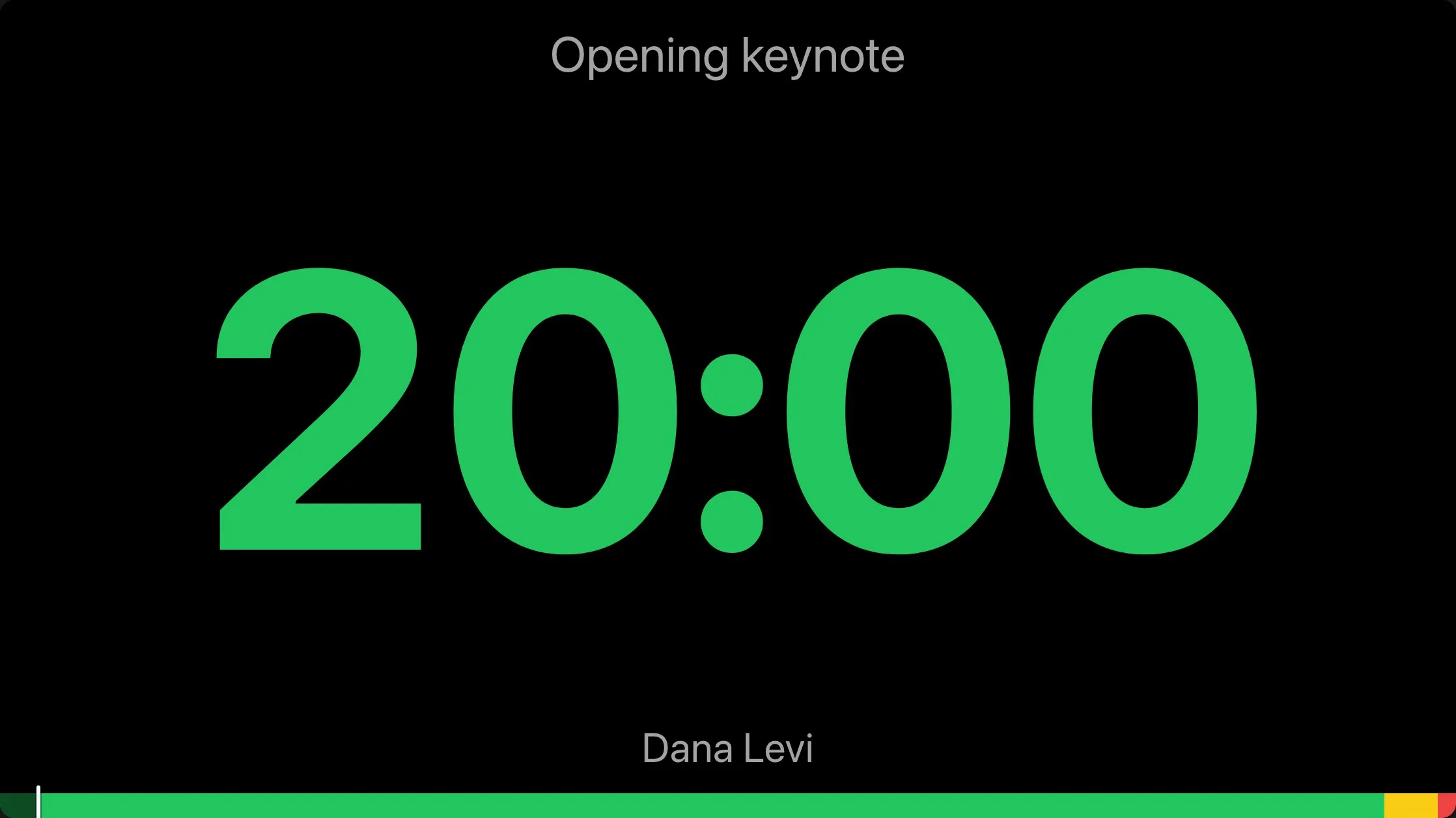
The screen looks as it did above, and now counts down from 19:30, on every screen of the room at once.
4. Add 30 seconds
A command with options sends them as JSON. Give the speaker 30 seconds more:
curl -X POST https://app.cuestride.com/api/v1/rooms/$ROOM/playback/add \
  -H "Authorization: Bearer $CUESTRIDE_KEY" \
  -H "Content-Type: application/json" \
  -d '{"amount": "30s"}'
The finish moves 30 seconds later:
{
  "ok": true,
  "changed": true,
  "revision": 44,
  "playback": {
    "timerId": "3f1c6a52-8d3e-4f0b-9a57-2c4e1b7d9a10",
    "running": true,
    "startAt": 1791987570000,
    "finishAt": 1791988800000,
    "pauseAt": null
  }
}
5. Show a message
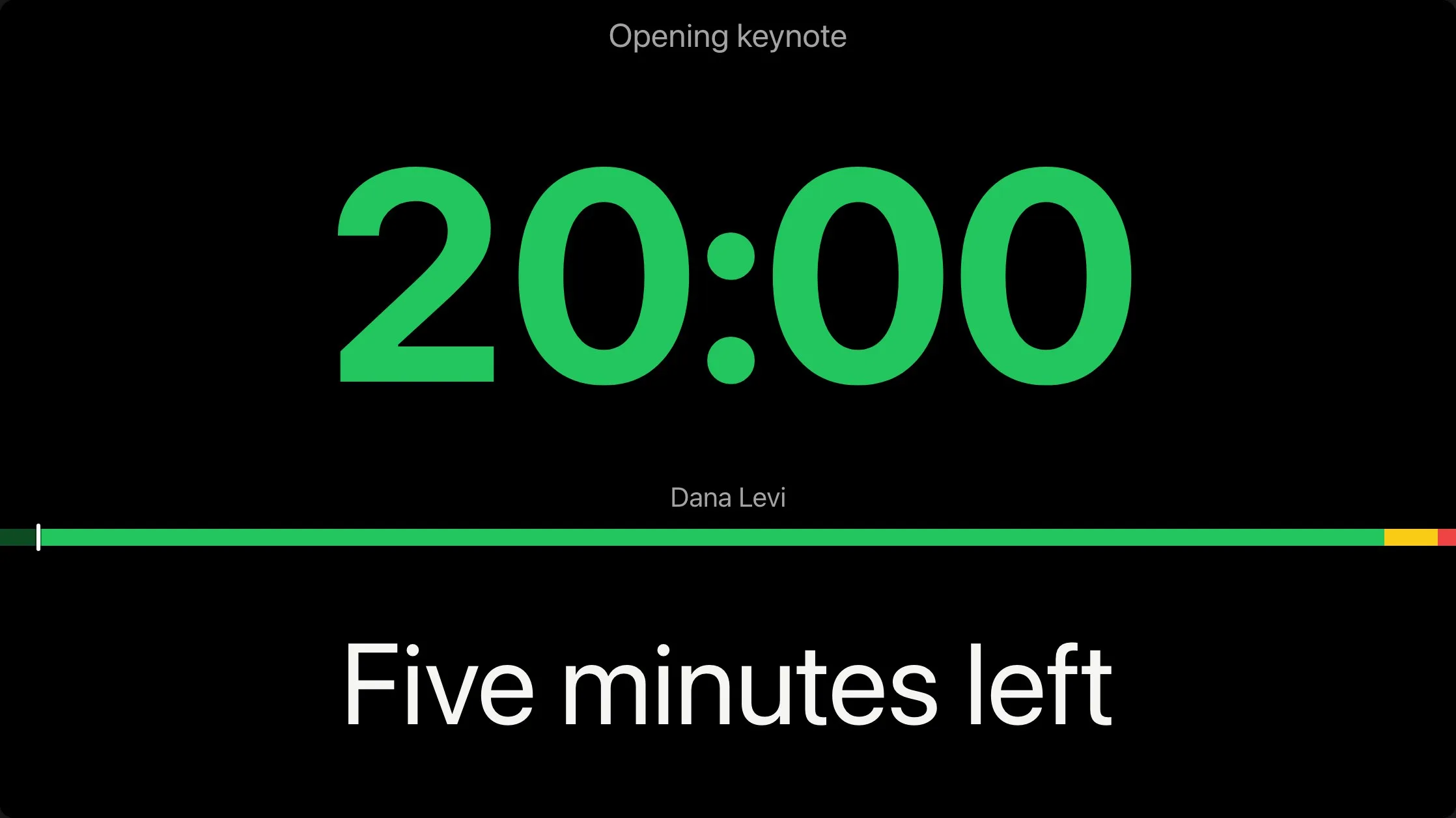
Messages are the ones the room’s controller has in its list. Show the first one on the screens, by its place in the list:
curl -X POST https://app.cuestride.com/api/v1/rooms/$ROOM/messages/show \
  -H "Authorization: Bearer $CUESTRIDE_KEY" \
  -H "Content-Type: application/json" \
  -d '{"index": 1}'
The answer holds the room’s messages, the first now showing, and the room:
{
  "ok": true,
  "changed": true,
  "revision": 45,
  "messages": [
    {
      "id": "5d0e9b7a-2f4c-4a18-8e63-9c1b7f2a4d30",
      "roomId": "K7QW3ND2XA",
      "position": 0,
      "text": "Five minutes left",
      "color": "white",
      "bold": false,
      "uppercase": false,
      "showing": true,
      "createdAt": 1791901200000,
      "updatedAt": 1791987600000
    },
    {
      "id": "e7a3c1f9-6b2d-4e85-a0d4-1f8c3b5e9a72",
      "roomId": "K7QW3ND2XA",
      "position": 1,
      "text": "Please wrap up",
      "color": "red",
      "bold": true,
      "uppercase": false,
      "showing": false,
      "createdAt": 1791901200000,
      "updatedAt": 1791901200000
    }
  ],
  "room": {
    "id": "K7QW3ND2XA",
    "name": "Keynote hall",
    "timezone": "UTC",
    "clockFormat": "24h",
    "blackout": false,
    "onAir": false,
    "messageFocus": false,
    "defaults": {
      "wrapUpYellowMs": 120000,
      "wrapUpRedMs": 60000
    },
    "overtime": {
      "mode": "continue",
      "sign": "minus"
    },
    "eventId": null,
    "revision": 45,
    "lastActivityAt": 1791987600000,
    "createdAt": 1791901200000,
    "updatedAt": 1791901200000
  }
}
Every command and its options are in the reference: start,
add time, show a message,
cue a timer, and the rest. A command beyond the key’s scope is
refused with 403 SCOPE_FORBIDDEN, and a room beyond its reach answers 404 ROOM_NOT_FOUND, as a
room that does not exist does.
6. A button on a Stream Deck
A Stream Deck’s Website action can only open a link. A key made with Allow in links may go
in a control command’s address, as api_key, and the command then runs from that plain GET:
https://app.cuestride.com/api/v1/rooms/K7QW3ND2XA/playback/next?api_key=csk_…
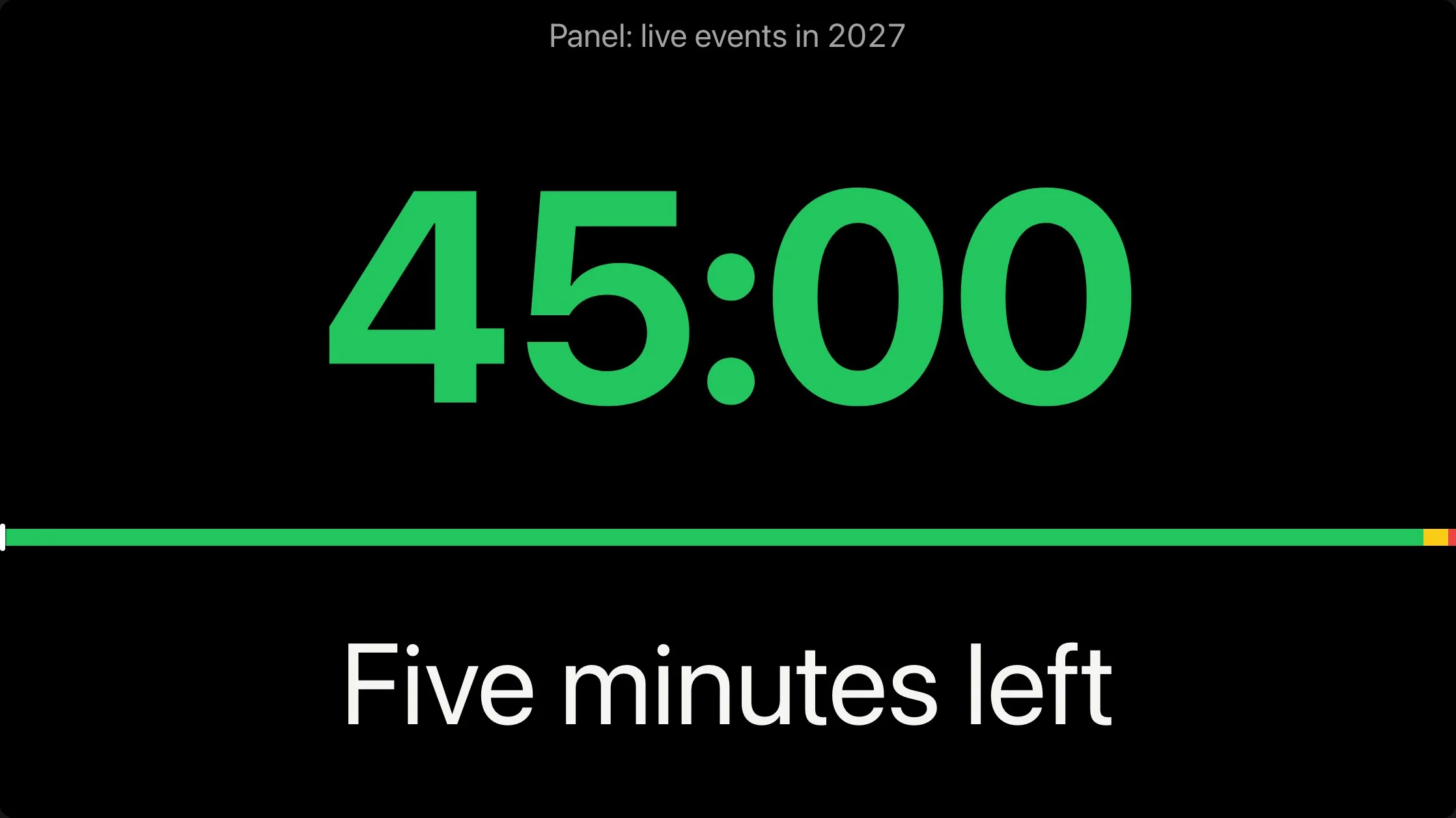
A press answers as the POST would. Here Next cues the panel, paused at its whole length, for
the operator or another button to start:
{
  "ok": true,
  "changed": true,
  "revision": 46,
  "playback": {
    "timerId": "8b2d4e61-1a7c-4c39-b0f2-6d5e3a9c8b21",
    "running": false,
    "startAt": 1791987660000,
    "finishAt": 1791990360000,
    "pauseAt": 1791987660000
  }
}
Set the action to open the address in the background, so no browser opens on the computer. The
command’s options go in the address too: …/playback/select?index=3&autostart=true&api_key=…
cues the timer printed 3 and starts it.
Only a control command’s GET and the stream take a key in the address. Anywhere else, or from
a key not made for links, it is refused with 400 KEY_IN_URL, and nothing runs.
Next
Set the API up in your tools: Companion, a Stream Deck, vMix, QLab, OBS, Zapier, Make, n8n, Apple Shortcuts, and Home Assistant. The rest is in the API reference: every route with its fields, the limits, retries, the refusals, and the stream with a client to copy.