Bring your rundown from Excel, Google Sheets, or Numbers
Save a rundown as CSV in Excel, Google Sheets, or Numbers step by step, import it into a CueStride room, and open a room's rundown in your spreadsheet again.
Last checked against CueStride on 2 November 2026.
Most rundowns start in a spreadsheet. CueStride imports one saved as CSV, a plain text file every spreadsheet can write, and a room’s rundown downloads as CSV too, so it opens again where it came from. This guide saves a rundown as CSV in Excel, Google Sheets, and Numbers step by step, imports it into a room, and opens a room’s rundown in each. Everything the import reads is in Import and export a rundown.
What you need
- A spreadsheet: Excel, Google Sheets, or Numbers. The screenshots here are from Excel 16.16, Google Sheets in Chrome, and Numbers 14.1 on a Mac; where Excel for Windows names a step differently, its part says so.
- A room in CueStride to import into, on Pro or up. Any plan downloads a room’s rundown.
Lay out the sheet
One row per timer, under a row that names the columns. A title block above that row is fine, and a
Date line in it gives the show’s day.
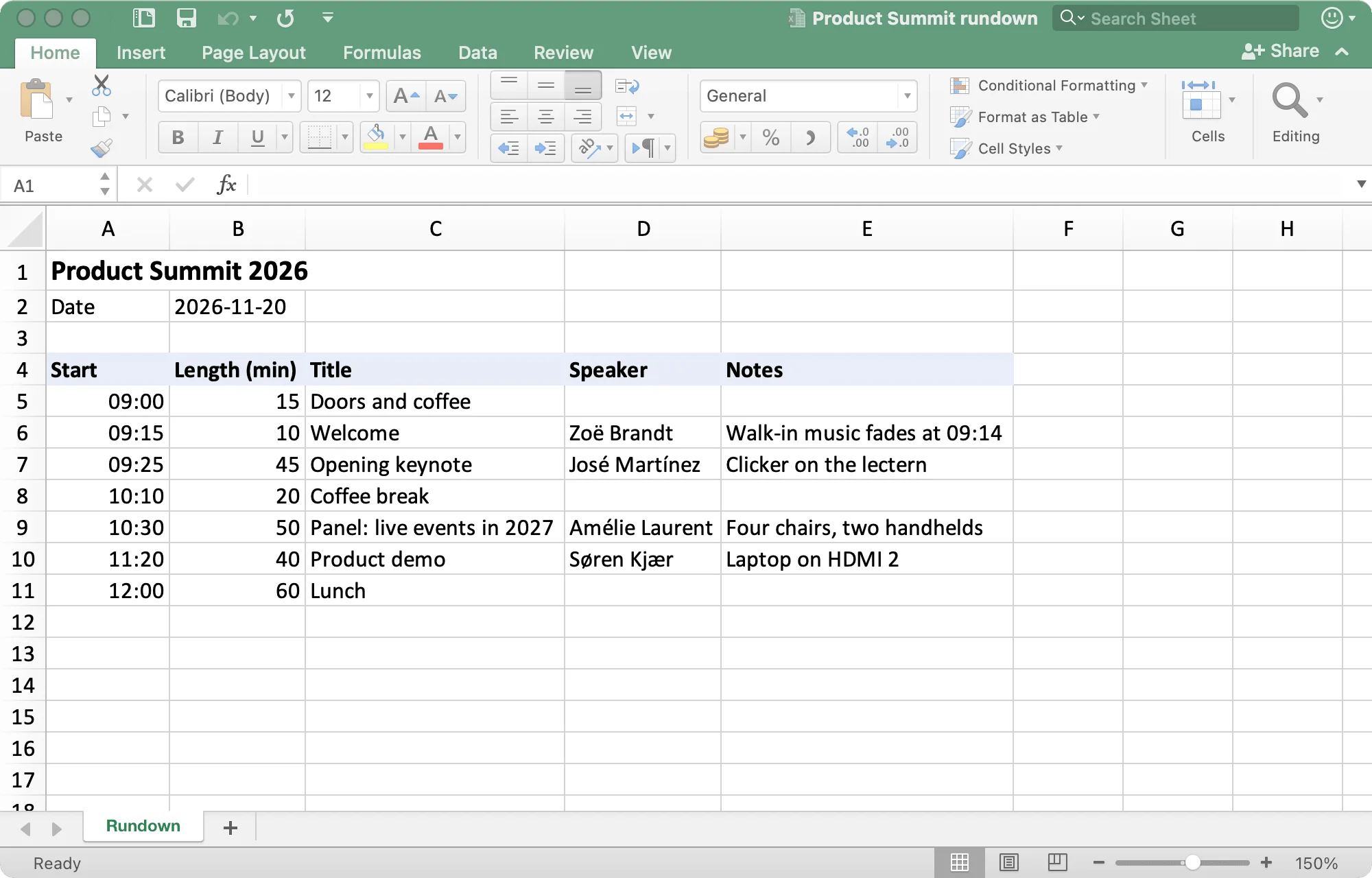
- Title, and a Length, a Start, or both, make each row a timer. Speaker and Notes come along when the sheet has them. The names your sheet already uses work too, such as Duration, Segment, or Presenter: see the columns.
- Length: a whole number is minutes, as
(min)in the header says. Under(s)or(h)it is seconds or hours instead, so2underLength (h)is two hours.0:45:00,45 min, and1h 30mread the same under any header. - Start: a time of day, such as
09:15or9:15 AM. The import asks whether the starts start their timers on their own or only keep their times. - The Date line:
Datein one cell and the day in the next, such as2026-11-20, above the header. Without one, a sheet with starts or ends is asked which day it is for, Today, Tomorrow, or Another day, with nothing chosen. A sheet of titles and lengths needs no day.
To start from ours, download the sample rundown, open it in your spreadsheet as Open a room’s rundown does, and change the Date to your show’s day.
Save it as CSV
A CSV holds one sheet, as text: the values as the sheet shows them, without their formatting. Open the sheet with the rundown first, keep your spreadsheet as it is, and save the CSV beside it.
Excel
- Choose File > Save As.
- Under File Format, choose CSV UTF-8 (Comma delimited) (.csv).
- Choose where to save it, and choose Save.
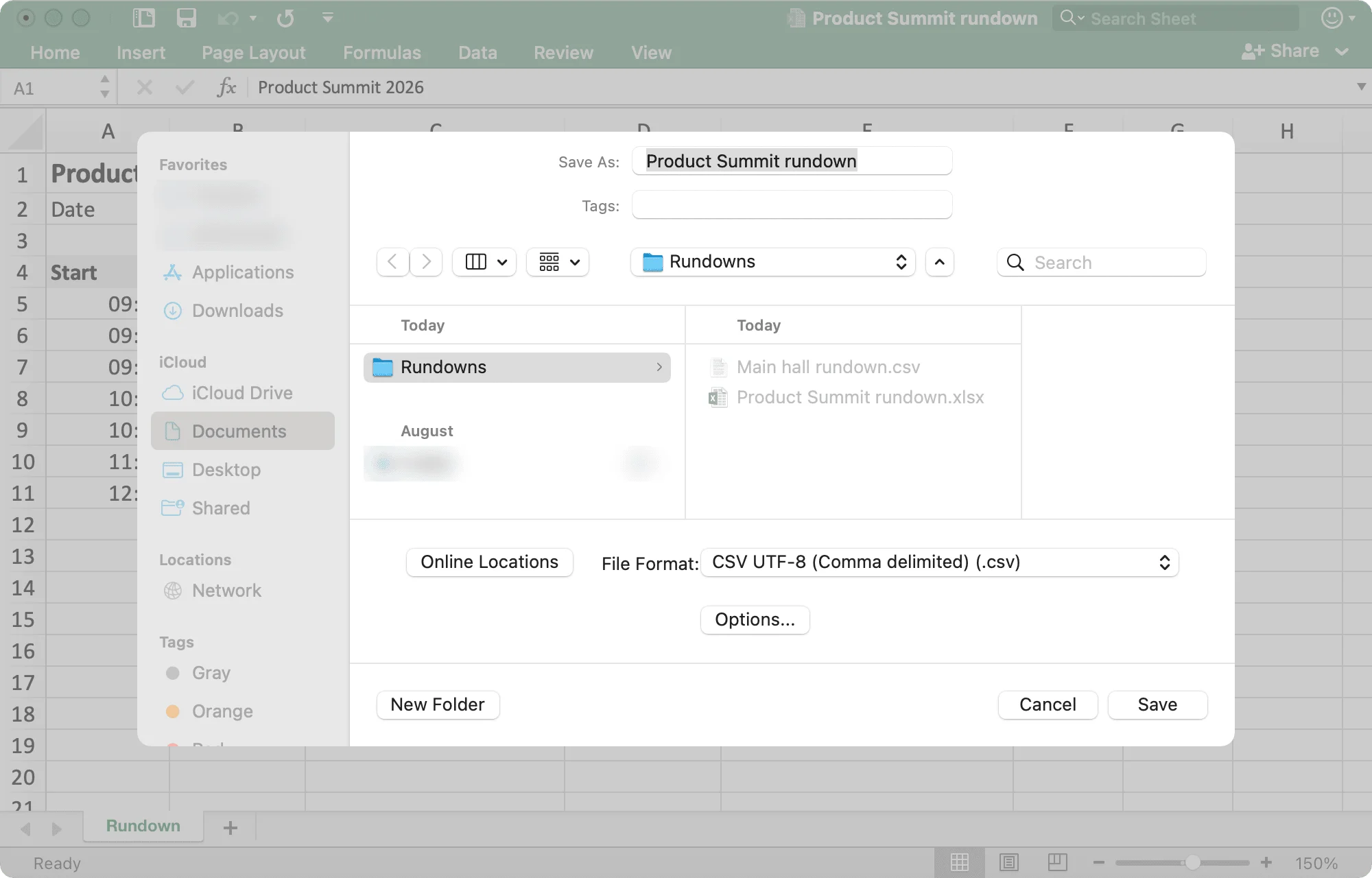
In Excel for Windows, the list is Save as type, and the format is CSV UTF-8 (Comma delimited) (*.csv). Choose CSV UTF-8 rather than Excel’s other CSV formats, which write accented letters, such as the é in José, in older encodings that the import can read wrong.
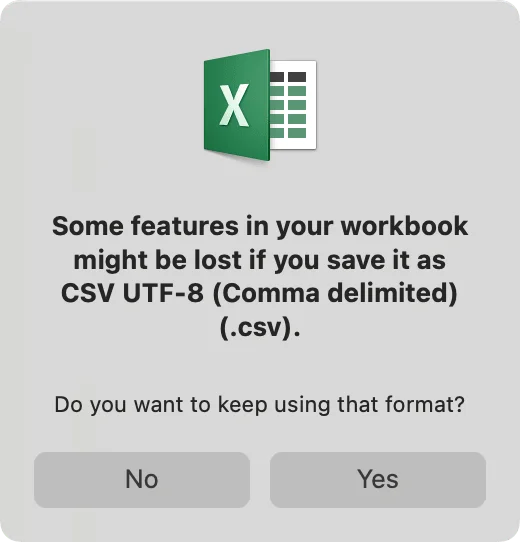
Excel for Mac then says some features in your workbook might be lost, and asks whether to keep using that format: choose Yes. The CSV keeps the values; your workbook’s file stays as it was. Excel now has the CSV open, so to go on editing the workbook, open its own file again.
Google Sheets
- Open the sheet with the rundown, from the tabs along the bottom.
- Choose File > Download > Comma Separated Values (.csv).
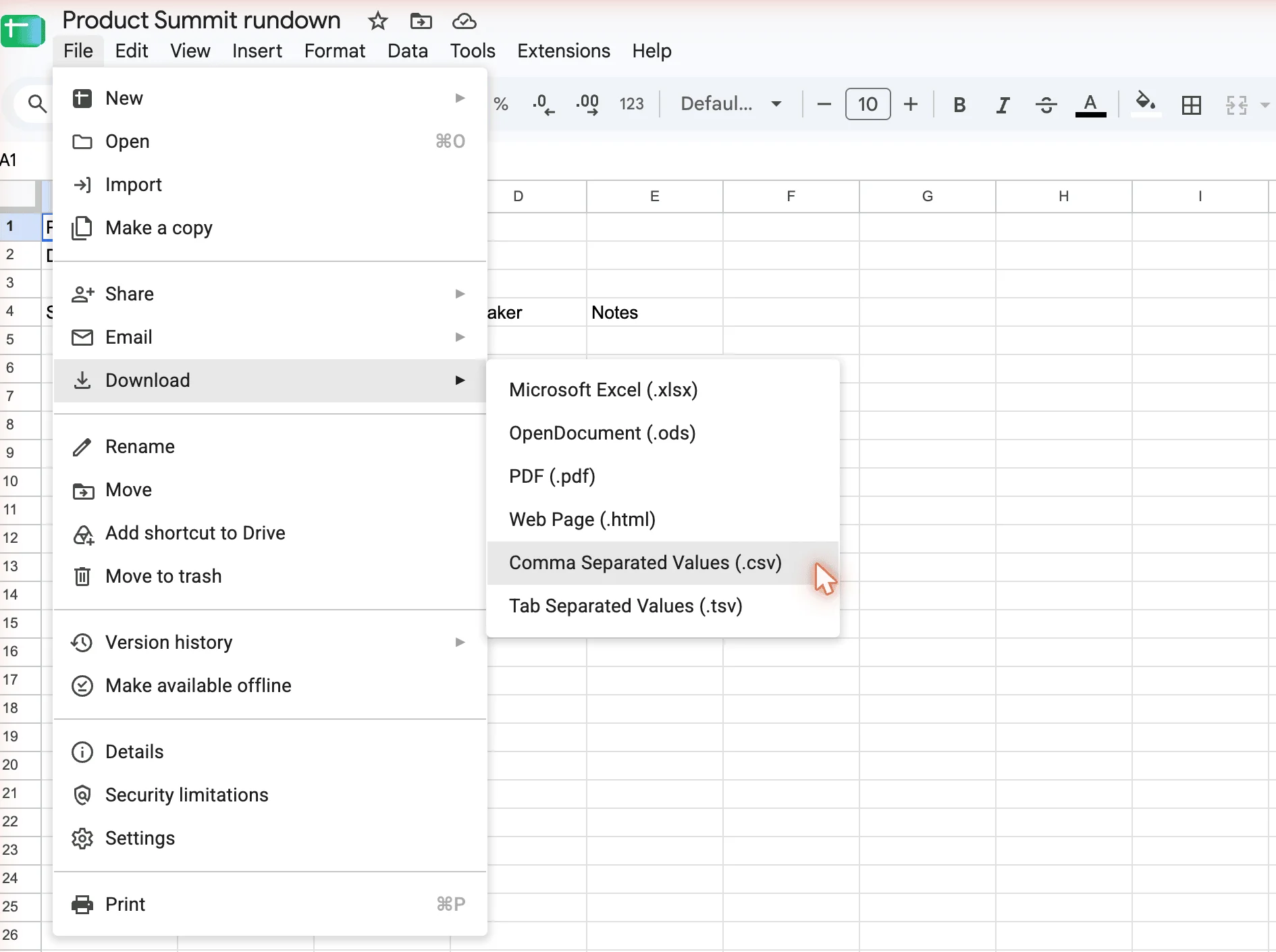
Your browser saves the file with its downloads.
Numbers
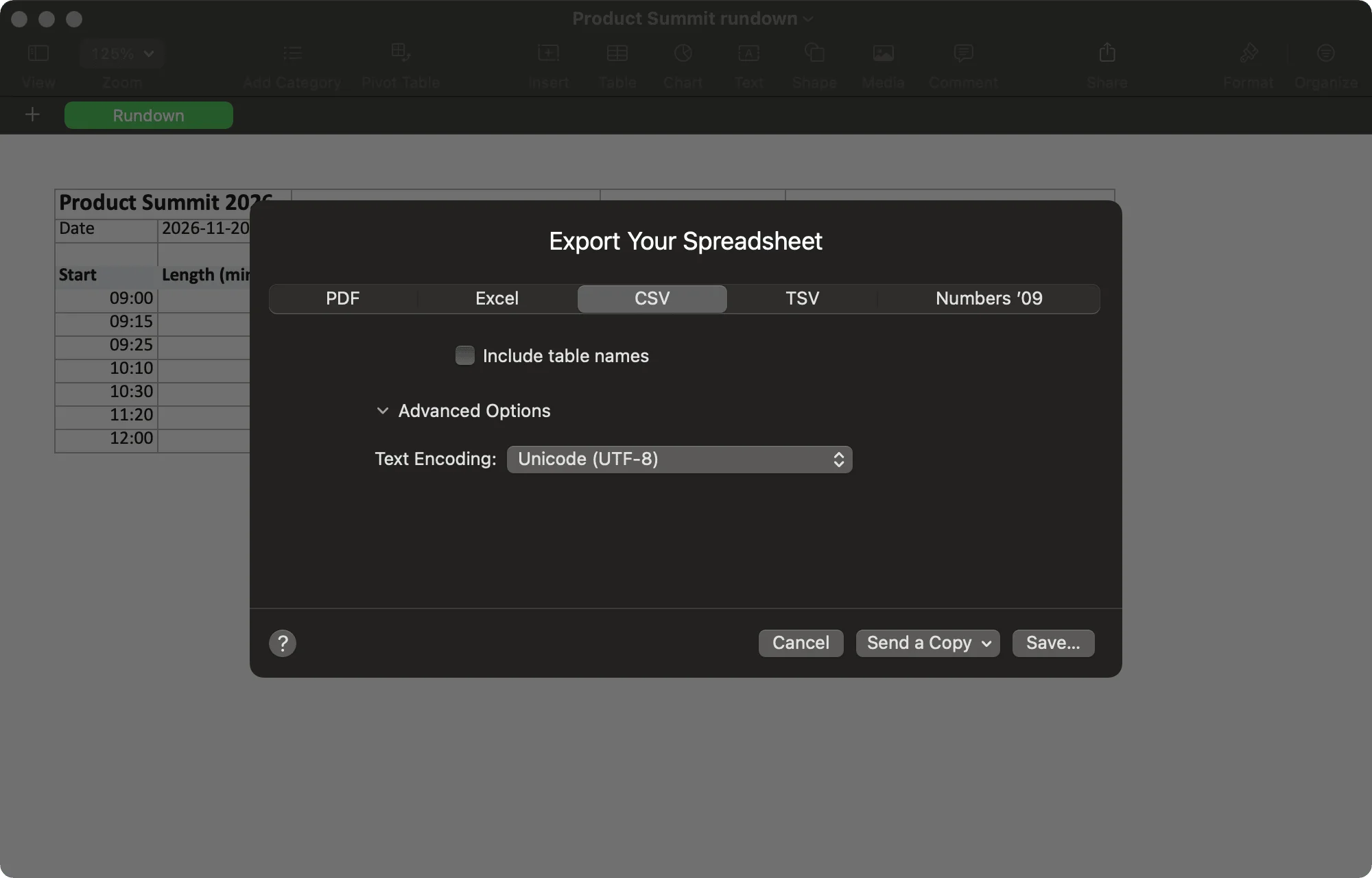
- Choose File > Export To > CSV.
- In Export Your Spreadsheet, open Advanced Options and check that Text Encoding is Unicode (UTF-8).
- Choose Save, choose where to save it, and choose Export.
Import it into a room
Pro and up- In the room’s controller, choose Settings. Under Import and export, choose Import a rundown.
- Under Spreadsheet file (CSV), choose Choose a file, and pick the CSV.
- Check the preview: the columns it took, and each row as the timer it becomes. Answer what it asks, such as what the starts do, and choose Import.

The preview’s choices, such as adding to the rundown or replacing it, are in The preview.
Open a room’s rundown in your spreadsheet
On any plan, in the controller’s Settings, under Import and export, choose
Rundown (CSV). Your browser saves it as the room’s name and rundown.csv, such as
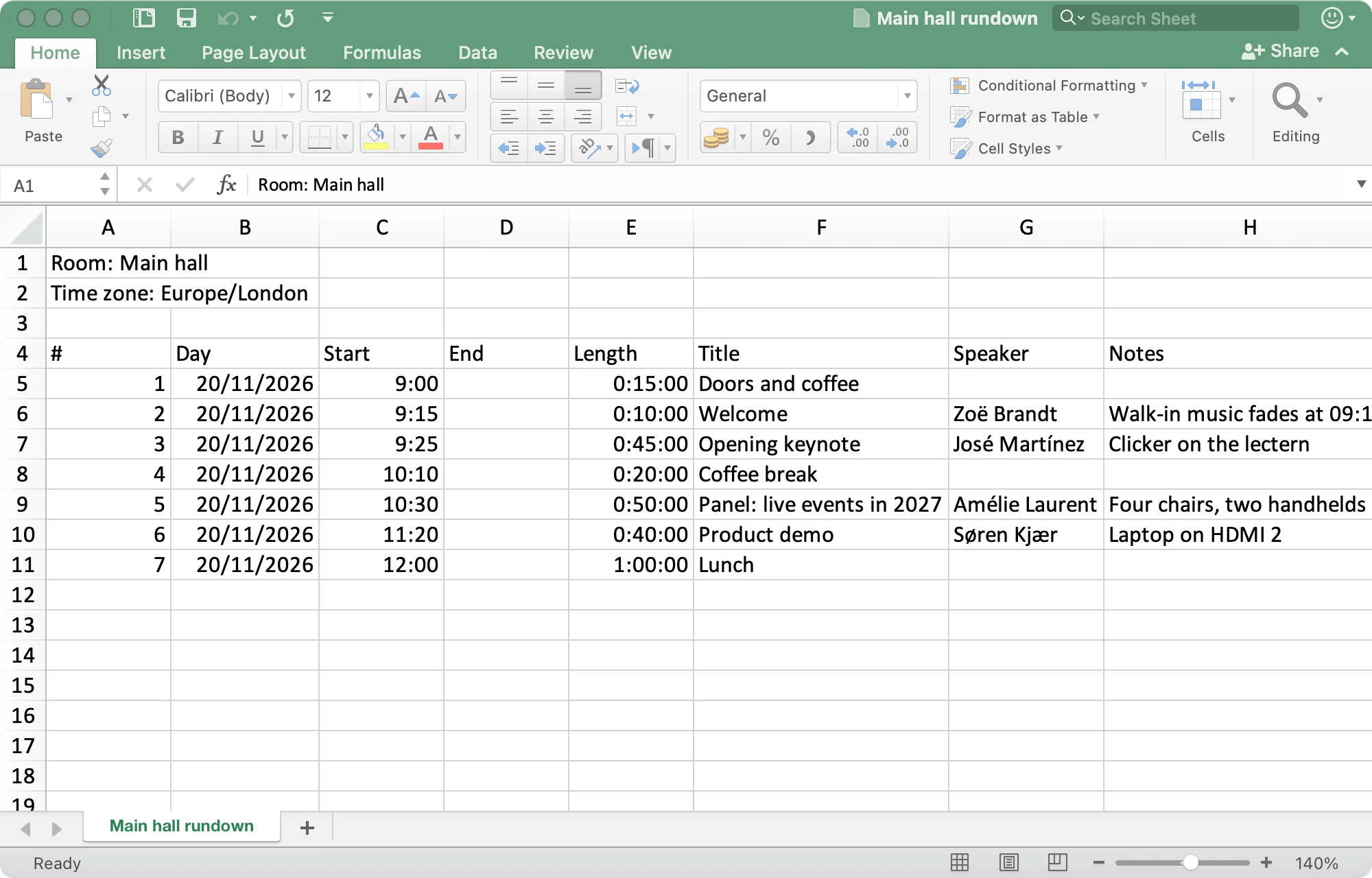
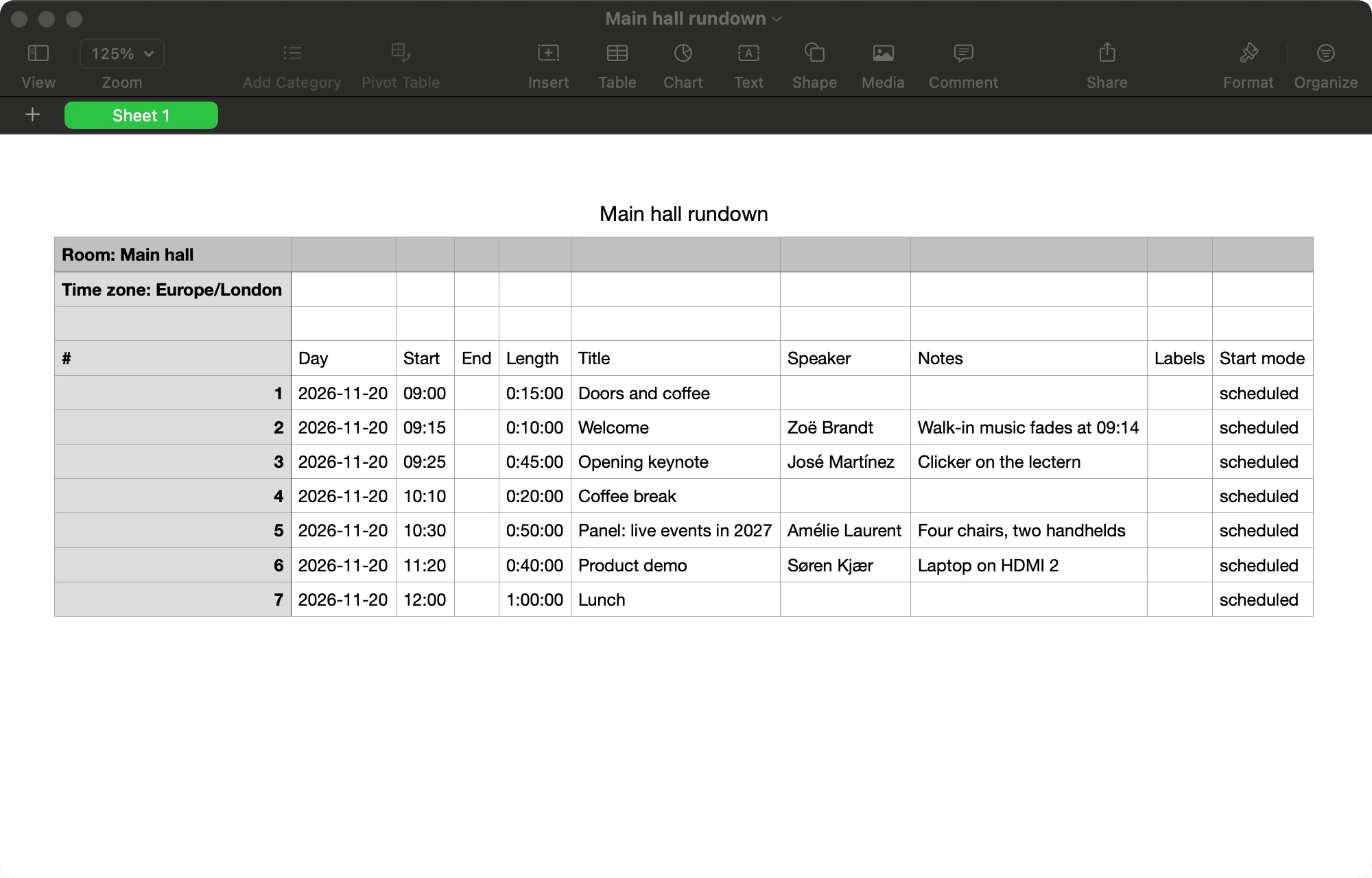
Main hall rundown.csv: the room’s name and time zone, then the columns #, Day, Start, End,
Length, Title, Speaker, Notes, Labels, and Start mode.
Excel
Choose File > Open and pick the file, or double-click it if Excel opens your CSV files.
Accented letters come through as they are. Excel shows days and times in your computer’s formats,
such as 20/11/2026 and 9:00, and the import reads those too.
Google Sheets
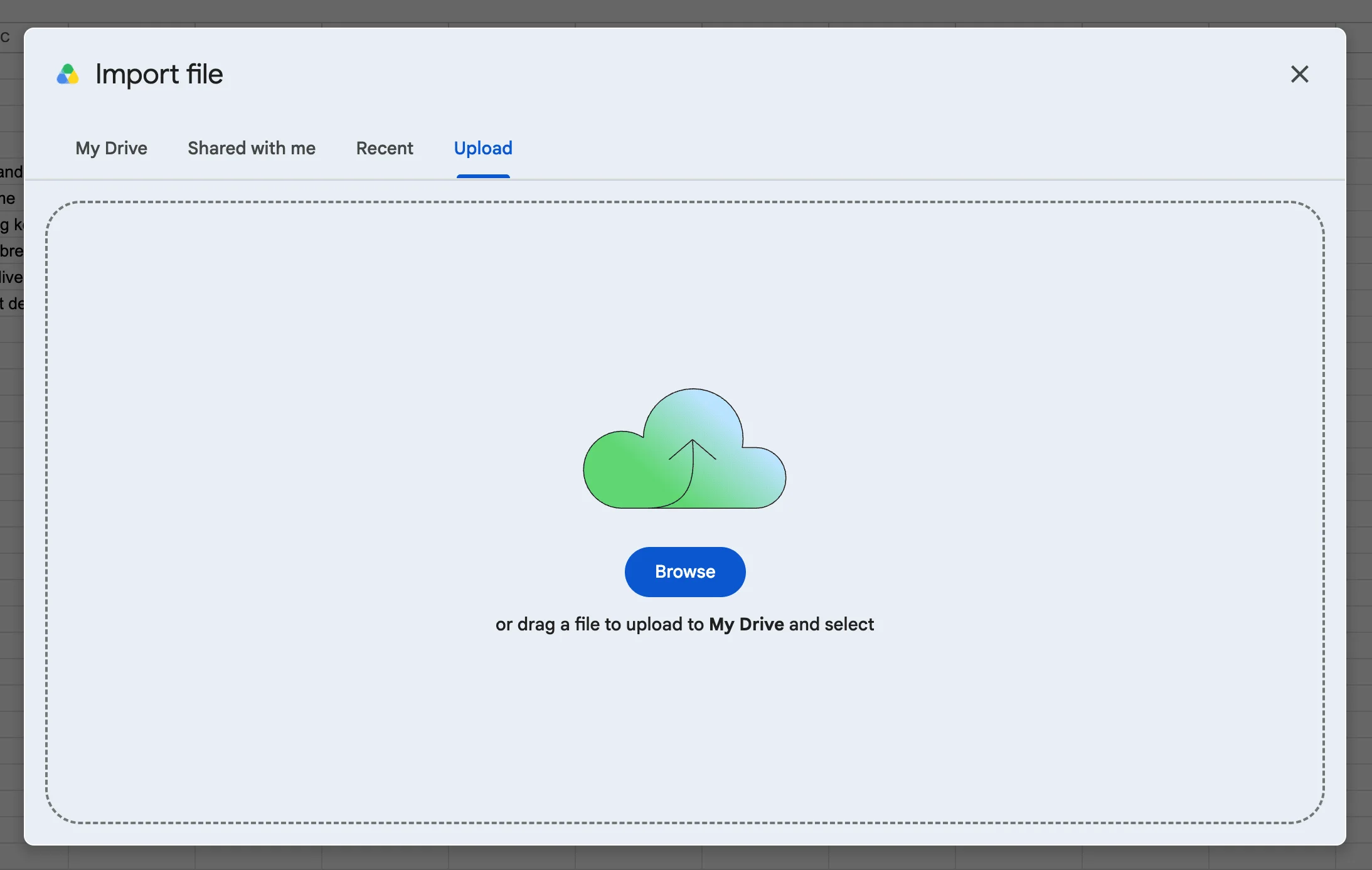
- Choose File > Import, then Upload, and choose Browse to pick the file.
- Choose Create new spreadsheet, or Insert new sheet(s) to add it as a tab beside your rundown. Leave Separator type on Detect automatically.
- Clear Convert text to numbers, dates, and formulas if it is ticked, so the days and times stay as the file writes them, and choose Import data.
Numbers
Choose File > Open and pick the file. Numbers makes a new spreadsheet from it.
Bring your changes back
Save the sheet as CSV again, as in Save it as CSV, and import it:
- Under Into the rundown, choose Replace the rundown, then Every timer, or Only the sheet’s days to keep the room’s other days and its timers without a day. The replace removes those timers and puts the sheet’s rows in as new timers, so Every timer also removes timers added in the room since the download.
- The preview asks what the starts do. Keep the times, start by hand keeps every start; Start on their own keeps a start more than a day past only when you move the days forward.
- Choose Import. A replace that removes timers you made asks first, and offers Download the rundown first. Nothing undoes a replace.
While the cued timer runs, or is paused partway through, Replace is off: choose Reset first.
The new timers come back with their titles, speakers, notes, lengths, days, starts, target times, start modes, and labels, unless a label holds a comma, a semicolon, or a bar. The rest of a timer’s settings, such as its appearance, wrap-up times, chimes, flashes, and time warp, are kept only in the room file, so a replace drops them: see What the rundown keeps.
When something looks wrong
- Accented letters show as other characters in the preview. The file was saved in an older encoding, and the preview says it read it as Windows-1252. Save it again as CSV UTF-8 in Excel, or with Unicode (UTF-8) in Numbers.
- The preview finds no header row. The row that names the columns must be among the sheet’s first ten lines that are not blank, and name a title column and a length, start, or end column.
- A length reads as hours, or as minutes, the wrong way. Two-part lengths such as
45:00read one way for the whole column, which the preview says, with a switch to the other. Whole minutes underLength (min)read only one way. - The days are a month out. Dates such as
07/11/2026read either way, and the preview follows your browser’s order until you switch it. A spreadsheet that rewrote the days in your computer’s format, as Excel does, and Google Sheets does when it converts text to dates, can make them so.