Speakers
Keep your speakers in one list, pick them for sessions, and send each one a private page with their times, their photo, and their card.
Last checked against CueStride on 16 November 2026.
Keep the people who speak at your events in one list. Pick them for their sessions, and each one gets a private page with when they are on. The page stays right when a room runs late.
Pro and upA speaker can add their photo and correct their card from that page. The crew sees the photo on the agendas and the backstage board. The moderator sees the card when it is time to introduce them. Each room can also say when to call its next speakers from the green room.
CueStride never emails a speaker. You send each one their link yourself.
Add your speakers

- Choose Speakers in the account’s header. Only an admin sees it.
- Type a name under Name and choose Add speaker.
- To rename one, choose Rename on its row. Each session that shows the name as you picked it follows the new name. The page says how many sessions changed.
- To delete one, choose Delete and confirm. They come off every session’s list. Each session’s text stays as it was.
A speaker is a name and nothing else about the person. Each row says how many sessions name them, across all your rooms.
Pick speakers for a session

Open a session’s timer dialog from a room you opened from the Rooms page. Under Speakers from your list, pick each one from Add a speaker… in the order they speak. Their names fill the Speaker line, joined by commas, and that line is what the screens show.
You can still type over the line, for “Three producers” or a guest’s title. The picks stay on the session, so their page, photo, and card still follow it.
A long panel fits too. When the names pass the line’s 200 characters, it ends with “and N more”.
On an import. A speaker cell that is exactly one speaker’s name picks that speaker. Case does not matter, but a cell is never split, so “Ada & Grace” matches nobody. A name two of your speakers share matches nobody either. The preview lists each name nobody in your list has, with a tick to add it first. See Import and export a rundown and Import a programme.
Send each speaker their page

- In Speakers, choose Link on a speaker’s row.
- Copy the link, or let them scan its QR code. Send it the way you reach them.
- To send every link at once, choose Download every link. It saves a sheet with each name and link.
The page lists the speaker’s sessions across your rooms: those already done first, then the rest in order of start. Each shows its day, room, and title, with “On in” ticking down. It also shows the expected start, the printed start, and how late or ahead the room runs. Just before the start, it says On any moment now. Once the session runs, it says On now, or On now, paused. A finished one says Done.
The page needs no account and no password. It asks for news once a minute while it is on screen. It never counts as one of a room’s screens.
A new link. Choose New link if a link went to the wrong person. The old link stops working at once, so send the new one.
Speaker photos

Only the speaker adds a photo, from their own page. They choose Add your photo and pick a picture. Under its preview, a sentence says who will see it, and Send photo sends it. Sending it is their consent to show it. An admin never adds one.
A photo shows beside the speaker’s name on:
- the room agenda, the event agenda, and the attendee page;
- the backstage board’s Up next;
- the controller’s rundown and the Speakers page;
- the speaker’s own page.
It never shows on the stage Timer. A panel shows three photos side by side, then a count of the rest, such as “+2”.
The speaker can remove their photo at any time. So can an admin, with Remove photo in Speakers, for a wrong or unsuitable picture. Both work on any plan. A removed photo stops showing within five minutes.
The speaker card

A card helps whoever introduces the speaker. It has four lines, each optional:
- Intro: one line about them, with no line break, of 300 characters or fewer.
- Pronunciation: how to say their name, such as “AY-duh LUV-lace”.
- Pronouns: such as “she/her”.
- Q&A: questions at the end, during the talk, or no questions.
An admin writes it with Card on the speaker’s row in Speakers. The speaker corrects it on their page. If both save at once, the second save is refused and shows the card as it now is.
Who sees which lines:
- The moderator page shows the whole card for the session on now and the one up next.
- The controller opens a session’s cards with Speaker cards on its row in the rundown.
- The speaker’s page shows their own card, with a sentence saying who sees it.
- The backstage boards show only the pronunciation and the pronouns, beside the name in Up next. Anyone with the room’s screen link can open a backstage board.
A card never reaches the stage Timer, the agendas, the attendee page, or an API key.
Call speakers on time
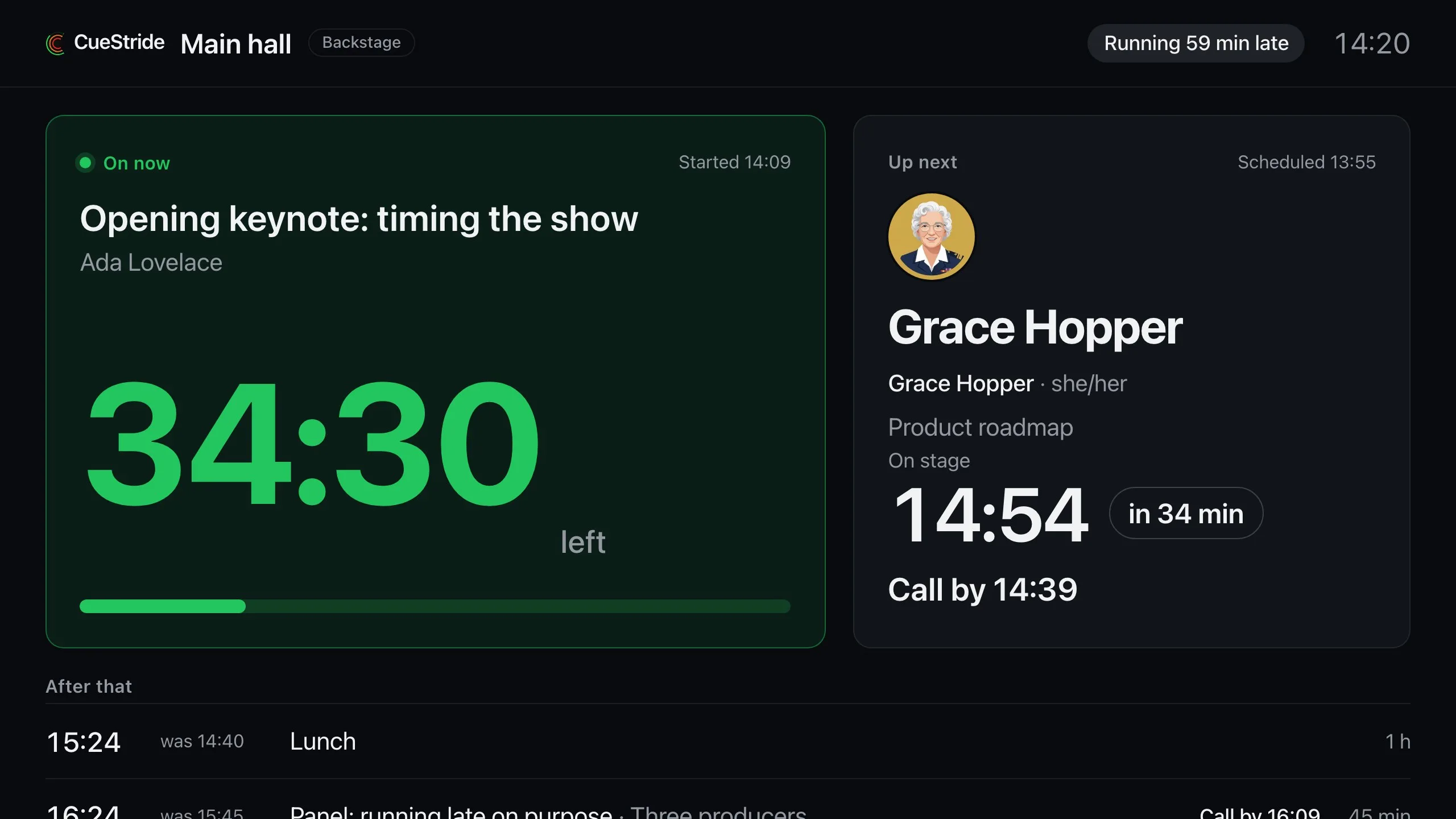
Each room has a lead time: how long before a session the crew should collect its speakers. It is 15 minutes to start. A session’s call time is its expected start less the lead. So it moves when the room runs late or ahead.
- The backstage board shows Call by with the time on Up next and the two after it. Once that time passes, it says Call now.
- The event board shows it on each room’s next row and the two after it.
- The moderator page shows it under Up next.
- The speaker’s page shows Be ready by with the time, then Be ready now.
To change it, open the room’s controller and choose Settings. Pick a time under Call speakers, or Off. Changing it needs Pro or above, the plans with the backstage board.

A session gets no call time in these cases:
- It names no speaker, picked or typed.
- It waits for the operator to start it, as the board’s When the operator starts it says. A session after it gets none either, unless its own printed start is still ahead.
- The room’s lead is Off.
- The account’s plan has no backstage board.
A session on When this one ends keeps its call time. The controller’s rundown, the stage Timer, the agendas, and the attendee page never show one.
Details
- On a plan without speakers. The list stays. Each row keeps Delete, Remove photo, and a Card that can only clear its lines. You cannot add, rename, or pick a speaker, and there is no Link. Speakers’ pages close, but a speaker can still remove their photo and clear their card.
- What the files carry. The rundown’s CSV and the room file keep the speaker line, never the picks. Opened in your account, a session whose line is one speaker’s name picks that speaker again. A line of two or more names stays text.
- Privacy. The privacy policy says what a speaker’s page, photo, and card hold, and who sees each.